EasyManua.ls Logo

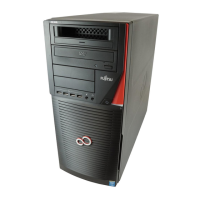
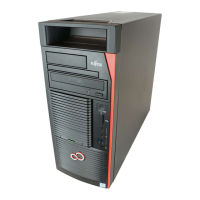
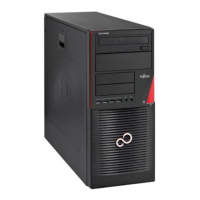
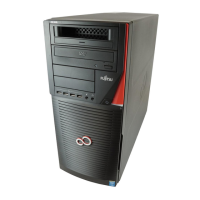
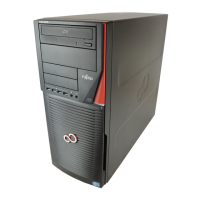
Fujitsu CELSIUS M720 - User Manual

Fujitsu CELSIUS M720
75 pages
Print Icon
To Next Page IconTo Next Page
Loading...
System
Operating Manual
CELSIUS M720

Table of Contents

Questions and Answers

  • L
    Lori BridgesAug 18, 2025
    How to correct the monitor settings on a Fujitsu CELSIUS M720 running Windows 7?
    • J
      Jennifer CannonAug 18, 2025
      To correct an incorrect monitor setting in Windows 7 on your Fujitsu Desktop, restart the device and press F8 while booting. If the menu for selecting the operating system appears, press F8 again. Select Safe Mode or Safe Mode with Networking. Then, go to Start – Control Panel – Appearance and Personalization – Display to enter the correct values for the connected monitor as described in the operating manual of the monitor.
  • V
    Victoria ReeseAug 20, 2025
    How to fix incorrect monitor settings in Windows Vista on a Fujitsu CELSIUS M720 Desktop?
    • J
      Jeremy KaiserAug 20, 2025
      To correct an incorrect monitor setting in Windows Vista on your Fujitsu Desktop, restart the device and press F8 while booting. If the menu for selecting the operating system appears, press the F8 key again. Select Safe Mode or Safe Mode with Network. Then, go to Start symbol – (Settings) – Control Panel – Appearance and Personalization – Personalization and enter the correct values for the connected monitor as described in the operating manual of the monitor.
  • R
    Richard WilsonAug 22, 2025
    How to resolve wrong monitor settings on Fujitsu CELSIUS M720 Desktop in Windows XP?
    • S
      Steven BruceAug 22, 2025
      To correct a wrong monitor setting in Windows XP on your Fujitsu Desktop, restart the device and press F8 while the system is booting. If the menu for selecting the operating system appears, press F8. Select Safe Mode or Safe Mode with Network. Go to Start – Settings – Control Panel – Display and the tabs Appearance, Themes, Settings to set the correct values for the connected monitor as described in the operating manual of the monitor.
  • A
    adam03Aug 26, 2025
    What to do if the Fujitsu Desktop monitor remains blank?
    • B
      Bonnie GibsonAug 26, 2025
      If the monitor remains blank, first, ensure it is switched on. If power saving is activated, press any key or deactivate the screen saver. Check the brightness control and adjust it if it's set too low. Verify that the power and monitor cables are securely connected to both the monitor and the Fujitsu Desktop, as well as to grounded mains outlets.
  • G
    George HoustonAug 28, 2025
    How to fix a Fujitsu CELSIUS M720 with power indicator off after switching on?
    • J
      Jacob CruzAug 28, 2025
      If the power indicator on your Fujitsu Desktop remains off after switching it on, check that the power cable is correctly plugged into the device and a grounded mains outlet. Also, ensure the main switch at the rear is set to 'I'. If the internal power supply is overloaded, unplug the device, wait a moment, then plug it back into a grounded outlet and switch it on.
  • M
    Michael JohnsonAug 30, 2025
    What to do if Fujitsu Desktop cannot be switched off with the ON/OFF switch?
    • C
      Christina LewisAug 30, 2025
      If you can't switch off your Fujitsu Desktop with the ON/OFF switch, press the ON/OFF switch again. If a system crash occurred, keep the on/off switch pressed for at least 4 seconds until the machine switches off. Be aware that this can lead to data loss and potential error messages upon the next system start.
  • J
    jordan35Sep 1, 2025
    How to restore the mouse pointer on a Fujitsu CELSIUS M720?
    • M
      Mary ReedSep 1, 2025
      If no mouse pointer is displayed on the screen of your Fujitsu Desktop, properly shut down the operating system and switch the device off. Check that the mouse cable is correctly connected to the system unit and that only one mouse is connected. If you are using an adapter or extension lead with the mouse cable, check the connections. Also, check in the BIOS-Setup whether the mouse controller is enabled and that the mouse driver is properly installed.
  • J
    James MartinezSep 4, 2025
    Why is the time and/or date incorrect on my Fujitsu CELSIUS M720?
    • D
      deborah33Sep 4, 2025
      If the time and/or date is not correct on your Fujitsu Desktop, set the correct time and date within the operating system or in the BIOS Setup. If the time and date are repeatedly wrong when you switch on your device, replace the lithium battery (see 'Replacing the lithium battery', Page 67).
  • J
    Joanne CampbellSep 6, 2025
    Why Fujitsu CELSIUS M720 power indicator remains off?
    • M
      martinezrichardSep 6, 2025
      The power indicator might remain off on your Fujitsu Desktop due to a faulty mains voltage supply or an overloaded internal power supply. First, ensure the power cable is correctly plugged into the device and a grounded mains outlet, and that the main switch at the rear is set to the "I" position, then switch the device on. If that doesn't work, pull the power plug out, wait about 3 minutes, plug it back into a grounded outlet, and switch the device on again.
  • J
    Jonathan JacobsonSep 9, 2025
    What to do if Fujitsu Desktop monitor remains blank?
    • M
      Michelle WashingtonSep 9, 2025
      If your Fujitsu Desktop monitor remains blank, there are several potential causes. First, ensure the monitor is switched on. Second, check if power saving has been activated; press any key or deactivate the screen saver. Third, adjust the brightness control. Fourth, verify that both the monitor and device power cables are properly connected to the devices and grounded mains outlets. Fifth, check that the monitor cable is properly connected to both the device and monitor. Finally, restart the system, press F8 while booting, start in Safe Mode, and set up the monitor as described in your operating system and monitor documentation.

Summary

Ports and operating elements

Important notes

Safety Information

Essential safety precautions for device installation and operation.

Getting started

Steps for Initial Setup

A high-level overview of the initial setup process for the device.

Setting Up the Device

Recommendations for placing the device and ensuring proper ventilation.

Connecting the Machine to the Mains

Step-by-step guide for connecting the computer to a power source.

Ports on the Device

Visual guide and descriptions of various ports available on the computer.

Connecting a Monitor

Procedure for connecting a display monitor to the system.

Connecting the Mouse

Instructions for connecting both USB and PS/2 mice to the computer.

Connecting the Keyboard

Instructions for connecting both USB and PS/2 keyboards to the computer.

First Time Power-On and Software Installation

Steps for powering on the device for initial software installation.

Switching on Monitor and Device

How to power on the monitor and the computer system.

Installing the Software

Guidance on following on-screen prompts for software installation.

Operation

Switch the Device On

Procedure for turning on the computer system.

Switching Off the Device

Steps for properly shutting down the computer system.

Settings in BIOS Setup

Information on configuring system functions and hardware via BIOS setup.

Property and Data Protection

Overview of features for protecting the device and personal data.

BIOS Setup Security Functions

Details on security options available within the BIOS setup utility.

Troubleshooting and Tips

Help if Problems Occur

Guidance on what to do when encountering system issues and how to contact support.

Troubleshooting

General section for diagnosing and resolving common system problems.

Power Indicator Remains Off

Steps to diagnose why the power indicator does not light up.

Device Cannot Be Switched Off

Solutions for when the system fails to power down correctly.

Monitor Remains Blank

Troubleshooting steps for a display that shows no image.

No Mouse Pointer Displayed

Solutions for when the mouse cursor is not visible on the screen.

Incorrect Time and Date

Steps to correct incorrect system time and date settings.

Restoring Hard Disk Contents

Instructions for restoring the hard disk drive contents, specifically for Windows 7.

System Expansions

Opening the Casing

Step-by-step guide on how to safely open the computer system casing.

Closing the Casing

Instructions for properly closing and securing the computer system casing.

Installing and Removing 5.25-inch Drive

Procedures for installing and removing 5.25-inch drives.

Installing an Accessible Drive

Steps to install various types of accessible drives into the casing bays.

Removing an Accessible Drive

Steps to remove installed accessible drives from the casing.

Technical Data

Fujitsu CELSIUS M720 Specifications

General IconGeneral
BrandFujitsu
ModelCELSIUS M720
CategoryDesktop
LanguageEnglish

Related product manuals