EasyManua.ls Logo

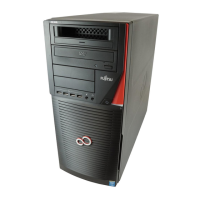
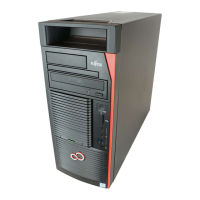
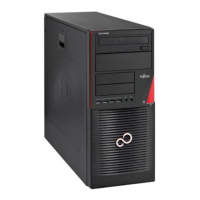
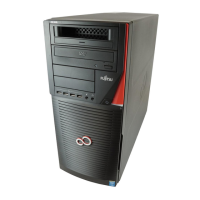
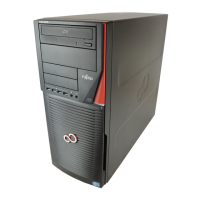
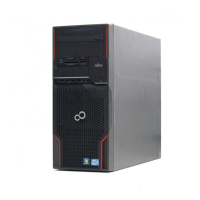
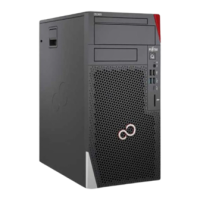
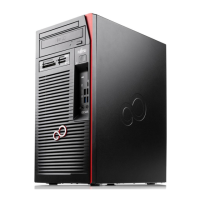
Fujitsu CELSIUS M720 - User Manual

Fujitsu CELSIUS M720
75 pages
Print Icon
To Next Page IconTo Next Page
Loading...
System
Operating Manual
CELSIUS M720

Table of Contents

Questions and Answers

  • T
    thomas23Sep 12, 2025
    How to fix incorrect time and date on Fujitsu Desktop?
    • L
      lisa82Sep 12, 2025
      If the time and/or date is not correct on your Fujitsu Desktop, it could be due to incorrect settings or a discharged lithium battery. Try setting the correct time and date within your operating system or in the BIOS Setup. If the issue persists, especially after switching on the device, you may need to replace the lithium battery.
  • J
    Jose BeckSep 14, 2025
    How to fix no mouse pointer on Fujitsu CELSIUS M720 Desktop?
    • B
      Brandon HarrisonSep 14, 2025
      If there is no mouse pointer displayed on the screen of your Fujitsu Desktop, it could be due to an incorrectly connected mouse or a disabled mouse controller. Ensure the mouse cable is properly connected to the system unit. If you're using an adapter or extension lead, check those connections as well. Also, check in the BIOS-Setup to see if the mouse controller is enabled and verify that the mouse driver is properly installed.

Summary

Ports and operating elements

Important notes

Safety Information

Essential safety precautions for device installation and operation.

Getting started

Steps for Initial Setup

A high-level overview of the initial setup process for the device.

Setting Up the Device

Recommendations for placing the device and ensuring proper ventilation.

Connecting the Machine to the Mains

Step-by-step guide for connecting the computer to a power source.

Ports on the Device

Visual guide and descriptions of various ports available on the computer.

Connecting a Monitor

Procedure for connecting a display monitor to the system.

Connecting the Mouse

Instructions for connecting both USB and PS/2 mice to the computer.

Connecting the Keyboard

Instructions for connecting both USB and PS/2 keyboards to the computer.

First Time Power-On and Software Installation

Steps for powering on the device for initial software installation.

Switching on Monitor and Device

How to power on the monitor and the computer system.

Installing the Software

Guidance on following on-screen prompts for software installation.

Operation

Switch the Device On

Procedure for turning on the computer system.

Switching Off the Device

Steps for properly shutting down the computer system.

Settings in BIOS Setup

Information on configuring system functions and hardware via BIOS setup.

Property and Data Protection

Overview of features for protecting the device and personal data.

BIOS Setup Security Functions

Details on security options available within the BIOS setup utility.

Troubleshooting and Tips

Help if Problems Occur

Guidance on what to do when encountering system issues and how to contact support.

Troubleshooting

General section for diagnosing and resolving common system problems.

Power Indicator Remains Off

Steps to diagnose why the power indicator does not light up.

Device Cannot Be Switched Off

Solutions for when the system fails to power down correctly.

Monitor Remains Blank

Troubleshooting steps for a display that shows no image.

No Mouse Pointer Displayed

Solutions for when the mouse cursor is not visible on the screen.

Incorrect Time and Date

Steps to correct incorrect system time and date settings.

Restoring Hard Disk Contents

Instructions for restoring the hard disk drive contents, specifically for Windows 7.

System Expansions

Opening the Casing

Step-by-step guide on how to safely open the computer system casing.

Closing the Casing

Instructions for properly closing and securing the computer system casing.

Installing and Removing 5.25-inch Drive

Procedures for installing and removing 5.25-inch drives.

Installing an Accessible Drive

Steps to install various types of accessible drives into the casing bays.

Removing an Accessible Drive

Steps to remove installed accessible drives from the casing.

Technical Data

Fujitsu CELSIUS M720 Specifications

General IconGeneral
BrandFujitsu
ModelCELSIUS M720
CategoryDesktop
LanguageEnglish

Related product manuals