EasyManua.ls Logo

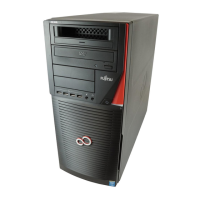
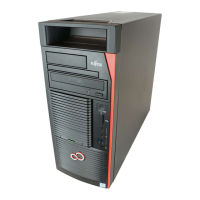
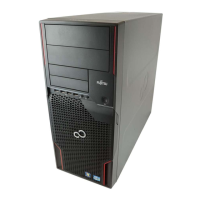
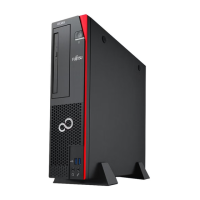
Fujitsu CELSIUS W510 - User Manual

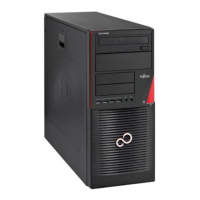
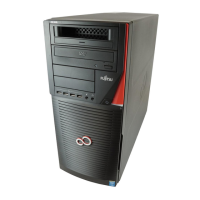
Fujitsu CELSIUS W510
70 pages
Print Icon
To Next Page IconTo Next Page
Loading...
System
Operating Manual
CELSIUS W510

Table of Contents

Questions and Answers

  • M
    Michael OliverAug 13, 2025
    How to fix wrong monitor settings on Fujitsu Desktop in Windows XP?
    • L
      Lori RodriguezAug 13, 2025
      To fix the wrong monitor setting under Windows XP on your Fujitsu Desktop, restart the device and press F8 while booting to access the Windows Advanced Start Options menu (or press F8 if the operating system selection menu appears first). Select Safe Mode or Safe Mode with Networking. Then, navigate to Start – Settings – Control Panel – Display and adjust the Appearance, Themes, and Settings tabs to match the connected monitor's correct values as described in its operating manual.
  • P
    perrylauraAug 17, 2025
    How to correct incorrect monitor settings on Fujitsu CELSIUS W510 Desktop in Windows Vista?
    • A
      Ashley GarciaAug 17, 2025
      To correct an incorrect monitor setting in Windows Vista on your Fujitsu Desktop, restart the device and press F8 during startup to access the Windows Advanced Start Options menu (or press F8 if the operating system selection menu appears first). Choose Safe Mode or Safe Mode with Networking. Then, go to Start symbol – (Settings) – Control Panel – Appearance and Personalization – Personalization and enter the correct settings for your monitor, referring to the monitor's operating manual.
  • J
    Justin JonesAug 21, 2025
    How to fix wrong monitor settings on Fujitsu CELSIUS W510 in Windows 7?
    • W
      William CollinsAug 21, 2025
      To correct the wrong monitor settings in Windows 7 on your Fujitsu Desktop, restart the device and press F8 while the system is booting. This should bring up either the Windows Advanced Start Options menu or the operating system selection menu. If the latter appears, press F8 again. Select Safe Mode or Safe Mode with Network. Then, go to Start – Control Panel – Appearance and Personalization – Display to enter the correct values for the connected monitor as described in the operating manual of the monitor.
  • J
    jenniferwallAug 25, 2025
    Why does my Fujitsu CELSIUS W510 Desktop monitor remain blank?
    • S
      silvaallisonAug 25, 2025
      If your Fujitsu Desktop monitor remains blank, first, ensure the monitor is switched on. If it is, check if power saving mode is active by pressing any key or deactivating the screen saver, entering the password if needed. Also, verify the brightness isn't set too low. Make sure the power and monitor cables are correctly connected to both the device and a grounded outlet. Switch the monitor and device off and then on again after checking the connections.
  • J
    Jamie RuizAug 28, 2025
    How to fix a Fujitsu CELSIUS W510 when the power indicator remains off?
    • A
      Angie CookAug 28, 2025
      If the power indicator on your Fujitsu Desktop remains off after switching it on, check that the power cable is properly connected to both the device and a grounded mains outlet, and that the main switch at the rear is in the "I" position. If it still doesn't work, the internal power supply might be overloaded. In that case, unplug the device, wait a moment, plug it back into a grounded outlet, and switch it on again.
  • A
    April AllenSep 1, 2025
    What to do if no mouse pointer is displayed on Fujitsu Desktop screen?
    • K
      Kristen SandersSep 1, 2025
      If there is no mouse pointer displayed on the screen of your Fujitsu Desktop, ensure the mouse is correctly connected to the system unit, checking any adapters or extension leads. Make sure only one mouse is connected. If the connection is correct, verify in the BIOS-Setup that the mouse controller is enabled and that the mouse driver is properly installed when starting the application. If the problem persists, consult the user guide for the mouse and application program for more details.
  • S
    Steven HernandezSep 4, 2025
    What to do if Fujitsu CELSIUS W510 Desktop cannot be switched off with the ON/OFF switch?
    • L
      Laura Johnson MDSep 5, 2025
      If your Fujitsu Desktop cannot be switched off with the ON/OFF switch, try pressing the ON/OFF switch again. If that doesn't work and you suspect a system crash, press and hold the power button for at least 4 seconds to force a shutdown. Be aware that this can cause data loss and may result in error messages when the system restarts.
  • K
    kathyyoderSep 9, 2025
    Why is the time and/or date not correct on my Fujitsu CELSIUS W510 Desktop?
    • A
      Angela HuynhSep 9, 2025
      If the time and/or date is not correct on your Fujitsu Desktop, set the correct time and date within the operating system or in the BIOS Setup. If the issue persists after restarting, the lithium battery may be discharged and needs replacement. See "Replacing the lithium battery", Page 62.

Summary

Important Notes and Safety Information

Safety Information

General safety guidelines and precautions for operating the device.

Transporting the Device

Instructions for safely moving the computer system from one location to another.

Cleaning the Device

Guidelines for cleaning the computer hardware to maintain functionality and appearance.

Energy Saving, Disposal, and Recycling

Information on power management, environmental disposal, and recycling procedures.

Regulatory Compliance Marks

Details on CE marking and FCC compliance statements for the device.

Getting Started with Your System

Unpacking and Checking Delivery

Procedures for unpacking and verifying the contents of the delivered system.

Initial Setup Steps

Outline of the essential steps required for the first-time operation of the device.

Device Setup and Power Connection

Guidance on placing, preparing, and connecting the device to the mains power.

External Device Connectivity

Procedures for connecting and disconnecting external hardware components and cables.

Ports on the Device

Identification and description of all available ports on the computer.

Monitor Connection

Steps for connecting a display monitor to the computer.

Input Device Connection

Instructions for connecting mice and keyboards to the system.

Port-Specific Device Connections

Guide to connecting devices via parallel, serial, and USB ports.

Initial Power-On and Software Installation

Guide to the first power-on and software setup process.

Operating Your Fujitsu System

Device Power Management

Instructions for switching the device on and off.

Device Status Indicators

Explanation of the status indicators on the computer casing.

Keyboard Functions and Shortcuts

Overview of keyboard layout, keys, and common shortcuts.

BIOS Setup Configuration

Information on configuring system settings via the BIOS.

Device Security and Protection

Features and methods for securing the device and personal data.

Security Features and BIOS Setup

Security options within BIOS and mechanical casing lock.

SmartCard Reader Operation

How to operate the optional SmartCard reader for access control.

Troubleshooting and System Tips

Help if Problems Occur

Guidance on what to do when encountering issues with the system.

Troubleshooting Common Issues

Solutions for specific problems like power, display, and input device errors.

System Tips and Recovery

Advice on system resources and restoring hard disk contents.

System Expansions and Upgrades

Information About Boards

Details on handling and installing expansion boards.

Casing Management

Step-by-step guides for opening and closing the computer casing.

Drive Bay Overview

Description of available drive bays and drive types.

Managing 5.25-inch Drives

Procedures for installing and removing 5.25-inch drives and their covers.

Installing Accessible Drives

Steps for installing accessible drives into bays.

Removing Accessible Drives

Steps for removing accessible drives from bays.

3.5-inch Reader Installation;Removal

Procedures for installing/removing 3.5-inch readers like SmartCard/MultiCard.

Module Holder and Reader Management

Instructions for removing module holders and attaching readers.

Installing Module Holder with Reader

Procedures for installing a module holder with a reader.

Removing Module Holder and Reader

Procedures for removing module holders with readers and readers from holders.

WLAN Module Installation and Removal

Procedures for installing and removing a Wireless LAN module.

Component Access and Side Fan Installation

Steps for removing front panel, side fan, and installing the side fan.

Securing the Front Panel

Steps for reattaching and securing the front panel.

Hard Disk Drive Installation;Removal

Guide to installing/removing hard disks and related panels/grilles.

Removing a Hard Disk

Procedures for removing hard disk drives from the system.

Expansion Board Installation and Removal

Procedures for installing and removing expansion boards.

Heat Sink Management

Procedures for installing and removing heat sinks.

Mainboard Upgrades

Information on upgrading main memory and replacing the processor.

Lithium Battery Replacement

Procedures for replacing the CMOS lithium battery.

Technical Data Specifications

Electrical Data

Specifications regarding safety standards, voltage, frequency, and current.

Dimensions

Physical measurements of the device.

Weight

The weight of the device in its basic configuration.

Ambient Conditions

Environmental specifications for operation and transportation.

Ventilation Clearance Requirements

Recommended spacing for proper airflow and cooling.

Fujitsu CELSIUS W510 Specifications

General IconGeneral
ChipsetIntel C206
Memory Slots4 DIMM slots
Form FactorTower
ProcessorsIntel Xeon E3-1200 series, Intel Core i3/i5/i7
RAMUp to 32 GB
GraphicsIntegrated Intel HD Graphics, optional NVIDIA Quadro
StorageUp to 2TB HDD or SSD
Optical DriveOptional DVD+/-RW
AudioIntegrated HD audio
NetworkingIntegrated Intel 82579LM Gigabit Ethernet
Expansion Slots1 PCIe x16, 1 PCIe x4, 1 PCIe x1, 1 PCI
Front Ports2x USB 3.0, 2x USB 2.0, audio in/out
Rear Ports4x USB 3.0, 2x USB 2.0, 1x DisplayPort, 1x RJ-45, audio in/out
Power Supply280W
Operating SystemWindows 7 Professional
Dimensions175 x 425 x 440 mm

Related product manuals