EasyManua.ls Logo

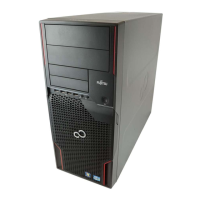
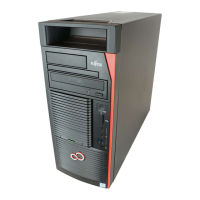
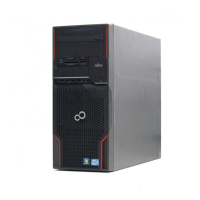
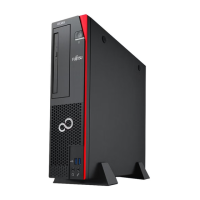
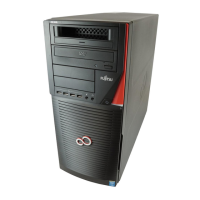
Fujitsu CELSIUS M740 - User Manual

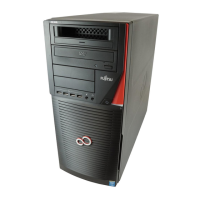
Fujitsu CELSIUS M740
81 pages
Print Icon
To Next Page IconTo Next Page
Loading...
System
Operating Manual
FUJITSU Workstation
CELSIUS M740
CELSIUS M740power

Table of Contents

Questions and Answers

  • P
    Peggy LeeAug 4, 2025
    What to do if Fujitsu CELSIUS M740 power-on indicator remains unlit?
    • B
      Benjamin McintoshAug 4, 2025
      If the power-on indicator of your Fujitsu Desktop doesn't light up, it could be due to: * A faulty mains voltage supply: Check that the power cable is properly plugged into both the device and a grounded mains outlet. * An overloaded internal power supply: Unplug the device from the mains outlet, wait approximately 3 minutes, then plug it back into a properly grounded outlet, and switch the device on.
  • M
    Michael StevensAug 11, 2025
    How to fix incorrect time and/or date on Fujitsu Desktop?
    • M
      millernatalieAug 11, 2025
      Incorrect time and date on your Fujitsu Desktop can be corrected by: * Setting the correct time and date within your operating system or in the BIOS Setup. * If the time and date are repeatedly wrong, the lithium battery may be discharged. In this case, replace the lithium battery.
  • J
    Jacob ValdezAug 18, 2025
    What to do if Fujitsu Desktop cannot be switched off with the ON/OFF switch?
    • D
      Donna OsbornAug 18, 2025
      If your Fujitsu Desktop cannot be switched off with the ON/OFF switch because of a system crash, keep the on/off switch pressed for at least 4 seconds until the machine switches off. Be cautious: This can lead to data loss, as this procedure doesn't allow the operating system to shut down in an orderly way, and error messages may appear upon the next system start.
  • G
    Gregory KimOct 26, 2025
    Why Fujitsu CELSIUS M740 Desktop monitor remains blank?
    • S
      Savannah StoutOct 26, 2025
      A blank monitor screen on your Fujitsu Desktop can occur for several reasons: * The monitor might be switched off: Simply switch your monitor on. * Power saving might be activated: Press any key on the keyboard, or deactivate the screen saver. Enter the password if required. * Brightness control might be set to dark: Adjust the brightness control. * Power cable might not be connected: Ensure the monitor power cable is properly connected to both the monitor and a grounded outlet or the device's monitor socket. Also, check the device power cable is properly connected to the device and a grounded outlet. Then, switch on the monitor and the device. * Monitor cable might not be connected: Ensure the monitor cable is properly connected to both the device and the monitor. Then, switch ...

Summary

Ports and Operating Elements

Important Notes

Safety and Handling Precautions

Covers essential safety information, handling, and transportation of the device.

Getting Started

Preparation and Initial Setup

Guides for unpacking, checking delivery, and preparing the device for first use.

First-Time Startup and Software Installation

Steps for powering on the system and installing the operating software.

Operation

Troubleshooting and Tips

Troubleshooting Common Issues

Addresses problems like power failures, monitor issues, and device unresponsiveness.

System and Software Troubleshooting

Solutions for time/date errors, software installation problems, and disk restoration.

Fujitsu CELSIUS M740 Specifications

General IconGeneral
ChipsetIntel C612
ProcessorsIntel Xeon E5-2600 v3
RAMUp to 512GB DDR4 ECC
MemoryUp to 512 GB DDR4 2400 MHz ECC RDIMM
StorageUp to 8x 2.5-inch or 4x 3.5-inch HDD/SSD
GraphicsNVIDIA Quadro and AMD FirePro professional graphics
Operating SystemWindows 10 Pro, Linux
Power Supply800W 80 PLUS Platinum
Optical DriveOptional Blu-ray/DVD writer
NetworkingIntel I210-AT Gigabit Ethernet
Ports6x USB 3.0, 4x USB 2.0, 2x PS/2, 1x Serial

Related product manuals