EasyManua.ls Logo

Fujitsu Q616 - User Manual

Fujitsu Q616
89 pages
Print Icon
To Next Page IconTo Next Page
Loading...
System
Operating manual
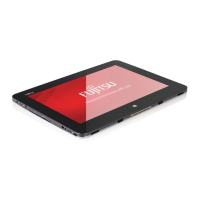
FUJITSU Tablet STYLISTIC Q616

Table of Contents

Questions and Answers

  • L
    Lisa JohnsonAug 21, 2025
    What to do if Fujitsu Tablet PC stops working?
    • C
      christopherjuarezAug 21, 2025
      If your Fujitsu Tablet PC stops working, it may be in energy-saving mode, so leave energy-saving mode. Alternatively, an application program may have caused the malfunction, so close the application program or restart the Tablet PC. Also, ensure the battery is not dead by charging it or connecting the mains adapter.
  • H
    hinespaulSep 3, 2025
    How to fix blank or unstable image on external monitor connected to Fujitsu Tablet?
    • R
      Russell BellSep 3, 2025
      Terminate the application program in Windows. If the error persists after terminating the program, use the key combination for switching the screen output in order to switch to the touchscreen of the tablet PC. Change the following setting: Set the screen resolution as described in the documentation for your operating system. Select monitor: Select monitor 1 or 2 as described in the documentation for your operating system.
  • T
    Thomas RuizSep 1, 2025
    What to do if Fujitsu Q616 PC's touchscreen remains dark?
    • K
      Kent GoodwinSep 1, 2025
      If the touchscreen is switched off, press a key (external keyboard) or tap on the touchscreen. If you have connected an external monitor or television, check whether the graphics driver settings are correct or whether an external monitor has been detected in "Intel Graphics Media Accelerator Driver for mobile".
  • M
    meganhoffmanAug 31, 2025
    What to do if the printer does not print from Fujitsu Tablet?
    • A
      Alex HernandezAug 31, 2025
      If the printer doesn't print, make sure it is switched on and ready for operation. Check that the data cable connecting the Tablet PC to the printer is properly connected. Also, verify that the correct printer driver is loaded.
  • W
    William RichardsAug 29, 2025
    How to fix incorrect date or time on Fujitsu Q616 Tablet PC?
    • K
      Kelly MortonAug 29, 2025
      With the BIOS-Setup-Utility, you can set the date and time in the main menu.
  • J
    Jonathan ValdezAug 27, 2025
    What to do if the external monitor remains blank with Fujitsu Tablet?
    • R
      Rebecca BraunAug 27, 2025
      If the external monitor remains blank, make sure it is switched on. If power saving has been activated, press a key or tap the touchscreen. Adjust the brightness of the monitor. Check the graphics driver settings or whether an external monitor has been detected in "Intel Graphics Media Accelerator Driver for mobile". Also, ensure the power and data cables are properly connected.
  • K
    Kyle FoxAug 27, 2025
    What to do if Fujitsu Q616 PC does not start after switch on?
    • B
      Brenda CannonAug 27, 2025
      If your Fujitsu Tablet PC doesn't start, the battery might be dead. Charge the battery or connect the mains adapter. Also, check whether the mains adapter is correctly connected to the Tablet PC and then switch it on.
  • J
    Jeffrey ClaytonAug 25, 2025
    What to do if pen input is not working on Fujitsu Q616?
    • R
      Rachel RobertsonAug 25, 2025
      If your Fujitsu Tablet device is one which can only be operated using the pen, install the driver for the standard model. If your device is one which can be operated using the pen and by finger, install the driver for the "Dual Digitizer" model.
  • P
    Patricia ScottAug 23, 2025
    Why is the battery charging indicator not lit on my Fujitsu Tablet?
    • J
      Jacob RojasAug 23, 2025
      The battery is not being charged. Connect the Fujitsu Tablet PC to a mains outlet using the mains adapter. Note that the battery will only be charged again when the battery capacity is less than 90%.

Summary

Innovative Technology Features

Further Information Sources

Locates additional product information, tips, and updates on the Fujitsu website.

Notational Conventions

Explains symbols and formatting used in the manual for clarity and safety.

Ports and Controls Overview

Front Panel Ports

Identifies and describes the ports and controls located on the front of the device.

Left Side Ports

Details the ports and indicators found on the left side of the Tablet PC.

Right Side Ports

Illustrates and explains the ports and buttons located on the right side.

Rear Panel Ports

Locates and describes the ports and sensors on the rear of the Tablet PC.

Important Notes and Safety

Safety Notes

Provides essential safety information to be followed when operating the Tablet PC.

Wireless Component Safety Precautions

Details safety measures for devices with integrated wireless components.

Display Screen Protection

Offers guidance on how to protect the device's display screen from damage.

Travel Precautions

Provides essential tips for traveling with the Tablet PC, including country-specific advice.

Cleaning the Tablet PC

Explains the correct procedures and precautions for cleaning the device.

First-Time Setup Guide

Unpacking and Checking the Device

Instructions for safely unpacking and inspecting the Tablet PC for transport damage.

Mains Adapter Connection

Details the correct procedure for connecting the mains adapter for initial power-up.

Initial Device Power-On

Guides the user through the first power-on and initial software setup process.

Working with the Tablet PC

Status Indicators

Explains the meaning of the device's status indicators for power and wireless components.

Touch Screen Operation

Provides information on using the touch screen, including resolution and pixel quality.

Using the Pen

Details how to use the pen for navigation, selection, and handwriting input.

Camera Operation

Explains how to use the device's front and rear cameras for various functions.

Memory Card Handling

Guides on inserting and removing memory cards to expand storage.

Wireless Components Overview

Describes wireless features like WLAN, Bluetooth, UMTS/LTE, and NFC.

Accessories for your Tablet PC (Optional)

Cradle Accessory Details

Information on the optional cradle for charging and connecting peripherals.

Slice Keyboard Accessory Details

Details on the optional Slice Keyboard for enhanced text input.

Security Functions

Fingerprint Sensor Setup

Instructions for setting up the fingerprint sensor for device access.

BIOS Password Configuration

Guides on setting up supervisor and user passwords in BIOS for security.

Hard Disk Password Protection

Details on enabling and disabling password protection for the hard disk drive.

Trusted Platform Module (TPM)

Information on enabling and disabling the TPM for enhanced hardware security.

Connecting External Devices

External Monitor Connections

Instructions for connecting external monitors via Micro HDMI, DisplayPort, or VGA.

USB Device Connectivity

Details on connecting various USB devices and their data transfer rates.

Audio Device Connections

Guides on connecting headphones, speakers, and microphones to the device.

BIOS Setup Utility Settings

Starting the BIOS Setup Utility

Explains how to access and start the BIOS Setup Utility.

Operating the BIOS Setup Utility

Provides instructions on navigating and making changes within the BIOS Setup.

Exiting the BIOS Setup Utility

Details options for saving, discarding, or loading BIOS settings before exiting.

Troubleshooting and Tips

Device Reset Procedures

Covers methods for resetting the device, including forced shutdown and battery reset.

Tablet PC Unresponsiveness

Addresses issues where the Tablet PC does not start or stops working.

Wireless Connection Problems

Troubleshooting steps for issues with wireless network connectivity.

System Recovery Options

Guides on restoring the system to its original state under Windows 10.

Technical Data

Tablet PC Specifications

Lists detailed technical specifications for the Tablet PC's hardware components.

Screen Resolution Specifications

Details screen resolutions supported for integrated and external displays.

Battery and Adapter Specifications

Provides technical details for the rechargeable battery and mains adapter.

Cradle Accessory Specifications

Lists technical specifications for the optional cradle accessory.

Slice Keyboard Accessory Specifications

Details technical specifications for the optional Slice Keyboard.

Manufacturers Notes

CE Marking Compliance

Information on compliance with CE directives and regulations for the device.

US Telephone Network Compliance

Details FCC compliance requirements for connecting to the US telephone network.

Canadian Regulatory Notices

Covers Industry Canada regulations for radio, television, and telephone equipment.

FCC Regulatory Information

Provides FCC statements and RF exposure information for radio-enabled devices.

Fujitsu Q616 Specifications

General IconGeneral
BrandFujitsu
ModelQ616
CategoryTablet
LanguageEnglish

Related product manuals