152
Operation
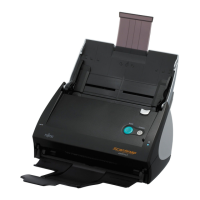
6. Load the document on the ScanSnap. Press the [SCAN] button .
⇒ Scanning is started.
⇒ When scanning is complete, the [Scan to Print] dialog box appears.
(You can change settings not to display the [Scan to Print] dialog box.)
7. Configure print setup options, and then click the [Print] button.
Preview Window
The print preview of the selected file is displayed.
The area outside the printing area is shaded.
:
The currently selected file name is displayed.
: To go to the first page, click this First Page button.
: To go to the previous page, click this Previous Page button.
HINT
For details, refer to sections "3.2 Paper Size of Documents to be Scanned"
(page 46) and "3.3 Loading Documents" (page 49).











 To Next Page