EasyManua.ls Logo

Fujitsu S510 - User Manual

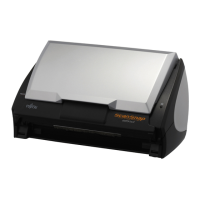
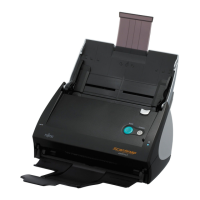
Fujitsu S510
295 pages
Print Icon
To Next Page IconTo Next Page
Loading...
P3PC-1792-03ENZ0
SCAN
POWER
Color Image Scanner
S510
Operators Guide

Table of Contents

Questions and Answers

  • B
    Bobby MontgomerySep 23, 2025
    How to improve text recognition accuracy on Fujitsu S510 when scanning to Word/Excel/PowerPoint?
    • R
      Rita WardSep 23, 2025
      If the text recognition accuracy decreases significantly when you execute "Scan to Word / Excel / PowerPoint(R)" with your Fujitsu Scanner, select "Better," "Best," or "Excellent" at [Image quality:] on the [Scanning] tab in the [ScanSnap Manager - Scan and Save Settings] dialog box and scan the document again. Also, in the same dialog box, slide the control toward "Low" for "Compression rate" on the [Compression] tab and scan the document again. Ensure the document edges are neatly aligned to the side guides of the scanner.
  • B
    Bobby StokesAug 25, 2025
    What to do if the document is not fed properly or gets jammed in Fujitsu Scanner?
    • D
      Douglas ValentineAug 25, 2025
      If your Fujitsu Scanner is not feeding documents properly or documents are getting jammed, clean the dirty locations. If you still have difficulties, use the Carrier Sheet for each page.
  • S
    Stacey LinAug 25, 2025
    What to do if scanning does not start on my Fujitsu Scanner?
    • G
      gfergusonAug 26, 2025
      If scanning with your Fujitsu Scanner doesn't start, ensure the USB cable is correctly connected, especially if using a hub (check the hub's power). Try disconnecting and reconnecting the power cable, waiting at least 5 seconds before reconnecting. If the ScanSnap Manager icon isn't visible, start it manually via [Start] -> [All Programs] -> [ScanSnap Manager] -> [ScanSnap Manager]. Also, you might need to update the ScanSnap Manager driver through Device Manager or try turning the ScanSnap off and on again. If using a USB hub, connect the ScanSnap directly to your PC. Finally, try closing the "ScanSnap Manager - Scan and Save Settings" window before scanning.
  • E
    elijahwebbAug 27, 2025
    How to turn on Fujitsu S510?
    • K
      kevin85Aug 27, 2025
      If your Fujitsu Scanner won't turn on, make sure the Power/USB cable is correctly connected. Try disconnecting and then reconnecting the power cable, waiting at least 5 seconds before reconnecting. Ensure the paper chute is open. Wait until Windows has completely started, as the LED will turn off during startup or sleep mode. Finally, ensure you press the [POWER] button.
  • V
    vrobinsonAug 27, 2025
    Why does my Fujitsu S510 Scanner have multi-feed errors frequently?
    • K
      Kerry SmithAug 27, 2025
      If you're experiencing frequent multi-feed errors with your Fujitsu Scanner, try replacing the pad. You can also replace the Pad ASSY. Reducing the number of sheets in the document stack to 5 mm thickness or less can also help.
  • J
    Joshua MontesSep 13, 2025
    How to show ScanSnap Quick Menu on Fujitsu S510?
    • A
      Amanda PettySep 13, 2025
      If the ScanSnap Quick Menu is hidden, mark [Use Quick Menu] on the Right-Click Menu. If certain applications are running and one of them is active, the ScanSnap interacts with the active application and scanned images are opened with it, which hides the ScanSnap Quick Menu. To display the ScanSnap Quick Menu, exit these applications or deselect them.
  • E
    Elizabeth BenjaminSep 12, 2025
    Why is the scanned image chipped or slanted on my Fujitsu S510 Scanner?
    • D
      David SinghSep 12, 2025
      To resolve issues like chipped or slanted images, or output images wider than the original with your Fujitsu Scanner, neatly align the edges of paper sheets with the Side Guide. If you are scanning documents of mixed paper sizes, carefully load smaller documents so that they can be fed straight. If those documents cannot be fed straight, it is recommended to scan only documents of about the same size at a time.
  • K
    Katelyn CampbellSep 12, 2025
    Why are black lines produced on scanned documents with my Fujitsu Scanner?
    • C
      carlthomasSep 12, 2025
      When using your Fujitsu Scanner, it is recommended that the Carrier Sheet be used for scanning. If you are not using the Carrier Sheet for scanning such documents, clean rollers as often as possible.
  • D
    Daniel BowersSep 4, 2025
    Why is B&W file size the same as color on my Fujitsu S510?
    • A
      Alyssa BradySep 4, 2025
      If the file size of a scanned black & white image from your Fujitsu Scanner is the same as a color image, select "B&W" from the [Color mode] drop-down list on the [Scanning] tab in the "ScanSnap Manager - Scan and Save Settings" dialog box.
  • V
    Valerie MyersSep 2, 2025
    Why are scanned images skewed on my Fujitsu Scanner?
    • D
      Dustin FisherSep 2, 2025
      The "Correct skewed character strings automatically" function on your Fujitsu Scanner can correct skewed images up to +/-5 degrees. Load the document onto the scanner so that the document skew does not exceed this limit.

Summary

Chapter 1 Before You Start Using the ScanSnap

Chapter 2 Connecting the ScanSnap

2.1 Installing the Supplied Programs

Guide on installing essential software like ScanSnap Manager and Adobe Acrobat.

2.2 Connecting the ScanSnap to your PC

Step-by-step instructions for connecting the scanner to a computer.

Chapter 3 Using the ScanSnap

3.1 Flow of Operations

Describes the basic scanning process from document loading to saving.

Chapter 4 Setting the ScanSnap

4.2 Changing Scanning Settings

Details how to adjust various scanning parameters and preferences.

Chapter 5 About Actions

5.5 Converting into Word; Excel; PowerPoint Files

Guide to converting scanned documents to editable formats using OCR.

Chapter 6 Using the ScanSnap in Various Ways

6.1 Using ScanSnap Manager

Detailed guide on using the ScanSnap Manager software.

Chapter 7 Troubleshooting

7.1 Clearing Document Jams

Procedure for removing jammed documents from the scanner.

7.2 Troubleshooting Checklist

Common problems and their solutions for ScanSnap usage.

Chapter 8 Daily Care

8.3 Cleaning the Inside of the Scanner

Detailed guide for cleaning internal scanner components like rollers and glass.

Chapter 9 Replacing Consumables and Carrier Sheet

Fujitsu S510 Specifications

General IconGeneral
Scanner TypeDocument Scanner
Optical Resolution600 dpi
ADF Capacity50 sheets
InterfaceUSB 2.0
Duplex ScanningYes
Operating System CompatibilityWindows, macOS
Supported Paper SizesA4, A5, A6, B5, B6, Letter, Legal
Scanning MethodCIS (Contact Image Sensor)
Maximum Resolution600 dpi
Output Resolution150, 200, 300, 400, 600 dpi

Related product manuals