EasyManua.ls Logo

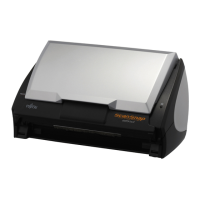
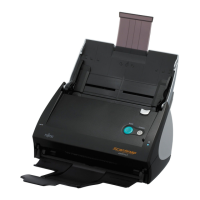
Fujitsu S510 - User Manual

Fujitsu S510
295 pages
Print Icon
To Next Page IconTo Next Page
Loading...
P3PC-1792-03ENZ0
SCAN
POWER
Color Image Scanner
S510
Operators Guide

Table of Contents

Questions and Answers

  • C
    Curtis OwensSep 10, 2025
    Why does my Fujitsu Scanner frequently jam with the Carrier Sheet?
    • S
      sharringtonSep 12, 2025
      If paper jams occur frequently when scanning with the Carrier Sheet on your Fujitsu Scanner, feed about 50 sheets of PPC paper or recycled paper, and then scan the document by using the Carrier Sheet.
  • S
    Susan MillerSep 9, 2025
    Why does Fujitsu S510 say 'Document size incorrect' with Carrier Sheet?
    • C
      Christopher WilsonSep 9, 2025
      When scanning with the Carrier Sheet on your Fujitsu Scanner, put only one small-size document (photo/post card) into the Carrier Sheet per scan. A detection error in the folded portion may cause part of the page image to be lost. In such case, set the document so its edge will be about 1 mm inside of the Carrier Sheet frame.
  • L
    leedanielSep 7, 2025
    How to improve readability of scanned images on Fujitsu S510?
    • J
      Jacob CallahanSep 8, 2025
      If the scanned images from your Fujitsu Scanner cannot be read, and small letters are squashed, right-click the ScanSnap Manager icon on the taskbar and select "Best" or "Excellent" in the [Scanning] tab and scan them again.
  • J
    Joseph ColemanAug 22, 2025
    What to do if paper is not fed or stops midway in Fujitsu S510 Scanner?
    • A
      Amber RodriguezAug 23, 2025
      If paper is not feeding properly or stops midway in your Fujitsu Scanner, clean the Pick roller. You might also need to replace the Pick roller. Remove any debris from the document feeding path. Additionally, try slightly pushing the first sheet through at the start or changing the insertion direction of the document.
  • R
    Richard GeorgeSep 5, 2025
    How to prevent print-through on my Fujitsu S510 Scanner?
    • T
      turnerdanielSep 5, 2025
      If images on the back of pages are showing through on your Fujitsu Scanner, mark the "Setting for text only document" checkbox. This makes characters, lines, and contrasts sharper and clearer and removes the noise of the back side image. Note that you can also use this mode for documents including photos and illustrations.
  • D
    Daniel BowersSep 4, 2025
    Why is B&W file size the same as color on my Fujitsu S510?
    • A
      Alyssa BradySep 4, 2025
      If the file size of a scanned black & white image from your Fujitsu Scanner is the same as a color image, select "B&W" from the [Color mode] drop-down list on the [Scanning] tab in the "ScanSnap Manager - Scan and Save Settings" dialog box.
  • M
    Michael GarnerSep 3, 2025
    How to fix blurred lines on Fujitsu S510 Scanner?
    • S
      sanchezmichelleSep 3, 2025
      If lines on the document scanned by your Fujitsu Scanner are blurred, and you are scanning textual content, select the checkbox for [Setting for text only document] at [Scanning] -> [Option] in the "ScanSnap Manager - Scan and Save Settings" window. If this doesn't improve the situation, change the "Image quality" setting.
  • V
    Valerie MyersSep 2, 2025
    Why are scanned images skewed on my Fujitsu Scanner?
    • D
      Dustin FisherSep 2, 2025
      The "Correct skewed character strings automatically" function on your Fujitsu Scanner can correct skewed images up to +/-5 degrees. Load the document onto the scanner so that the document skew does not exceed this limit.
  • F
    frhodesSep 1, 2025
    Why is the scanned image shifted or distorted on my Fujitsu S510 Scanner?
    • C
      clementsstephanieSep 1, 2025
      If the scanned image from your Fujitsu Scanner shifts or is distorted, ensure you are loading the document correctly.
  • D
    Denise NormanAug 30, 2025
    What if Fujitsu S510 is not recognized after ScanSnap Manager install?
    • P
      Penny JonesAug 31, 2025
      If your Fujitsu Scanner is not recognized even after installing ScanSnap Manager, go to [Start] -> [Control panel] -> [System] -> [Hardware] -> [Device Manager]. Delete the device name (such as USB device) under "Other Device" in the [Device Manager] and restart your PC.

Summary

Chapter 1 Before You Start Using the ScanSnap

Chapter 2 Connecting the ScanSnap

2.1 Installing the Supplied Programs

Guide on installing essential software like ScanSnap Manager and Adobe Acrobat.

2.2 Connecting the ScanSnap to your PC

Step-by-step instructions for connecting the scanner to a computer.

Chapter 3 Using the ScanSnap

3.1 Flow of Operations

Describes the basic scanning process from document loading to saving.

Chapter 4 Setting the ScanSnap

4.2 Changing Scanning Settings

Details how to adjust various scanning parameters and preferences.

Chapter 5 About Actions

5.5 Converting into Word; Excel; PowerPoint Files

Guide to converting scanned documents to editable formats using OCR.

Chapter 6 Using the ScanSnap in Various Ways

6.1 Using ScanSnap Manager

Detailed guide on using the ScanSnap Manager software.

Chapter 7 Troubleshooting

7.1 Clearing Document Jams

Procedure for removing jammed documents from the scanner.

7.2 Troubleshooting Checklist

Common problems and their solutions for ScanSnap usage.

Chapter 8 Daily Care

8.3 Cleaning the Inside of the Scanner

Detailed guide for cleaning internal scanner components like rollers and glass.

Chapter 9 Replacing Consumables and Carrier Sheet

Fujitsu S510 Specifications

General IconGeneral
Scanner TypeDocument Scanner
Optical Resolution600 dpi
ADF Capacity50 sheets
InterfaceUSB 2.0
Duplex ScanningYes
Operating System CompatibilityWindows, macOS
Supported Paper SizesA4, A5, A6, B5, B6, Letter, Legal
Scanning MethodCIS (Contact Image Sensor)
Maximum Resolution600 dpi
Output Resolution150, 200, 300, 400, 600 dpi

Related product manuals