38
*1: This Action button does not appear unless ScanSnap Organizer is installed.
*2: This Action button does not appear unless ABBYY FineReader for ScanSnap 3.0 is
installed.
⇒ An application corresponding to the selected action starts up to perform the selected action.
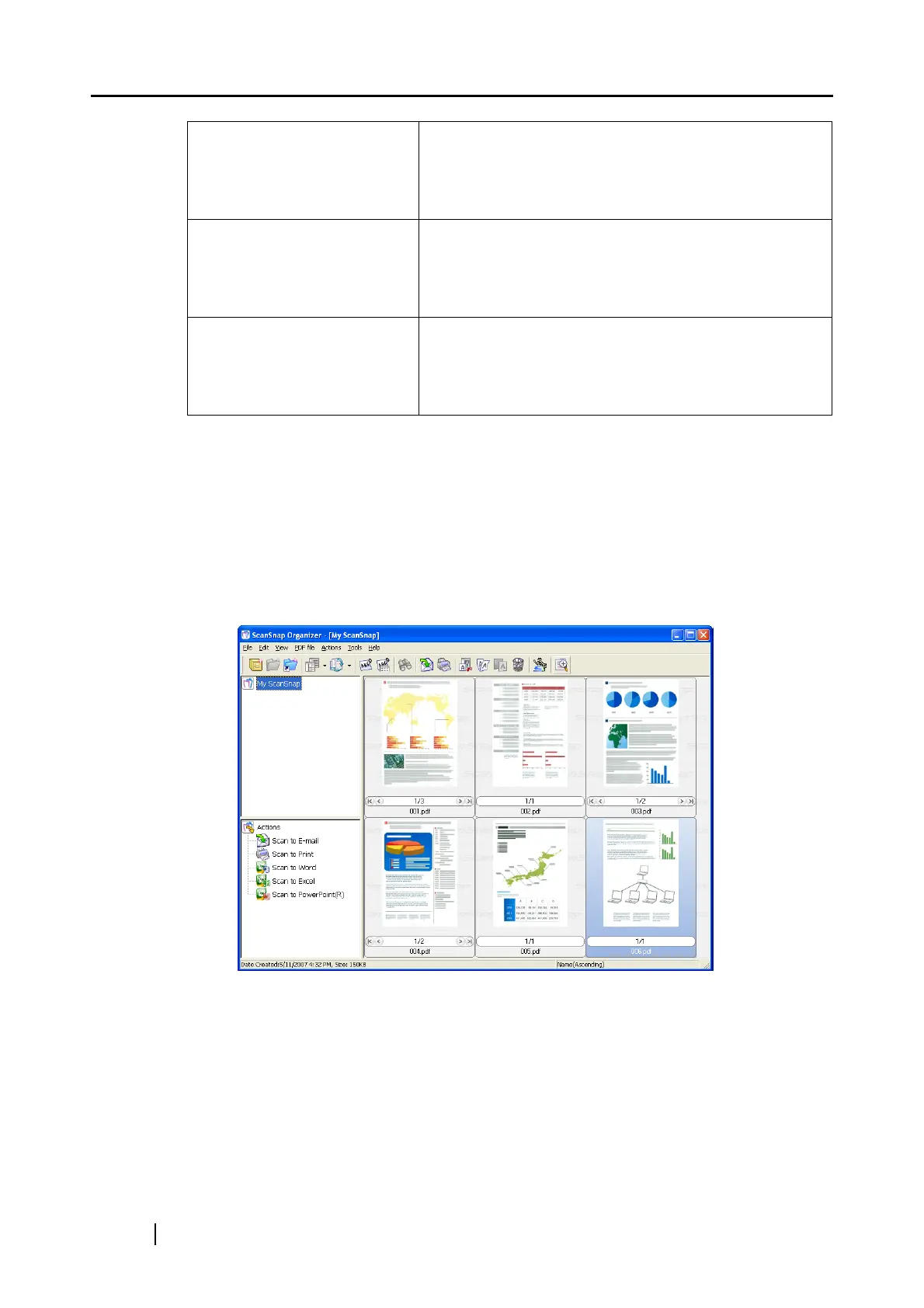
(If you perform "Scan to ScanSnap Organizer," PDF files are created based on the scanned
documents and stored in a folder specified in ScanSnap Organizer. Then, ScanSnap
Organizer starts up to display the stored images.)
For details about the settings for the scanning, file name, and destination to save data,
refer to "4.2 Changing Scanning Settings" (page 67).
About the scanning of Business cards, refer to section "6.3 Scanning Business Cards"
(page 204).
Scan to Word *2 The scanned images are processed through OCR and
converted into Word files.
⇒ "5.5 Converting into Word / Excel / PowerPoint
Files" (page 155)
Scan to Excel *2 The scanned images are processed through OCR and
converted into Excel files.
⇒ "5.5 Converting into Word / Excel / PowerPoint
Files" (page 155)
Scan to PowerPoint(R) *2 The scanned images are processed through OCR and
converted into PowerPoint files.
⇒ "5.5 Converting into Word / Excel / PowerPoint
Files" (page 155)











 To Next Page