12
Before You Start
EN
Installing batteries in the remote
control
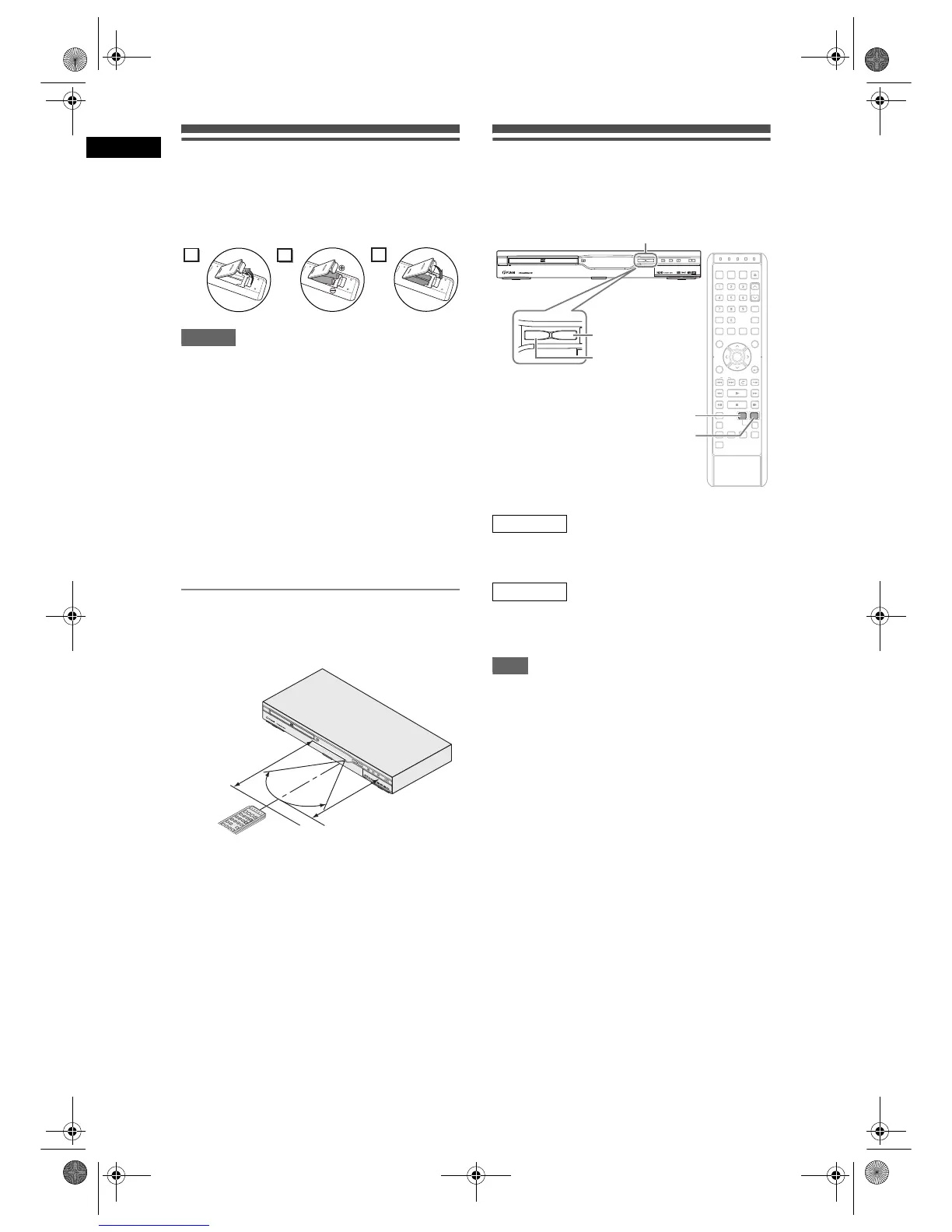
Install two R6 (AA) batteries (supplied) into the
remote control, carefully match with the polarity
indicated inside the battery compartment.
Caution
• Incorrect use of batteries can result in hazards such
as leakage and bursting.
• Do not mix new and old batteries together.
• Do not use different kinds of batteries together.
• Make sure that the + and - ends of each battery
match the indications inside the battery
compartment.
• Remove batteries if the equipment will not be used
for a month or more.
• When disposing used batteries, please comply with
governmental regulations or the public instructions
for environmental protection that apply in your
country or area.
• Do not recharge, short-circuit, heat, burn or
disassemble batteries.
About the remote control
• Make sure there is no obstacle between the remote
control and the remote control sensor on the unit.
• Use within the operating range and angle as shown.
• The maximum operable range as follows:
Line of sight: approximately 7 m
Either side of centre: approximately 5 m
• Remote control operation may become unreliable if
the remote control sensor of the unit is being
exposed by the strong sunlight or fluorescent light.
• Remote controls for different devices can interfere
with each other. Be careful when using remote
controls for other equipment located close to the
unit.
• Replace the batteries when the operating range of
the remote control reduces.
HDD / DVD modes switching
Because this unit is a combination of a HDD and a
DVD recorder, you must first select which component
you wish to operate.
Press [HDD] on the remote control.
(Verify that the HDD indicator is lit.)
Press [DVD] on the remote control.
(Verify that the DVD indicator is lit.)
Note
• Pressing the device select button on the front
panel DOES NOT switch the device mode of the
remote control. You MUST select the correct
device mode on the remote control.
• If you press [REC] of each device, recording starts
in its device mode.
2
1
3


 To Next Page