38
Recording
EN
Note
• NTSC dubbing is prohibited in this unit.
• During Fast Dubbing of copy-once programmes, the
following operations are not available:
- Basic recording, or the Simultaneous Recording
and Playback of the titles in the HDD.
- Changing the settings for the Timer Recording.
• When any Rec Mode other than “Fast” is selected,
- you only can watch the playback image of the title
being dubbed (the audio cannot be changed also).
- Elapsed dubbing time will be displayed in the Front
Panel Display, but on the TV screen, it only shows
“--:--:--(--h--m--s)”.
• Make sure to set the appropriate audio format when
you record on the HDD or a VR mode DVD-RW disc
while “Recording Audio Select [XP]” is set to
“LPCM”. (See page 31.)
One Touch Dubbing
1 Insert a recordable disc when
dubbing from HDD to DVD.
Insert a disc to be dubbed when
dubbing from DVD to HDD.
2 Start the playback of the contents
you want to dub.
3 Press [DUBBING] during playback.
Confirmation message will appear.
4 Select “Yes” using [Cursor / ],
then press [ENTER].
The dubbing will start.
• When One Touch Dubbing is completed,
completion message will be displayed on the
screen for a few seconds.
• The dubbing will stop automatically when it
reaches the end of the title.
To stop One Touch Dubbing manually, follow
the instructions below.
1 Press and hold [DUBBING] for 8 seconds.
2 Select “Yes” using [Cursor
/ ], then press
[ENTER].
Completion message will appear and the
dubbing will stop.
3 Press [ENTER] to remove the message.
Note
• The Rec Mode will be set to “Auto” for the One
Touch Dubbing.
• If you stop the dubbing halfway;
- Playing media : Nothing is moved. Contents
remain in the media.
- Recording media: Nothing is dubbed. With regard
to DVD-R, the disc space used
for the dubbing process will be
lost (even though nothing is
dubbed).
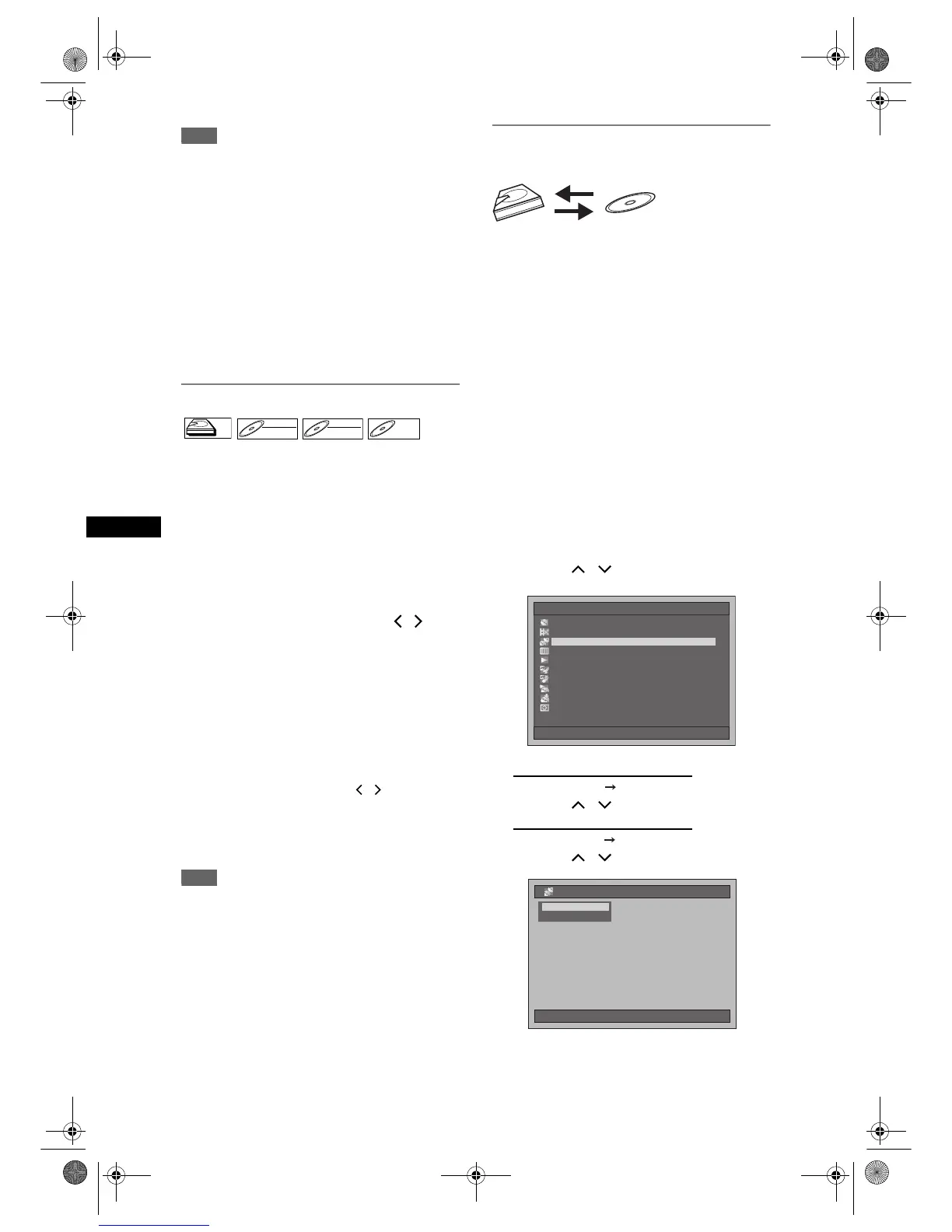
Bi-directional Dubbing between HDD
and DVD
The basic procedure to make a dubbing from the
Setup Menu is as follows:
1 Select dubbing direction.
2 Register titles in the Dubbing Title List.
3 Edit the Dubbing Title List as you prefer.
4 Select Rec Mode.
5 Start dubbing.
When you dub a title has bilingual audio to Video
mode DVD-RW / R, select an appropriate audio
format in the “Bilingual Recording Audio” menu on
page 30.
1 Insert a recordable disc when
dubbing from HDD to DVD.
Insert a disc to be dubbed when
dubbing from DVD to HDD.
2 Press [SETUP] in stop mode.
Setup Menu will appear.
3 Select “Dubbing” using
[Cursor
/ ], then press [ENTER].
4 For HDD to DVD dubbing:
Select “HDD DVD Dubbing” using
[Cursor
/ ], then press [ENTER].
For DVD to HDD dubbing:
Select “DVD HDD Dubbing” using
[Cursor
/ ], then press [ENTER].
HDDHDD
DVD-RWDVD-RW
VR
DVD-RWDVD-RW
Video
DVD-RDVD-R
Setup Menu
10/04/06(Mon) 19:34
Disc Management
Editing
Dubbing
Timer Programme
Title List
Initial Setting
Digital Audio Setting
Playback
Recording
Display
10/04/06(Mon) 19:34
Dubbing
DVD➔HDD DubbingDVD➔HDD Dubbing
HDD➔DVD Dubbing
E2B21BD_E2B28BD_EN.book Page 38 Monday, August 21, 2006 5:05 PM


 To Next Page