39
Recording
EN
5 Select “Add to Title”.
• If “Add to Title” is already highlighted, press
[ENTER].
• If one of the Dubbing Titles is highlighted, select
“Add to Title” using [Cursor / ], then press
[ENTER].
• To switch Original and Playlist, press [SYSTEM]
before you press [ENTER].
Example: HDD ➞ DVD
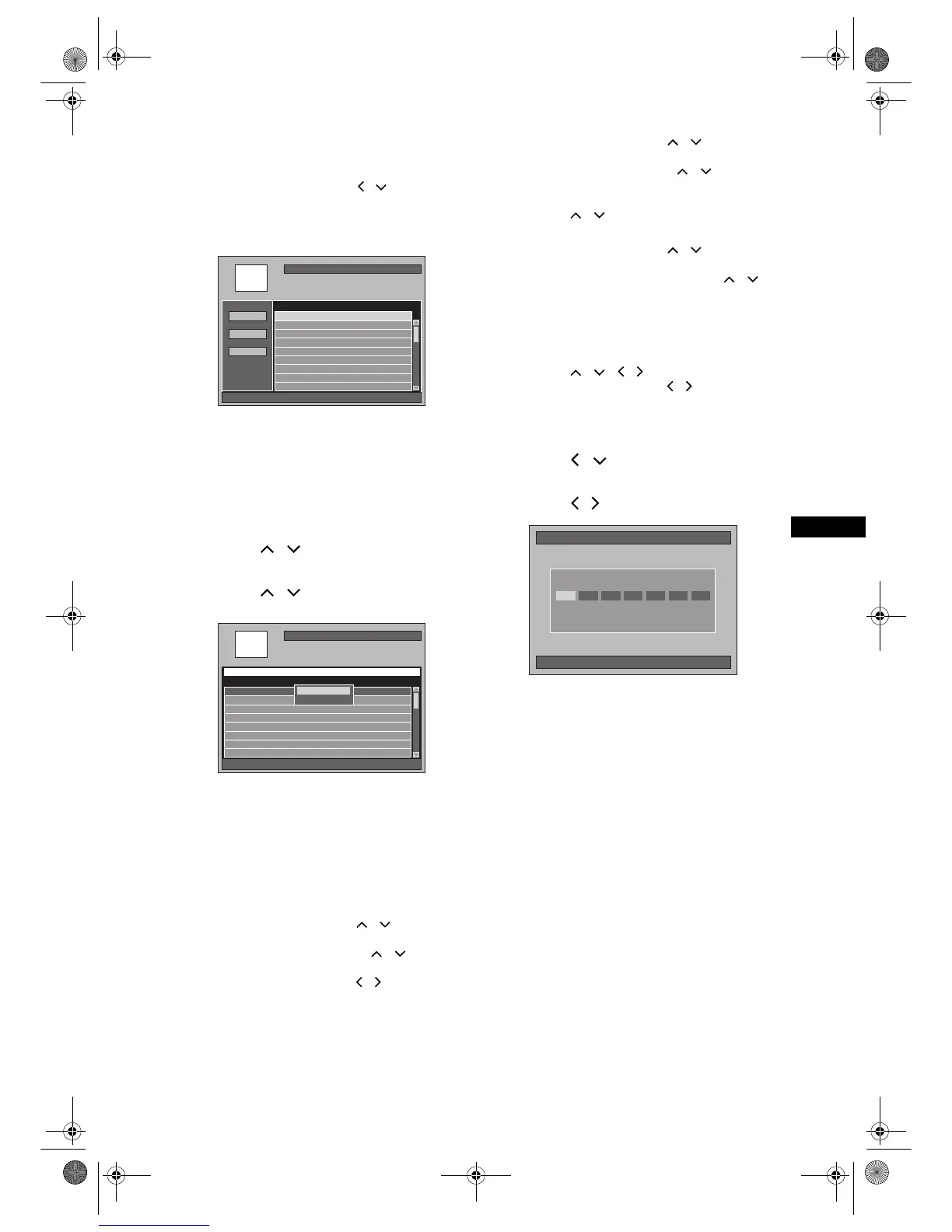
• If you have registered any dubbing before, they
will be listed in the Dubbing Title List.
To sort the titles:
1 Press [ENTER] anywhere in the Title List.
2 Select “Title Sorting”.
3 Select the desired sort type and press
[ENTER].
6 Select a desired title using
[Cursor
/ ], then press [ENTER].
7 Select “Register” using
[Cursor
/ ], then press [ENTER].
Example: HDD Original
The selected title is added to the Dubbing Title
List.
• Contents in the Dubbing Title List will be deleted
when you exit by pressing [RETURN R] or
[STANDBY-ON].
8 Repeat steps 5 to 7 until you register
all the programmes to be dubbed.
To delete a title:
1 Select a title using [Cursor
/ ], then press
[ENTER].
2 Select “Delete” using [Cursor
/ ], then
press [ENTER].
3 Select “Yes” using [Cursor
/ ], then press
[ENTER].
To move a title:
1 Select a title using [Cursor
/ ], then press
[ENTER].
2 Select “Move” using [Cursor
/ ], then
press [ENTER].
3 Select a desired insert point using
[Cursor
/ ], then press [ENTER].
To change the title name:
1 Select a title using [Cursor
/ ], then press
[ENTER].
2 Select “Change Name” using [Cursor
/ ],
then press [ENTER].
3 Enter a desired name. Refer to “Guide to Edit
Title Name” on page 69.
To erase all the titles in the Dubbing Title List:
1 Select “All Erase” using
[Cursor
/ / / ], then press [ENTER].
2 Select “Yes” using [Cursor
/ ], then press
[ENTER].
9 After registering all the programmes
you want, select “Start” using
[Cursor / ], then press [ENTER].
10
Select a desired Rec Mode using
[Cursor
/ ], then press [ENTER].
• Depending on the dubbing direction or the
recording format type, the available Rec Mode
will vary.
• Select “Fast” if you want to perform the “Fast
Dubbing” (see “Fast Dubbing” on page 37 for
more details).
• Fast Dubbing is prohibited in this unit if a title
has been recorded using the NTSC system.
• “Fast” is not available when dubbing from a
Video mode disc to the HDD.
When “Auto” is selected (Just Dubbing):
• Basically the Rec Mode is set to “Fast”, but it will
be changed automatically under the conditions
listed below;
- HDD to DVD dubbing;
the Rec Mode will automatically be adjusted
so the titles will fit nicely in the remaining
space of the disc when there is not enough
space in the disc.
- DVD to HDD dubbing;
the Rec Mode will automatically be adjusted
for the titles to fit a 4.7 GB DVD.
HDD➔DVD Dubbing
Remain
Title to dub
4300MB
1/1
P01 12:22 (1:04:40) XP
P01P01 11:22 (0:14:13) XP11:22 (0:14:13) XP
Mode
SP
SPSP
Add to Title
All Erase
Start
001/001
HDD Original
P01 11:19 (0:00:06) SP 12/04/06(Wed)
P01 11:22 (0:14:13) XP 11/04/06(Tue)
P02 09:19 (0:22:40) SP 12/04/06(Wed)
P01 12:22 (1:04:40) XP 10/04/06(Mon)
Title Name Recording Date
P01 12:22 (1:04:40) XP
Title SortingTitle Sorting
Register
15/07/06(Sat) 19:53
HDD
➔ DVD Dubbing
Please select Rec Mode
Title amount
Space available
1350MB
4335MB
Fast XP SP LP EP SLP Auto
E2B21BD_E2B28BD_EN.book Page 39 Monday, August 21, 2006 5:05 PM


 To Next Page