60
Playback
EN
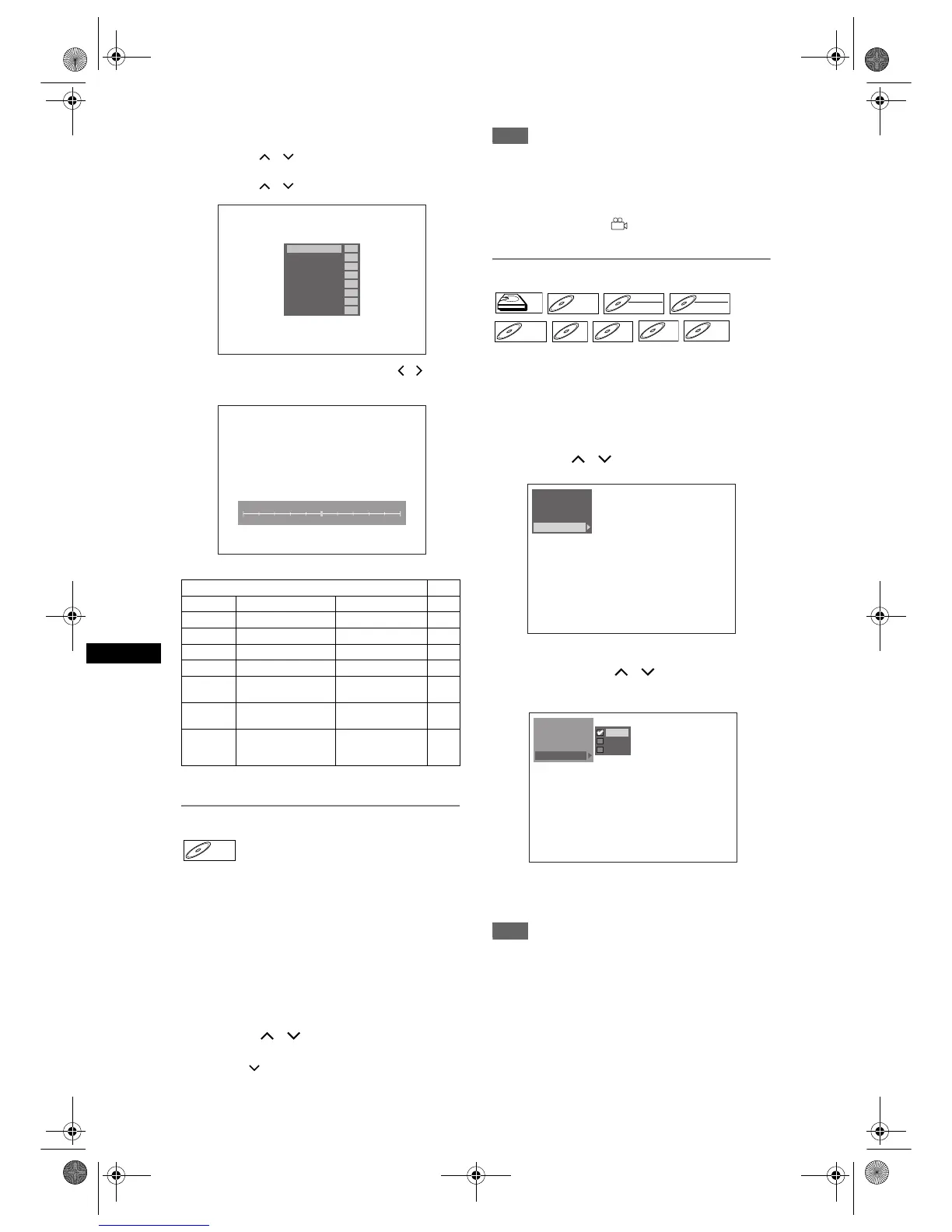
For manual picture settings:
1 Select “User 1”, “User 2” or “User 3” using
[Cursor
/ ], then press [SYSTEM].
2 Select setup option you want to adjust using
[Cursor
/ ], then press [ENTER].
3 Make an adjustment using [Cursor
/ ], then
press [ENTER].
4 Press [MODE SELECT] to exit.
Switching camera angles
Some DVD-Videos feature scenes shot from two or
more angles. The disc case is usually marked with an
angle icon if the disc has multi-angle scenes.
Press [DVD] first.
1 During playback, press
[MODE SELECT].
AV Mode Select Menu will appear.
2 Select “Angle” using
[Cursor
/ ], then press [ENTER].
The angle will switch each time you press
[Cursor ].
Note
• If the “Angle” is not selectable, that means the scene
does not contain the sequences shot from the
multiple angles.
• When “Angle Icon” is set to “On” (see page 80), and
when the scene contains the sequences shot from
the multiple angles, “ ” will appear on the TV
screen.
Switching virtual surround system
You can enjoy stereophonic virtual space through
your exciting 2 channel stereo system.
1 Press [MODE SELECT].
AV Mode Select Menu will appear.
2 Select “Virtual Surround” using
[Cursor
/ ], then press [ENTER].
3 Select “Off”, “Type 1” or “Type 2”
using [Cursor
/ ], then press
[ENTER].
• Off : No effect
• Type 1 : Natural effect
• Type 2 : Emphasised effect
Note
• Select “Virtual Surround” to “Off” if the sound is
distorted.
• The setting will be kept even when the unit is turned
off.
User Setup options default
Brightness
to adjust brightness
0(dark) - 10(bright) 0
Contrast
to adjust contrast
-5(weak) - +5(strong) 0
Colour
to adjust colour
-5(pale) - +5(brilliant) 0
Sharpness
to adjust sharpness
-5(soft) - +5(clear) 0
Gamma
to adjust darkness
-1(weak) - +1(strong) 0
3D NR
to reduce noise in the
playback picture
Off, Weak, Middle,
Strong
Off
MPEG NR
to reduce noise
in the MPEG picture
Off, On Off
Progressive
Mode*
to select suitable signal
conversion for
progressive output
Auto, Film
(for live-action picture),
Video(for an animation)
Auto
*Available only when “Video Out” is set to “Component (Progressive)” in
the “Initial Setting”. (See page 75.)
Contrast
Colour
Sharpness
Gamma
3D NR
MPEG NR
Progressive Mode
Brightness
0
0
0
0
0
Off
On
Auto
Brightness
0
10
DVD-VDVD-V
HDDHDD
DVD-VDVD-V DVD-RWDVD-RW
VR
DVD-RWDVD-RW
Video
DVD-RDVD-R CD


 To Next Page