1. OPERATION
1-45
1
5) Enter the password for the network (max. 40 characters).
Depending on the [A/*] setting, the password will appear as follows:
• For plain text: All characters being typed are displayed.
• For cipher text: The entered characters are displayed as "*".
6) If there is difficulty connecting due to high LAN activity, change the channel set-
tings.
a) Select [Channel Setting] and press the KNOB.
b) Select the channel (1 to 11) and press the KNOB.
7) Press the MENU/ESC key.
‘’Restart to apply changes?’’ message appears.
8) Select [Yes] and press the KNOB.
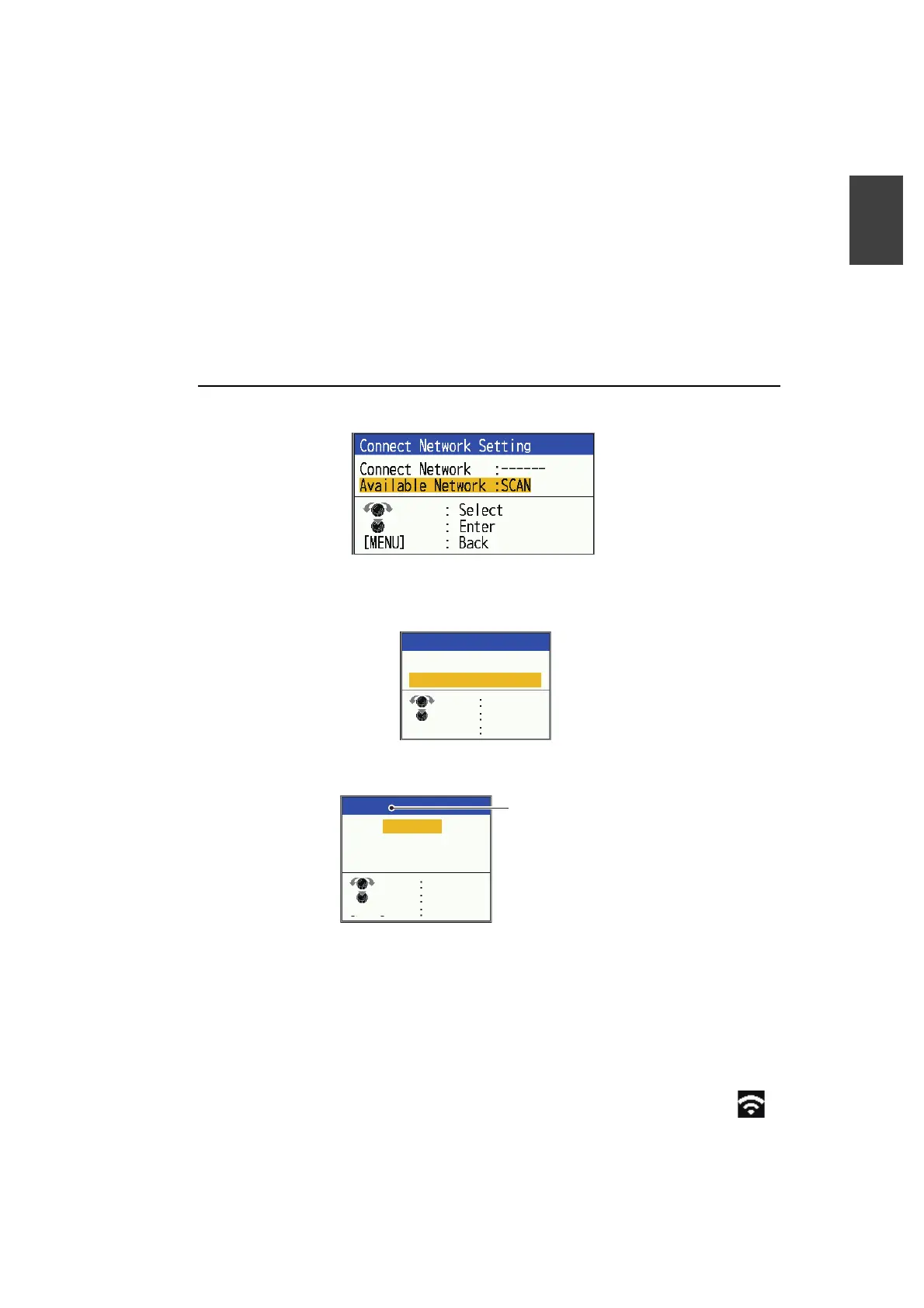
For [Connect Network Setting] (Connecting to existing LAN network)
1) Select [Connect Network Setting] and press the KNOB.
2) Select [Available Network] and press the KNOB.
When an available network near the device is detected, the name of that network
name will appear in the [Network List] window.
3) Select the network to connect and press the KNOB.
The following window appears.
4) Select [Connect] and press the KNOB.
[Password] setting window appears.
Note: The system stores the password for the last connected network. To erase
the password and make entering a new password easier, select [Forget] before
selecting [Connect]. The stored password is deleted.
5) Enter the password for the network and press the KNOB.
See page 1-16 for details. When the connection to the network is complete, the
"Connecting..." message will disappear and the wireless LAN icon ( ) will ap-
pear in the upper right corner of the screen. LAN icon indicates that an access
point other than the FCV is being used. If the message "Connection failed" is dis-
FG
Router
Network List
[MENU]
Select
Enter
Back
Router
Cancel
Forget
Connect
Enter
Back
Select
[MENU]
Network name



 To Next Page