⑤ System status bar
– Display system s
tatus such as "”Wireless
Charging” and “Bluetooth Connection”. Click
the icons to enter the corresponding function
interfaces.
⑥ System navigation bar area
– System control soft keys.
⑦ A/C information display/control bar area
– Display the current A/C inf
enter the A/C control interface.
⑧ Application menu interface
– Click the menu button
navigation bar on the left side of the desktop
to enter the application menu interface.
NOTE
The main interface is only shown as an
example, which acts as a guide for cars with
AVNT main unit. The specific functions and
interfaces depend on the actual car
configuration.
The AVNT main unit will automatically
synchronously refresh the GPS time, without
need to set it by yourself.
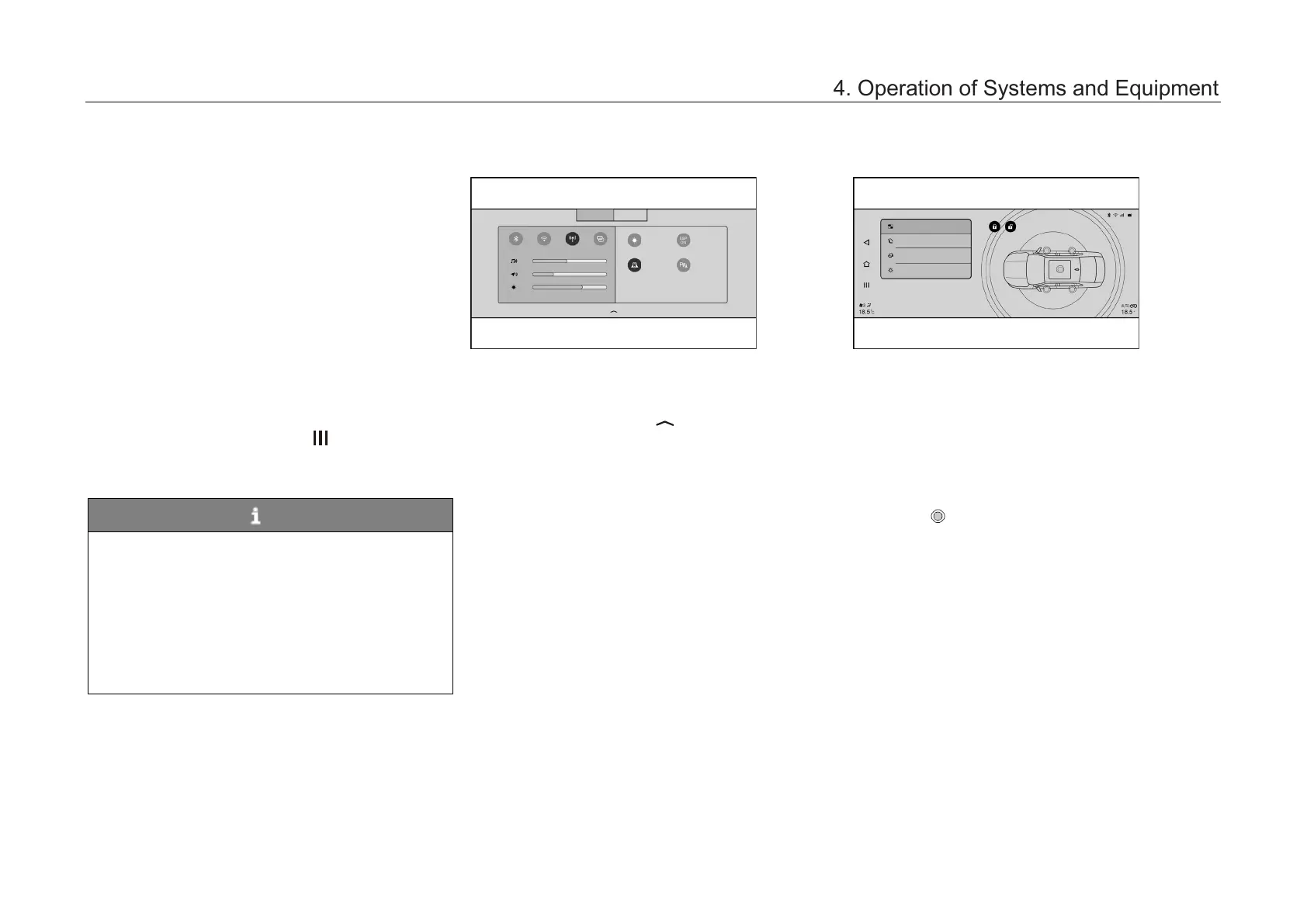
Drop-down menu bar*
Except for the voice and A/C interfaces, swipe
down from the top of the screen (drop-down menu
bar area) in any other interface to display the
drop-down menu. Click
the drop-down menu bar.In the drop-down menu
bar interface, if there is no operation, the drop-
down menu will be automatically hid after 20s.
Click “Shortcut” or “Message” button to switch to
the Shortcut drop-down interface or the Message
drop-down interface.
Click the function buttons in the drop-down menu
bar to turn on/off the corresponding functions, or
enter the corresponding function interfaces.
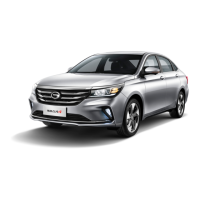
My Car*
After the AV system s
tarts to work normally, click
“3D Car Model in Smart Scene Area” in the main
interface or “My Car” soft key in the application
menu interface to enter My Car function interface.
–
“Open and Closing Control”, “Seat
Adjustment”, “Rearview Mirror Adjustment”
and “Ambient Light Control” can be adjusted.
– Click soft key to enter the corresponding
system for adjustment.
Rearview Mirror Adjustment
4. Operation of Systems and Equipment



 To Next Page