4.6.6 Bluetooth f
unction
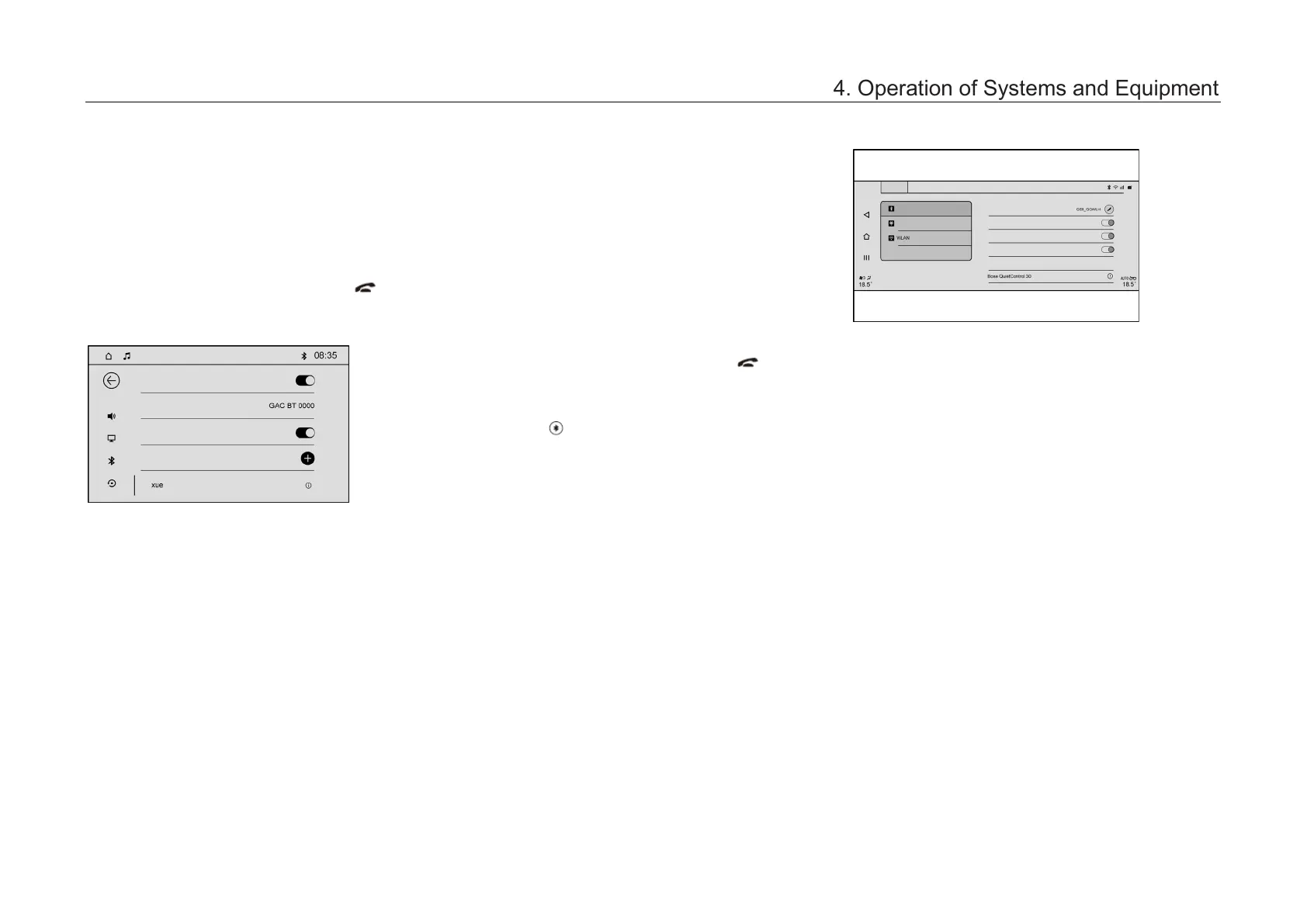
Bluetooth mode of AV main unit
Enter the Bluetooth mode in the following ways:
–
Click “Bluetooth Phone” card in the More
menu interface to enter the Bluetooth mode.
– In non-call mode, shortly press button on
the left side of the steering wheel to enter the
Bluetooth mode.
– If there is no Bluetooth device connected, use
the above method to enter the Bluetooth
Settings interface.
–
Click “+” soft key on the right side of the
device list to turn on Bluetooth visibility.
–
Connect the mobile phone to the device
according to the prompted device name and
MAC address, and enter the PIN code in the
prompt box to add it to the device list.
Bluetooth mode of AVNT main unit
Enter the Bluetooth mode in the following ways:
–
Click “Bluetooth Phone” soft key in the
application menu interface to enter the
Bluetooth mode.
– In non-call mode, shortly press button on
the left side of the steering wheel to enter the
Bluetooth mode.
– Click
button in the drop-
enter the Bluetooth mode.
– If there is no Bluetooth device connected, use
the above method to enter the Bluetooth
Settings interface.
– After turning on the Blue
tooth function, the
OBU will automatically search for nearby
connectable devices and display them in the
list.
–
Follow the prompts to connect the mobile
phone successfully.
–
Click “Connected” in the list of connectable
devices to disconnect the Bluetooth device.
Device List
Click “+” button to add a Bluetooth device.
Accessor ies
Assistanc e
Automatically Sync Contacts
List of Connectable Devices
4. Operation of Systems and Equipment



 To Next Page