GNS 430 Pilot’s Guide and Reference
SECTION 3
NAV PAGES
3-10
The following settings are available for each group:
Map Orientation, AutoZoom, Land Data,
Aviation Data
Weather Lightning Mode/Symbol
(when applicable)
Tr
affic Traffic Mode/Symbol/Label
(when applicable)
Airport Large/Medium/Small
Airports and
T
ext
NAVAID VORs, NDBs, Intersections, and Text
Waypoint User Waypoints, Waypoint Text,
Flight Plan Wpts
Line Active Flight Plan,
Lat/Long
Contr
ol Controlled Airspace: Class B, C, D
(tower zone)
Airspace Special-Use
Airspace: Restricted,
MOA, Other
City Large/Medium/Small Cities and
T
ext
Road Freew
ay, National Highway, Local
Hwy, Local Road
Other States/Prov,
Rivers/Lakes, Railroads,
Wind Vector
NOTE: Large, medium, and small classifications
are used on the GNS 430 for airports and cities.
Large airports are those with a runway longer
than 8100 feet. Medium airports include those
with a runway longer than 5000 feet or with
a control tower. Large cities are those with
approximate populations greater than 200,000
and medium cities with greater than 50,000.
To change map orientation:
1) From the Map Page Menu, turn the large right
knob to highlight ‘Setup Map?’ (Figure 3-16)
and press the ENT Key.
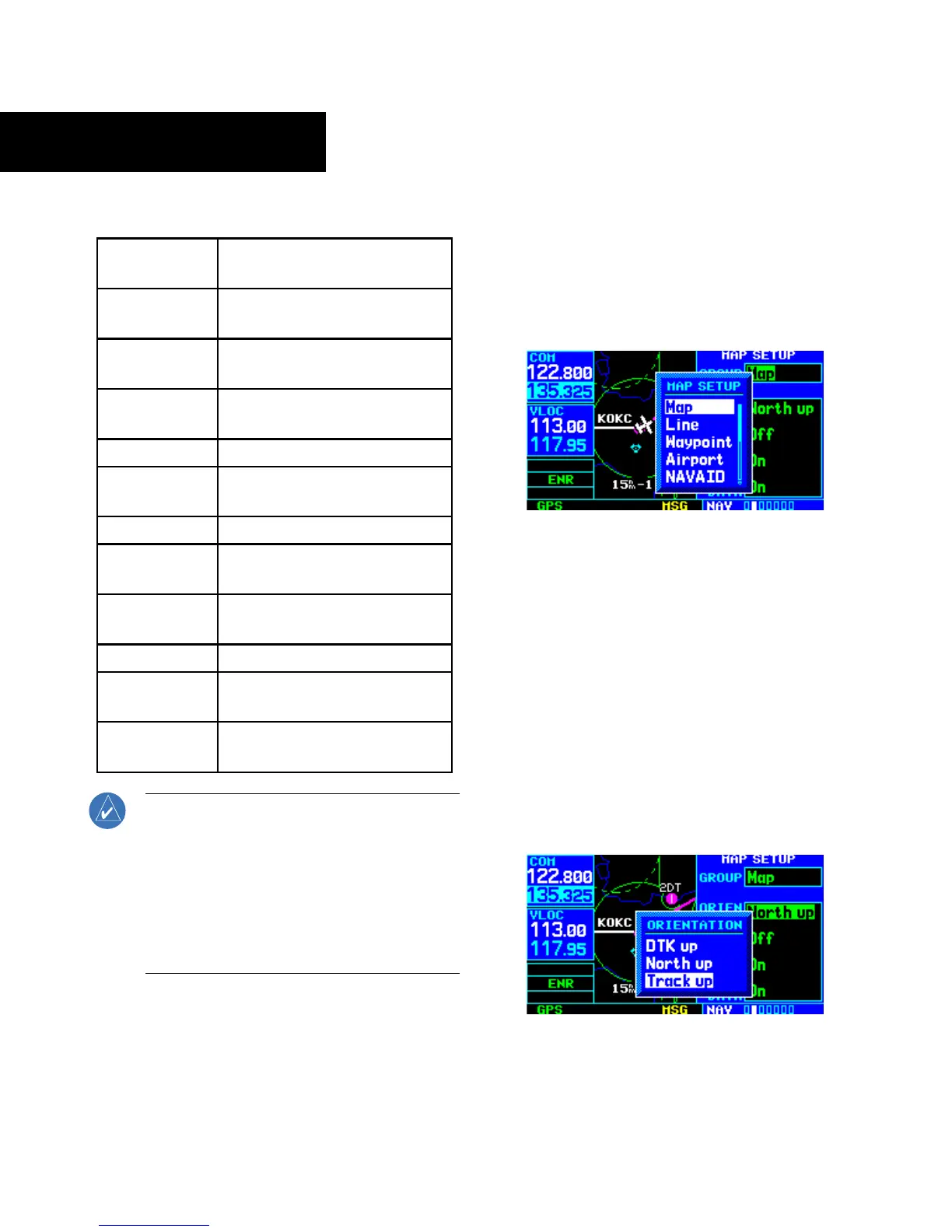
2) Turn the small right knob to select ‘Map’
(Figure 3-17) and press the ENT Key.
Figure 3-17 Map Setup Window
3) Turn the large right knob to highlight the
‘Orientation’ field.
4) Turn the small right knob to select the desired
option.
a) S
elect ‘DTK up’ to fix the top of the Map Display
to the desired course.
b) Select ‘North up’ to fix the top of the Map
Display to a north heading.
c) Select
‘Track up’ (Figure 3-18) to adjust the
top of the Map Display to the current track
heading.
Figure 3-18 Orientation Window




 To Next Page