GNS 430 Pilot’s Guide and Reference
SECTION 3
NAV PAGES
3-12
For airspace boundaries, highways, roads,
railroad lines, track log data, active flight
plan course lines, and lat/long grid lines:
1) From the Map Page Menu, turn the large right
knob to highlight ‘Setup Map?’ and press the
ENT Key.
2) Turn the small right knob to select the
appropriate ‘Group’ name (per the chart on
the preceding page) and press the ENT Key.
3) T
urn the large right knob to highlight the zoom
field for the desired feature.
4) Turn the small right knob to select the
maximum range at which the feature should
appear on screen (or select ‘Off’ to never
display the selected feature).
5) P
ress the ENT Key to accept the selected
option.
Distance Measurements
The ‘Measure Dist?’ option provides a quick, easy
method for determining the bearing and distance between
any two points on the Map Display.
To measure bearing and distance between
two points:
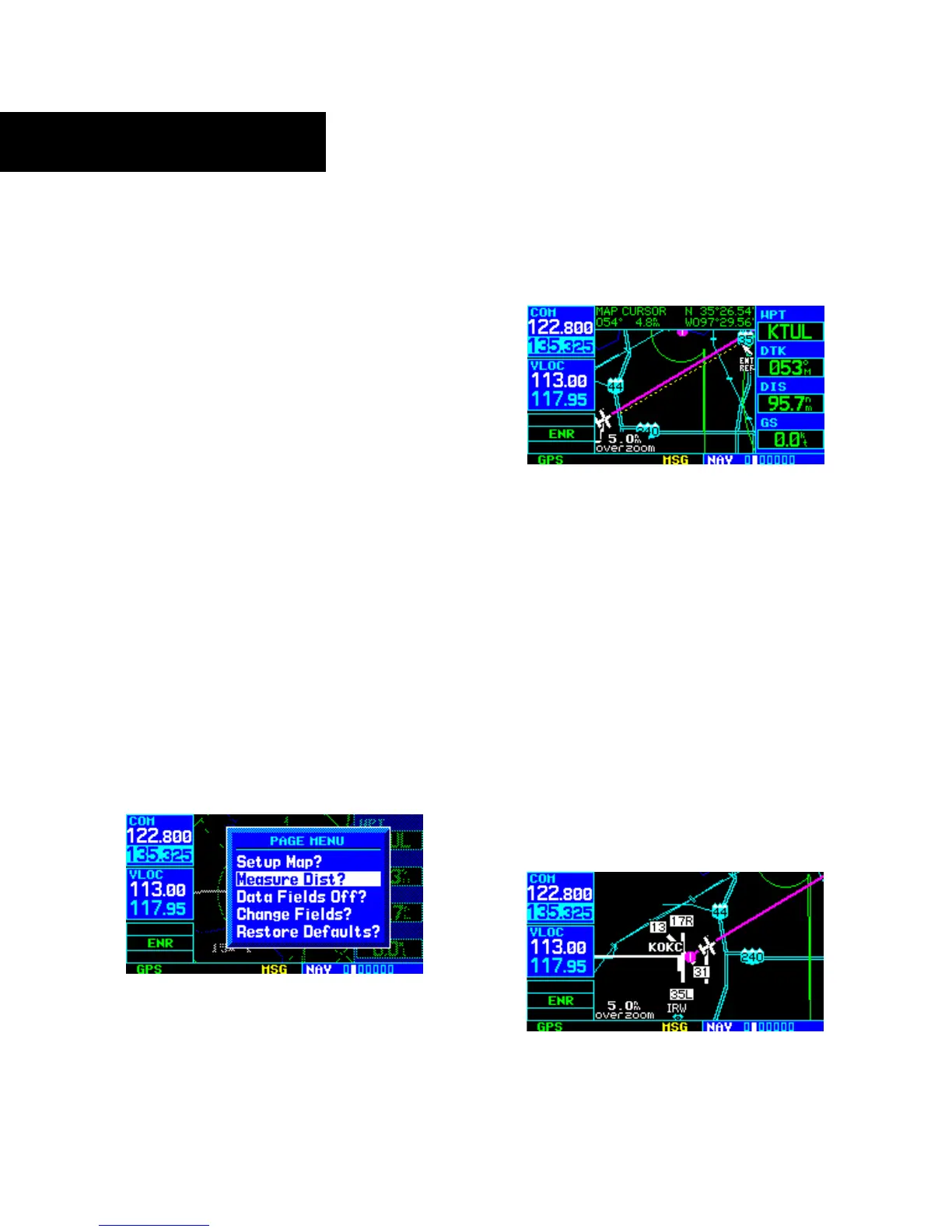
1) From the Map Page Menu, turn the large right
knob to highlight ‘Measure Dist?’ (Figure 3-20).
Figure 3-20 Map Page Menu
2) Press the ENT Key, an on-screen reference
pointer appears on the Map Display at the
present position.
3) Turn the small and large right knobs to place
th
e reference pointer at the desired location to
measure FROM and press the ENT Key (Figure
3-21).
Figure 3-21 Using Pointer to Measure Distance and Bearing
4) Again, use the small and large right knobs
to place the reference pointer at the desired
location to measure TO. The bearing and
distance from the first reference location
appears at the top of the Map Display.
5) To exit the ‘Measure Dist?’ option, press the
small right knob.
Selecting Full Screen Map
The ‘Data Fields Off?’ option provides a full-screen Map
Display (Figure 3-22), without the four data fields along
the right-hand side of the screen. Select this option to
display a larger map area. If this option has been selected
and the data fields are off, ‘Data Fields On?’ appears as an
option instead.
Figure 3-22 Full Screen Map




 To Next Page