28 GPSMAP 60CSx Owner’s Manual
BASIC OPERATION >
To save a portion of the track log:
1. Press MENU twice to open the Main Menu.
2. Select the Tracks icon, and press ENTER to
open the Tracks Page.
3. Highlight the Save button, and press ENTER.
A message appears asking you if you want to
save the entire track.
4. Select No, and press ENTER to save only
a portion of the track log. The entire track
appears.
5. Use the ROCKER to move the pointer to the
point on the track line that you want to be the
beginning point, and press ENTER.
6. Use the ROCKER to move the arrow to the
point on the track line to be the ending point,
and press ENTER. A “Saving Track” message
appears followed by the Saved Track Page.
7. With OK highlighted, press ENTER.
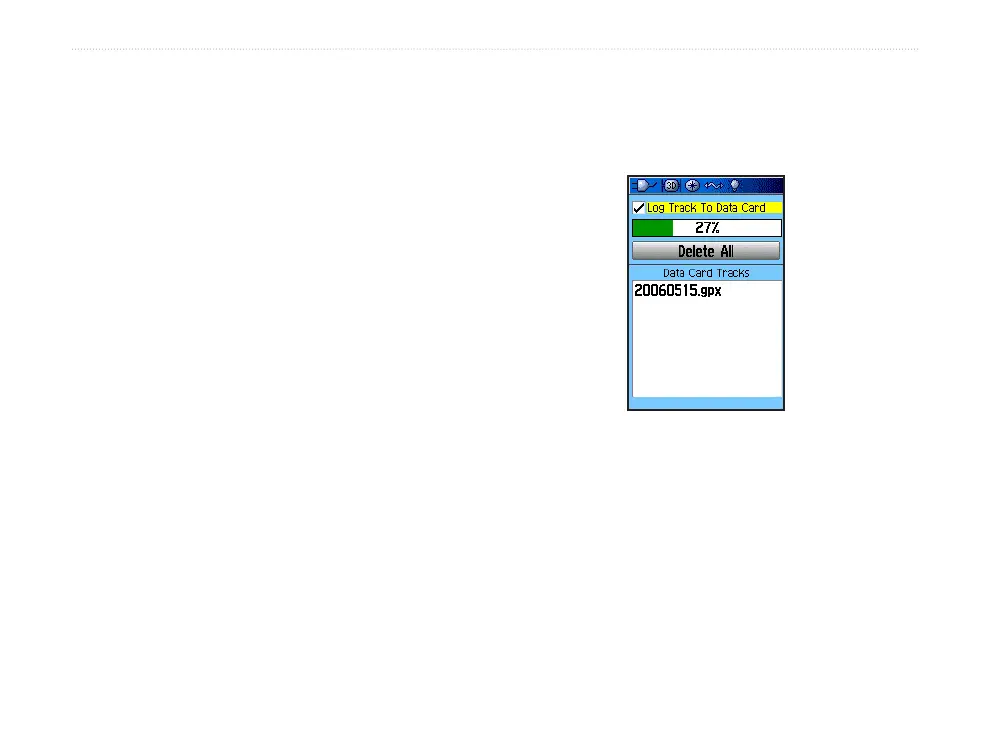
To log tracks to the microSD card:
1.
With the Track Log setup page displayed,
highlight the Data Card Setup button, and press
ENTER to display the Data Card setup page.
2. Highlight the Log Track to Data Card option,
and then press ENTER to activate the feature.
Observe that a current date .gpx file appears
in the Data Card Tracks list.
This file is a continuous compilation of all
track data for the indicated date. As long as
this feature is enabled, a new file is recorded
for each day you use the unit. Recording
continues until the card is filled.
Because these track logs share card space
with MapSource mapping data, space for
additional map storage is reduced.
Log Track To Data Card Page












 To Next Page