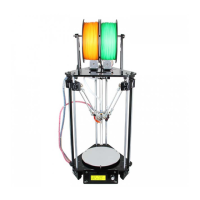
Need help?
Do you have a question about the Geeetech Rostock 301 and is the answer not in the manual?
Details on power supply and downloading necessary software like Repetier-Host.
Guide for installing USB drivers for the Rostock 301 on Windows 7.
Instructions on configuring the Repetier Host software for the printer.
Steps to establish a serial connection between the computer and the Rostock 301.
Setting travel/Z-axis rates, manual temperatures, and extruder details in Repetier Host.
Setting the build area dimensions and printer type in the software.
Setting layer height and first layer height for optimal print quality in Slic3r.
Configuring filament properties and advanced slicing parameters for better results.
Performing tests using Repetier Host and checking heating/extruder functionality.
Testing motor direction via LCD and general LCD controller operation.
Step-by-step guide for leveling the build platform for optimal first layer adhesion.
Loading models, slicing, and initiating the printing process.
Saving print files to an SD card for standalone printing.
Using the mixer for alternating, blended, and gradient color prints.
Printing models with different colored parts in horizontal orientation.
Troubleshooting motors, extruders, and print quality problems with provided links.
Detailed printer specifications and information on obtaining technical support.
 General
| Model | Rostock 301 |
|---|---|
| Type | Delta 3D Printer |
| Print Technology | FDM (Fused Deposition Modeling) |
| Nozzle Diameter | 0.4 mm |
| Filament Diameter | 1.75 mm |
| Connectivity | USB, SD Card |
| Print Speed | 30 - 150 mm/s |
| Extruder Type | Single Extruder |
| Heated Bed | Yes |
| Supported Materials | PLA, ABS, PETG, TPU |
| Frame Material | Aluminum |
| Software | Repetier-Host, Cura |
| Power Supply | 220V/110V, 360W |


 To Next Page