66
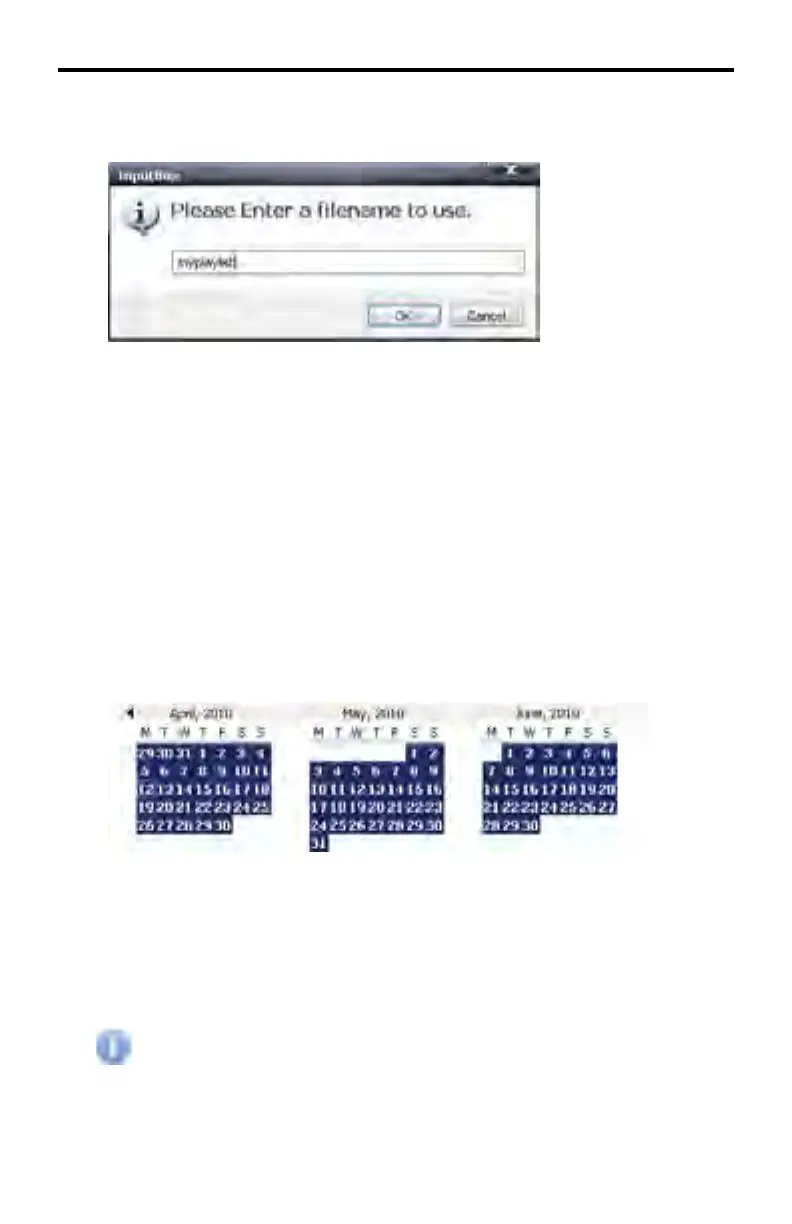
3. Another dialog is displayed, prompting for the name of the Playlist to be
In this example, the name of the Playlist will be is myplaylist
Click OK to accept the name of the Playlist or click Cancel to abort the
operation.
The Updated DSP Designer Interface
Once the Schedule File and the Playlist have been created, additional features
will be enabled.
The Calendar section, at the bottom portion of Window 3 is now enabled. Each
day of each month is highlighted in Blue.
There are two (2) different colors which DSP Designer uses to highlight the pe-
riod in which Playlist is scheduled to run (played).
Blue: The default period in which the currently selected Playlist will run.
Yellow: The defi ned period in which a currently selected Playlist will run.
By default, a new Playlist will be scheduled to play all day on each day
or every month. The example above illustrates a new Playlist without
any defi ned schedule.
DSP DESIGNER TUTORIAL



 To Next Page