67
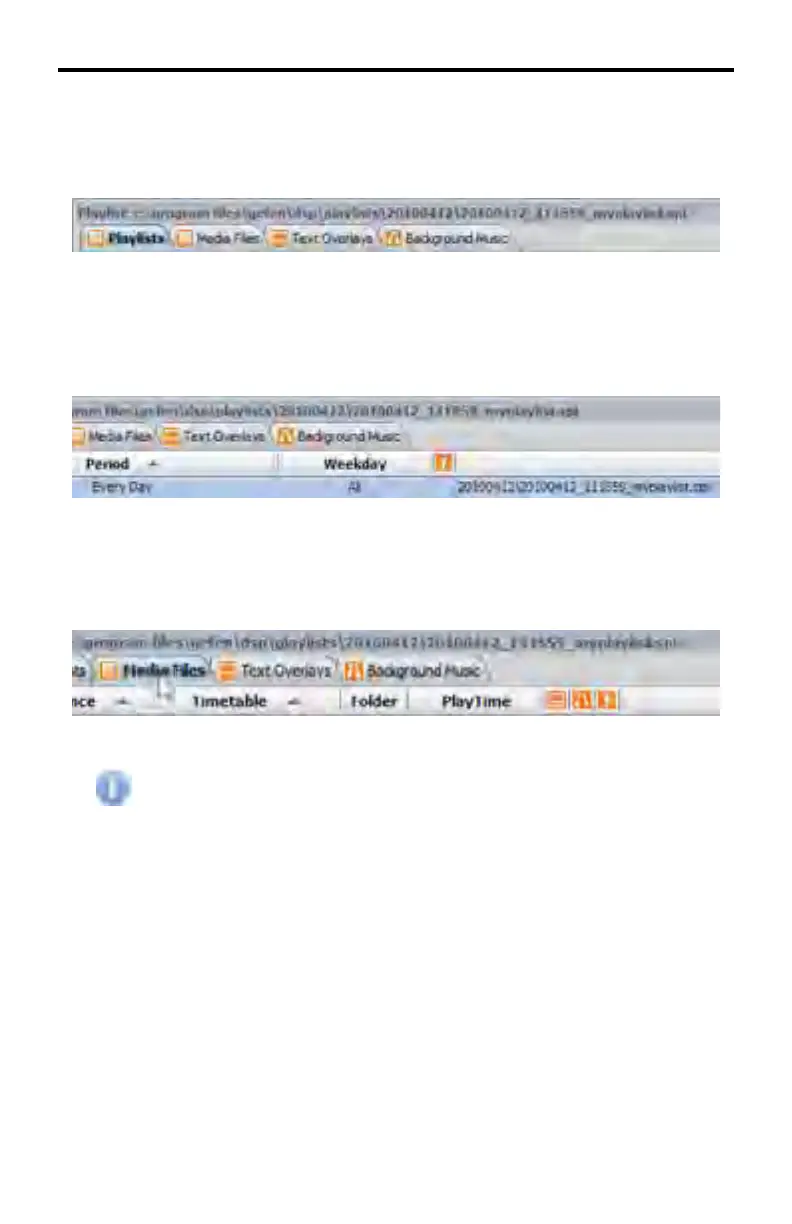
All tabs (Playlist, Media Files, Text Overlays, and Background Music) at the top
portion of Window 3 are now enabled.
The full path to the created Playlist is also displayed above the tabs.
Below the tabs is the Playlist schedule which displays the Playlist fi le along with
the Period and Weekday which the Playlist will run. In the illustration below, the
playlist is set to play every day, all day, seven days per week.
Adding Media
Click on the Media Files tab.
Before adding Media fi les, all content should be located under the Me-
dias directory. The most effi cient way to do this is to use the Navigator
pull-down dialog (page 58) from the Browser window and select Media
Files. Then, drag the media fi le(s) to the Browser window.
Add the media to the playlist by dragging the content from the Medias folder to
the Media window.
Video, audio, and images can be added to the Playlist in the Media Files window.
DSP DESIGNER TUTORIAL



 To Next Page