Setting Playback Time for Text Overlays
Newly created and previously created text overlays will appear in the Text
Overlay tab. This list will operate in the same manner as the Media Files tab in
terms of functionality.
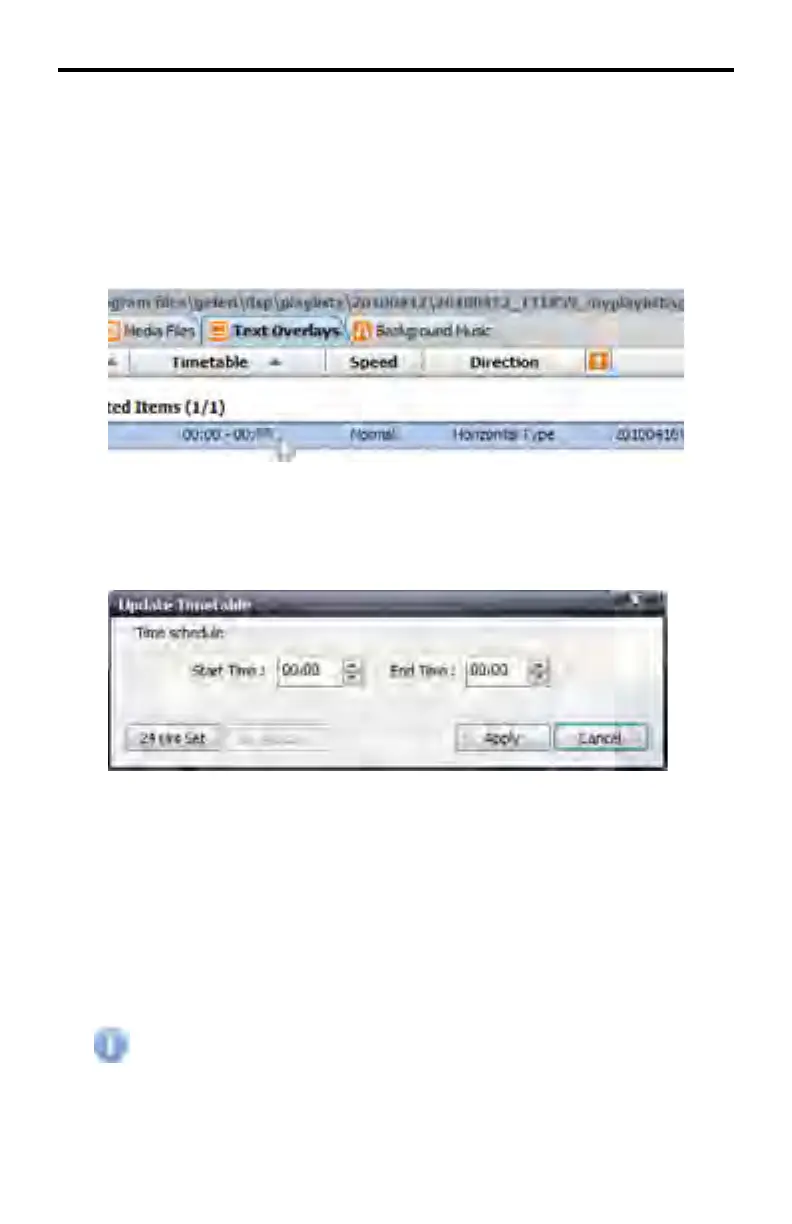
1. To set the playback time for text overlays, double click on the timetable in the
Timetable column for the text overlay.
2. The Update Timetable window will open.
In this window, the runtime for the selected text overlay can be set. All times
in this window are in 24-hour format.
3. Set a start and end time.
4. If the selected text overlay is intended to play all day, press the 24 Hrs Set
button.
5. To deallocate the time set for the selected text overlay, press the Not
Allocating button. This will return all values to 00:00 and list the selected
text overlay in the Unallocated Items group.
6. Press the Apply button when modifi cations are completed.
Once text overlays have been assigned a period for playback it will be
assigned to a new group according to its new time period.
7979
DSP DESIGNER TUTORIAL



 To Next Page