EasyManua.ls Logo

Getac V110 - User Manual

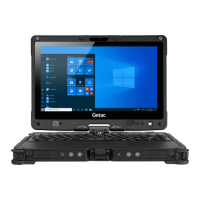
Getac V110
111 pages
Print Icon
To Next Page IconTo Next Page
Loading...
Rugged Mobile Computing Solution
V110
USER MANUAL

Table of Contents

Other manuals for Getac V110

Questions and Answers

  • D
    Douglas StoneAug 31, 2025
    Why Getac V110 Laptop battery meter is inaccurate?
    • J
      Jennifer ScottAug 31, 2025
      If the battery operating time indicated by the battery meter does not match the actual operating time on your Getac Laptop, and the actual operating time is much less than the estimated time, initialize the battery.
  • T
    tinalunaSep 9, 2025
    How to correct the date/time on a Getac V110?
    • E
      Erik WalkerSep 9, 2025
      Correct the date and time on your Getac Laptop via the operating system or BIOS Setup program. If you still have the incorrect date and time every time you turn on the computer, the RTC (Real-Time Clock) battery is at the end of its life. Call an authorized dealer to replace the RTC battery.
  • M
    Michael Lowery Jr.Aug 29, 2025
    What to do if Getac V110 does not turn on after sleep mode?
    • M
      Matthew MyersAug 29, 2025
      If your Getac Laptop does not resume from Sleep or Hibernation mode, it might have automatically entered these modes because the battery pack is empty. Connect the AC adapter to the computer or replace the empty battery pack with a fully charged one.
  • H
    hallkennethSep 23, 2025
    How to resolve Getac Laptop network communication issues in Infrastructure mode?
    • J
      Juan CarrollSep 23, 2025
      If you cannot communicate with your Getac Laptop in the network when Infrastructure mode is configured, ensure that the Access Point your computer is associated with is powered on and all the LEDs are working properly. If the operating radio channel is of poor quality, change the Access Point and all wireless stations within the BSSID to another radio channel. If your computer is out of range, move it closer to the Access Point. Make sure your computer is configured with the same security option (encryption) as the Access Point. Use the Web Manager/Telnet of the Access Point to check whether it is connected to the network and reconfigure/reset the Access Point if necessary.
  • K
    kimberlygardnerSep 10, 2025
    How to troubleshoot Getac V110 Laptop network connection issues?
    • J
      Joanne CruzSep 12, 2025
      If you cannot access the network on your Getac Laptop, ensure that the LAN cable is properly connected to both the RJ-45 connector and the network hub. Also, verify that your network configuration, username, and password are correct.
  • J
    jmitchellSep 14, 2025
    Why won't my Getac V110 go to sleep automatically?
    • J
      Jason SanchezSep 14, 2025
      If your Getac Laptop isn't automatically entering Sleep or Hibernation mode, it could be due to an active connection with another computer. The computer does not enter Sleep or Hibernation mode if the connection is actively in use. Also, make sure that the Sleep or Hibernation time-out is enabled.
  • J
    Jay AlvarezSep 22, 2025
    How to correct the date and time on a Getac V110 Laptop?
    • M
      Michael MorrisSep 22, 2025
      If the date/time on your Getac Laptop is incorrect, correct it via the operating system or BIOS Setup program. If the date and time are still incorrect after doing this every time you turn on the computer, the RTC (Real-Time Clock) battery is likely at the end of its life.
  • S
    stevenpetersonAug 27, 2025
    How to fix dim characters on Getac V110 Laptop screen?
    • J
      Janet ClarkAug 27, 2025
      If the characters on the screen of your Getac Laptop appear dim, try adjusting the brightness and/or contrast settings.
  • C
    Crystal WilsonAug 26, 2025
    What to do if Getac V110 won't turn on?
    • A
      Allison CarlsonAug 26, 2025
      If your Getac Laptop doesn't respond when you turn it on and the power indicator doesn't light up green, check the following: If using external AC power, make sure the AC adapter is correctly and securely connected, and verify the electrical outlet works. If using battery power, ensure the battery isn't discharged. Also, note that when the ambient temperature is below -20 °C (-4 °F), the computer will only start if both battery packs are installed.
  • E
    Edward BoyerAug 25, 2025
    How to fix Getac V110 Laptop battery not charging?
    • A
      Ashley WardAug 26, 2025
      If the battery charge indicator on your Getac Laptop doesn't light up amber when charging, try the following: Ensure the AC adapter is properly connected. Check that the battery isn't too hot or cold, and allow it to return to room temperature. If the battery has been stored in very low temperatures, disconnect and reconnect the AC adapter. Also, make sure the battery pack is correctly installed and that the battery terminals are clean.

Summary

Chapter 1 Getting Started

Getting the Computer Running

Steps to unpack and prepare the computer for initial use.

Connecting to AC Power

Instructions for connecting the AC adapter and power cord for initial power-up.

Opening and Closing the Cover

Procedure for opening and closing the computer's top cover.

Operating in Tablet Mode

How to convert the computer into tablet mode for touch operation.

Turning On and Off the Computer

Steps for powering the computer on, and shutting down, sleeping, or hibernating.

Taking a Look at the Computer

Overview of front, rear, side, top, and bottom components of the computer.

Installing the Accessories

Instructions for attaching optional accessories like carrying and handgrip straps.

Chapter 2 Operating Your Computer

Using the Internal Keyboard

Details on typewriter, cursor, numeric, and function keys, including Fn and hot keys.

Using the Touchpad

Guide to using the touchpad for cursor control, gestures, and configuration.

Navigating on the Screen

How to interact with the touch-sensitive screen using taps and gestures.

Using the Touchscreen

Explanation of basic touch interactions equivalent to mouse functions.

Using Multi-touch Gestures

Describes gestures like pan, zoom, rotate, press-and-tap, and flicks for interaction.

Using the Dual Mode Display (Optional)

Information on the optional dual mode display supporting touchscreen and digitizer functions.

Using the Network Features

Connecting to wired (LAN) and wireless (WLAN) networks.

Using the BT Feature

Pairing and connecting Bluetooth devices.

Connecting to another BT Device

Steps to discover and connect to Bluetooth devices.

Using the WWAN Feature (Optional)

Information on using the Wireless Wide Area Network for mobile data.

Installing a SIM Card

Procedure for inserting a SIM card for WWAN functionality.

Turning On;Off the WWAN Radio

Steps to enable or disable the WWAN wireless radio.

Setting up a WWAN Connection

Guide to configuring and establishing a WWAN network connection.

Chapter 3 Managing Power

AC Adapter

Details on the AC adapter's function, usage, and safety precautions.

Battery Pack

Information on the computer's battery packs and their rechargeable nature.

Charging the Battery Pack

Instructions and indicators for charging the battery packs.

Initializing the Battery Pack

Process to reset battery calibration for accurate performance readings.

Checking the Battery Level

Methods for monitoring the current battery charge level.

Battery Low Signals and Actions

Understanding battery level indicators and recommended actions.

Replacing the Battery Pack

Step-by-step instructions for safely replacing the battery packs.

Power-Saving Tips

Suggestions to maximize battery operating time through power management.

Chapter 4 Expanding Your Computer

Connecting an HDMI Display Monitor

How to connect an external display monitor via HDMI for enhanced visuals.

Connecting a USB Device

Guide to connecting various USB devices using the available ports.

Connecting a Serial Device

Instructions for connecting devices via the computer's serial port.

Connecting an Audio Device

How to connect external audio devices like headsets for improved sound quality.

Using Smart Cards

Inserting and removing smart cards for security and data storage.

Using ExpressCards

Inserting and removing ExpressCards for expanded functionality.

Replacing the Hard Disk Drive

Step-by-step instructions for replacing the internal hard disk drive.

System Memory Upgrade

Guidance on upgrading the computer's system memory (RAM).

Chapter 5 Using BIOS Setup

When and How to Use

Conditions requiring BIOS access and methods to enter BIOS Setup Utility.

Menu Descriptions

Explains Information, Main, Advanced, Security, Boot, and Exit menus in BIOS Setup.

Advanced Menu

Configuration options for wake-up capabilities, AC initiation, and virtualization.

Security Menu

Settings for system security, including passwords and secure boot configurations.

Boot Menu

Options for setting the boot sequence for operating system loading.

Exit Menu

Procedures for saving changes, discarding them, or loading default settings.

Chapter 6 Using Getac Software

OSD Control Panel

Using the On-Screen Display Control Panel for quick access to computer functions.

G-Manager

Managing system information, battery, ECO modes, and hardware buttons.

Getac Camera (Optional)

Utilizing the geo-tagging camera program for photos with location data.

Getac Smart Tag (Optional)

Reading RFID tags using the Getac Smart Tag utility.

Chapter 7 Caring for the Computer

Protecting the Computer

Safeguarding data and the computer using anti-virus and cable locks.

Taking Care of the Computer

Guidelines for optimal performance and avoiding damage from environmental factors.

General Guidelines

Basic recommendations for handling the computer safely and maintaining its condition.

Cleaning Guidelines

Procedures for cleaning the computer's exterior, screen, and touchpad.

Battery Pack Guidelines

Best practices for charging, using, and storing battery packs for longevity.

Touchscreen Guidelines

Proper usage and care instructions for the computer's touchscreen display.

When Traveling

Advice for backing up data, securing the computer, and navigating airport security.

Chapter 8 Troubleshooting

Preliminary Checklist

Initial steps and checks before troubleshooting computer problems.

Solving Common Problems

Addresses common issues with battery and Bluetooth connectivity.

Display Problems

Solutions for issues like a blank screen, dim characters, or display anomalies.

Hardware Device Problems

Troubleshooting steps when the computer does not recognize new hardware.

Keyboard and Touchpad Problems

Solutions for unresponsive keyboards or touchpad issues.

LAN Problems

Steps to resolve issues with accessing the network via LAN.

Power Management Problems

Troubleshooting computer behavior related to Sleep and Hibernation modes.

Sensor Problems (for Windows 8 Models Only)

Recalibration steps for the digital compass sensor.

Software Problems

Resolving issues with application programs not working correctly.

Sound Problems

Troubleshooting steps when no sound is produced or sound is distorted.

Startup Problems

Solutions for the computer not responding or stopping after POST.

Wireless LAN Problems

Resolving issues with wireless LAN connectivity and transmission quality.

Other Problems

Addressing miscellaneous issues like incorrect date/time settings.

Resetting the Computer

Methods to restart or force reboot the computer when it hangs.

System Recovery

Steps for restoring, refreshing, or resetting the computer for Windows 8.

System Recovery (a Tool for Windows 7 Models)

Using the recovery tool to restore the system to factory state for Windows 7.

Appendix A Specifications

Appendix B Regulatory Information

On the Use of the System

Discusses FCC Class B regulations and usage guidelines for the system.

Canada

Provides Canadian regulatory notices regarding radio interference.

ANSI Warning

Safety warnings for using the equipment in hazardous locations.

Safety Notices

Provides important caution texts and recycling information for batteries and AC adapters.

RF Device Compliance

Covers FCC RF exposure, SAR, and EMC requirements for the device.

Canada RF Interference Requirements

Guidelines to prevent radio interference in Canada.

European Union CE Marking

Statements of compliance with European Union directives.

Restrictions

Notes on usage restrictions for specific frequency ranges.

Getac V110 Specifications

General IconGeneral
Form factorConvertible (Swivel)
Product typeHybrid (2-in-1)
Product colorBlack
Display diagonal11.6 \
Touch technologyMulti-touch
Touchscreen typeCapacitive
Display brightness800 cd/m²
Display resolution- pixels
Native aspect ratio16:9
Internal memory8 GB
Internal memory typeDDR4-SDRAM
Maximum internal memory32 GB
Storage media-
Total storage capacity- GB
On-board graphics card ID0x5916
Discrete graphics card modelNot available
On-board graphics card modelIntel® HD Graphics 620
On-board graphics card familyIntel® HD Graphics
On-board graphics card OpenGL version4.4
On-board graphics card base frequency300 MHz
On-board graphics card DirectX version12.0
On-board graphics card dynamic frequency (max)1000 MHz
Battery voltage11.1 V
Battery capacity2100 mAh
AC adapter power65 W
AC adapter frequency50 - 60 Hz
AC adapter input voltage100 - 240 V
Cable lock slot typeKensington
Antenna type2x2
Wi-Fi standards802.11a, 802.11b, 802.11g, Wi-Fi 4 (802.11n), Wi-Fi 5 (802.11ac)
Bluetooth version4.2
Top Wi-Fi standardWi-Fi 5 (802.11ac)
WLAN controller modelIntel Dual Band Wireless-AC 8265
Ethernet LAN data rates10, 100, 1000 Mbit/s
Storage temperature (T-T)-51 - 71 °C
Operating temperature (T-T)-21 - 60 °C
Operating relative humidity (H-H)0 - 95 %
Charging port typeDC-in jack
USB 2.0 ports quantity0
Ethernet LAN (RJ-45) ports1
USB 3.2 Gen 1 (3.1 Gen 1) Type-A ports quantity3
Pointing deviceTouchpad
Operating system architecture64-bit
Bus typeOPI
SteppingH0
Tjunction100 °C
Processor cache3 MB
Processor cores2
Processor modeli5-7200U
System bus rate4 GT/s
Processor familyIntel® Core™ i5
Processor socketBGA 1356
Processor threads4
Processor codenameKaby Lake
Configurable TDP-up25 W
Processor frequency2.5 GHz
Processor cache typeSmart Cache
Configurable TDP-down7.5 W
Processor lithography14 nm
Processor manufacturerIntel
PCI Express slots version3.0
Processor boost frequency3.1 GHz
PCI Express configurations1x2+2x1, 1x4, 2x2, 4x1
Thermal Design Power (TDP)15 W
Configurable TDP-up frequency2.7 GHz
Configurable TDP-down frequency0.8 GHz
Maximum number of PCI Express lanes12
Processor codeSR2ZU
Processor ARK ID95443
Processor package size42 X 24 mm
Supported instruction setsAVX 2.0, SSE4.1, SSE4.2
Intel Identity Protection Technology version1.00
Intel Stable Image Platform Program (SIPP) version0.00
Weight and Dimensions IconWeight and Dimensions
Depth238 mm
Width313 mm
Height39 mm
Weight1980 g

Related product manuals