GD-Link V2 Adapter User Guide
20
3.2.3. Offline programming
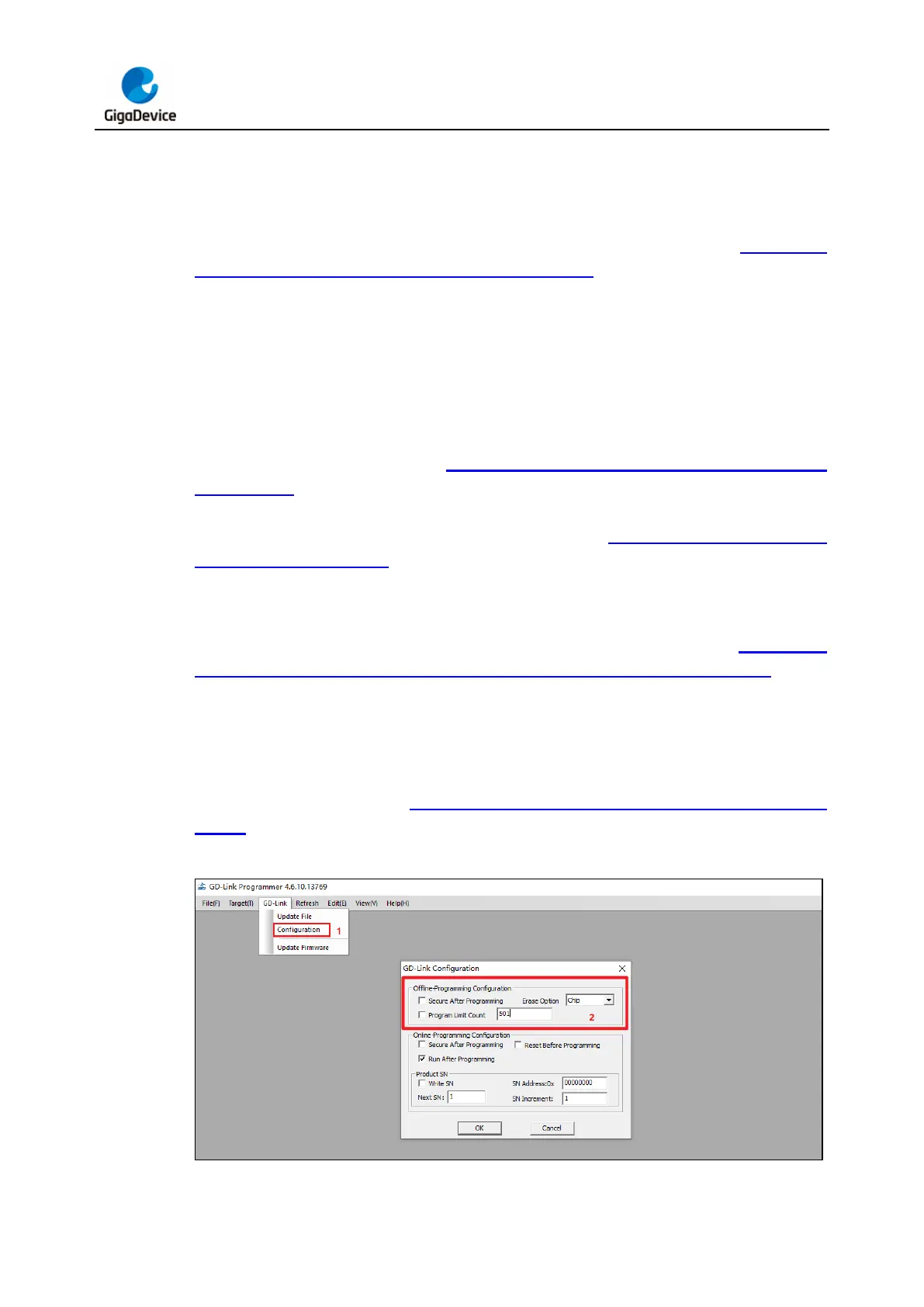
Connect the USB interface of GD-Link V2 to the PC, and wait for LED2 to enter rapid blinking
mode. Open the GD-Link Programmer software. Click "GD-Link" menu bar and then choose
"Configuration" to configure the parameters of offline programming, referring to Figure 3-19.
GD-Link V2 offline download parameter configuration. The following configurations can
be performed using this interface:
Whether to enable read protection after offline programming completion.
Erase method selection: full chip erase or page erase.
Limit the number of offline programming downloads.
Click the "OK" button in the offline programming parameter configuration interface to save the
settings. After configuration, in the menu bar, click "GD-Link" and then "Update File" to enter
the file update interface. Referring to Figure 3-20. GD-Link V2 offline download file update
configuration. Select the specific part number of the target MCU, add the xxx.bin file, specify
the download address to the target chip, and click the "Update" button. Wait for the progress
bar to reach 100% to complete the file update, as shown in Figure 3-21. Offline download
file updated to GD-Link V2.
File updating supports one-time burning for BOOT+APP functionality. The user can continue
to click the "Add" button to add a second bin file, specify the burning address. The file update
allows to add a maximum of 8 bin files. The addition process is illustrated in Figure 3-22.
Simultaneously adding BOOT+APP offline download file update to GD-Link V2.
For GD32W515 series MCU, offline programming also supports option byte configuration.
When selecting the MCU part number as GD32W515 series MCU in the "GD-Link Update
File Configuration" window, click the "Configure OptionBytes" button. In the pop-up window,
perform the option byte configuration. After configuration, click the "OK" button to save the
relevant settings, as shown in Figure 3-23. Offline download configuration option byte
feature.
Figure 3-19. GD-Link V2 offline download parameter configuration



 To Next Page