12
Table 5. On-Screen Icons
ICON FUNCTION
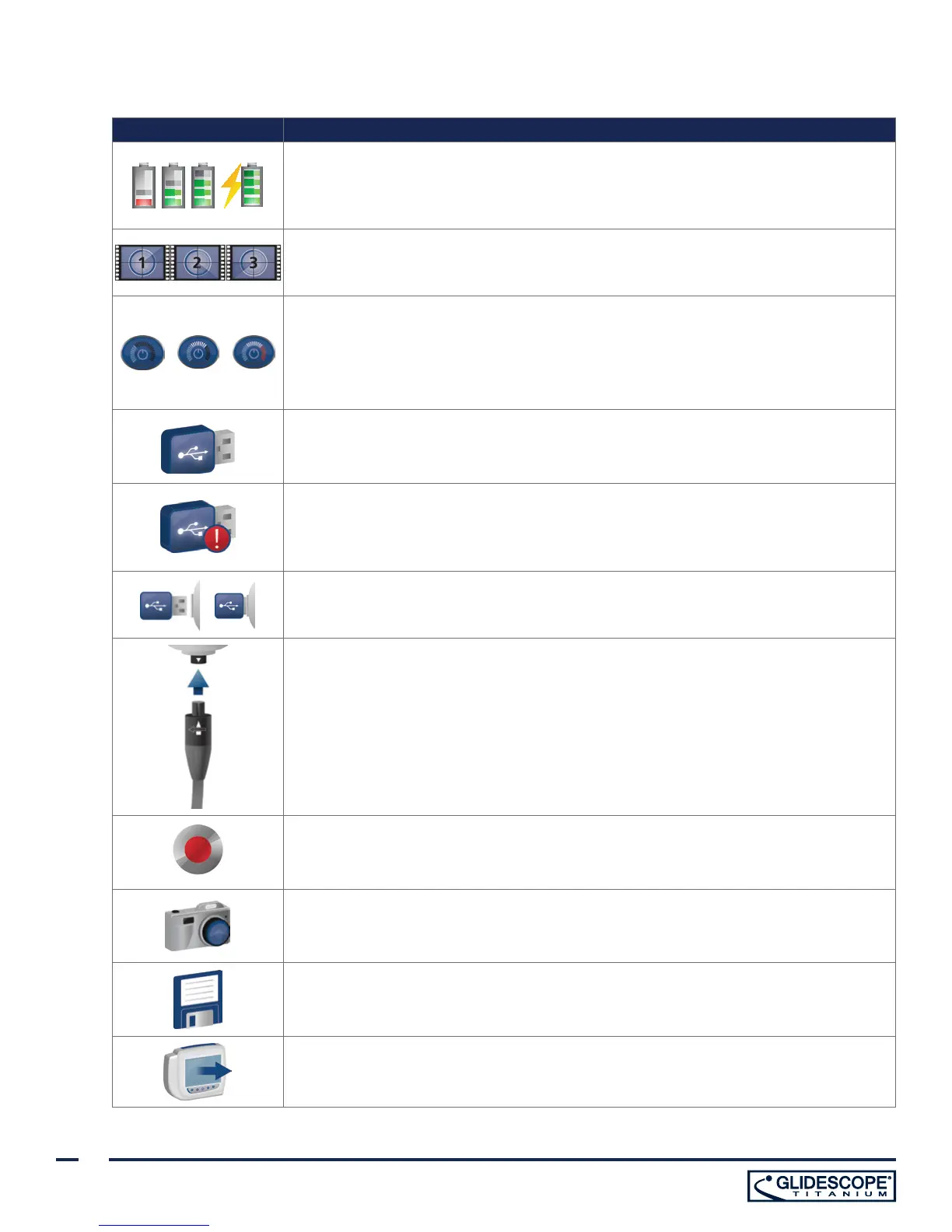
Battery Status: The remaining battery power is indicated by the Battery Status icon
and the percentage above the icon. If the icon is red, the battery should be charged
as soon as possible. (See Charge the Monitor Battery.) While the battery is being
charged, a lightning bolt will be displayed alongside the Battery Status icon.
Progress Confirmation: While the user is pressing a button, the operation is loading.
If the button is released before the loading process is completed, the operation is
canceled.
Power-Down Countdown: The unit is about to turn off. If this is due to the Auto
Power Off feature that saves battery life, pressing any button stops the power-down
sequence.
Note: The Auto Power Off feature can be adjusted or disabled on the User Settings
screen. For more info, see Configure User Settings on page 22.
USB Flash Drive: A USB flash drive is detected.
While recording, a number next to the icon indicates approximately what percentage
of the USB flash drive has been used. When the USB flash drive is full, recording stops.
Incompatible USB Drive: The USB flash drive that is plugged into the monitor is not
suitable for recording videos. (This normally occurs when using an encrypted USB
flash drive or when using an older, inexpensive model that is not capable of the speed
necessary to save video in real time.)
USB Flash Drive Not Found: A USB flash drive needs to be inserted into the monitor
USB port.
Attach Video Cable: The video cable is not attached to themonitor.
Recording: The system is recording video to the USB flash drive.
Note: Do not remove the USB flash drive while recording is in progress, or the
recording will be lost.
Saving Snapshot: The system is saving a snapshot to the USB flash drive.
Note: Do not remove the USB flash drive while saving a snapshot, or the snapshot will
be lost.
Saving File: The system is saving a recorded file to the USB flash drive.
Note: Do not remove the USB flash drive while this icon is displayed, or the recording
will be lost.
External Monitor: The HDMI-to-DVI connection for external video is enabled, and
videois being displayed on an external monitor.


 To Next Page