13
Operations & Maintenance Manual: Introduction
ICON FUNCTION
Hourglass: Please wait while the system prepares for the next action.
Audio Recording is Active: Audio is being recorded on the video.
Note: The default for audio recording is OFF, so audio recording on the video occurs
only if the setting has been changed to ON in user settings.
Back Arrow: Exit to previous screen.
Up Arrow: Select previous file for playback.
Down Arrow: Select next file for playback.
Play: Play the selected file or continue playing a paused video file.
Pause: Pause the video playback.
Snapshot: On the Playback menu, this icon indicates that a file is a snapshot.
Video: On the Playback menu, this icon indicates that a file is a video.
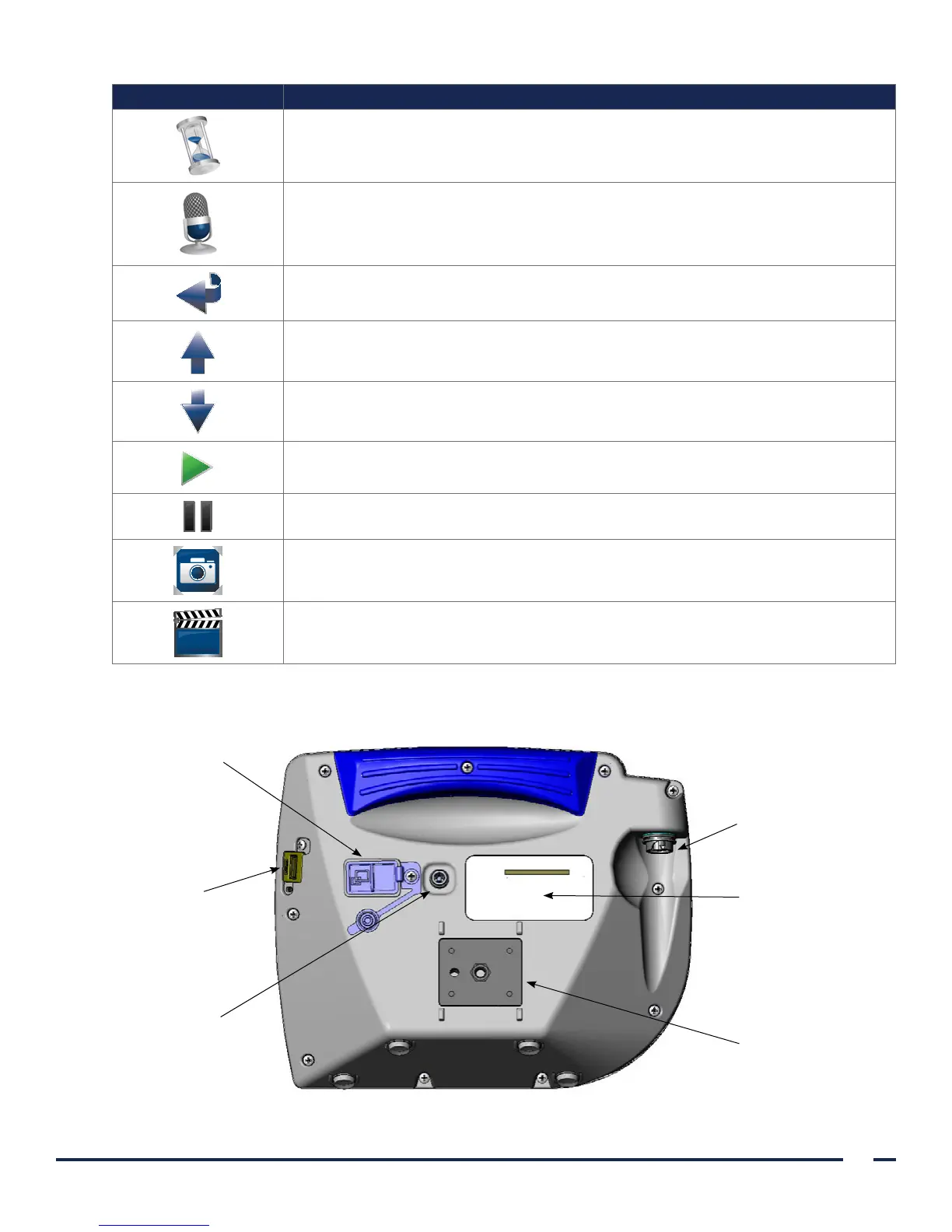
Figure 7. GlideScope Video Monitor Back Panel
Video-out port:
Connect the
HDMI-to-DVI cable
from the external
monitor
Video cable port:
Attach the video cable or
GlideScope Smart Cable
Product identification:
Includes product serial
number
USB port:
Connect a USB
flash drive to
record video or
take a snapshot
Power socket:
Connect the barrel
plug from the 12V
power adapter
Mounting plate fitting:
Connect the monitor to a
mobile stand or IV pole


 To Next Page