Graupner mz-32 Help Reference Manual
Page 22 of 42 Help-Ref-EN-V1.0
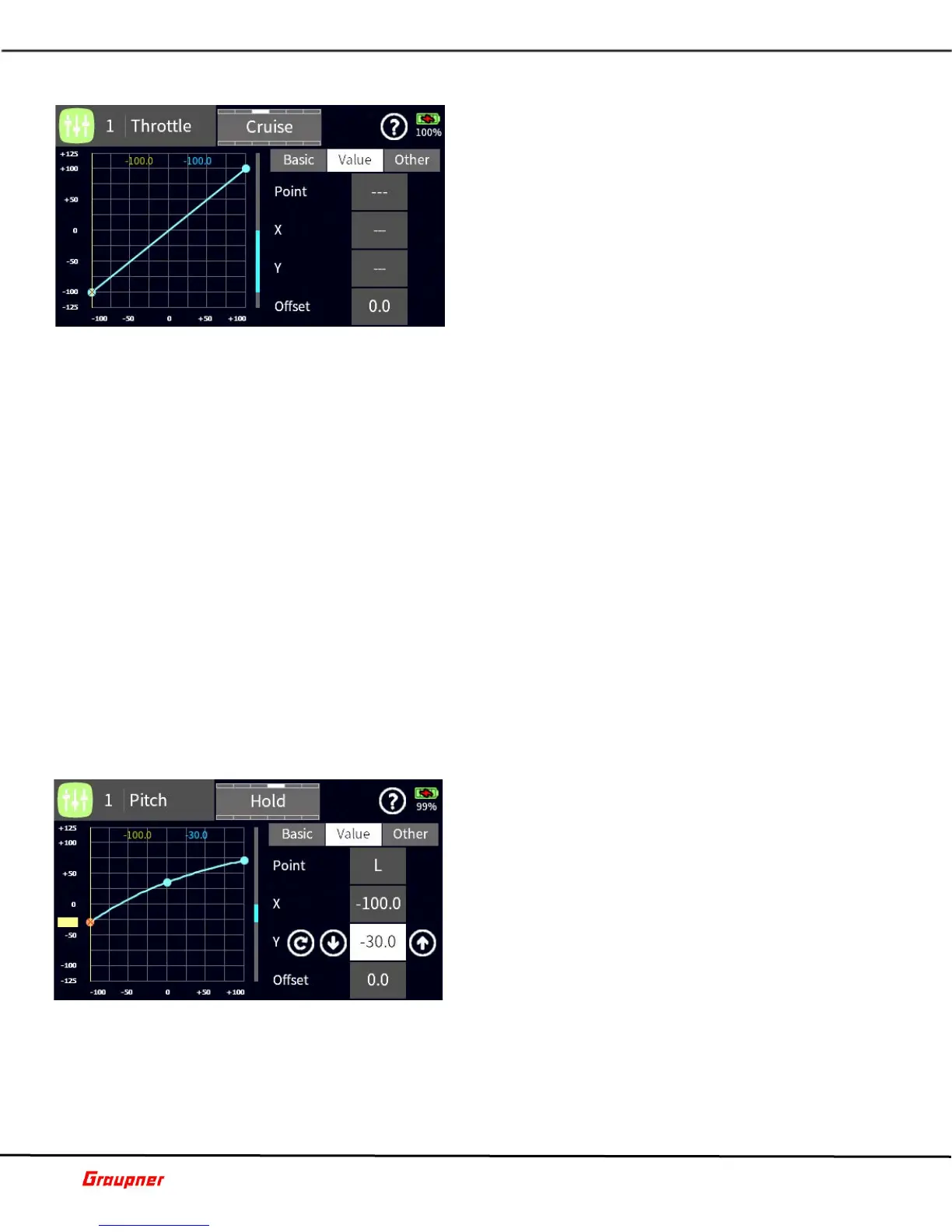
THROTTLE CURVE
Note: The same settings can be accessed by selecting
Base – Control Set and tapping on Throttle Detail.
Changes can be made in either section.
The Throttle Curve settings allow you to create a
throttle behavior based on your preferences. The
default setting is linear (dual point), the channel output
increases/decreases by equal amounts over the entire
range
Tap on the Other menu selection to select a Curve type
and Spline behavior.
Tap on the Value menu selection to make changes to
curve settings. A flat (horizontal) curve can only have
its Offset / Y axes value changed. A dual point curve can have its Offset and both Y axes (L
and H) values changed. The changes occur in reference to the zero/midpoint of the curve.
A multi-point curve, permit changes for each individual point. Select a point by moving the
throttle cursor over a point (color changes) and use the X or Y arrow keys (left, right, up,
down icon) to change the point values. Add additional curve points by positioning the cursor
line at the desired location on the curve and press the plus (+) icon.
A selected point on an axis can also be adjusted by moving the orange marker of the
respective axis. Simply tap and hold down on the marker to move it, use the arrow keys
for fine adjustments.
To remove a curve point, select the point by moving the cursor over the point or tap on the
point (point will change color), then tap on the minus icon next to the Point number field.
Tapping on the Group icon in the Basic section will toggle the Group setting between global
and phase dependent.
Tap on the Overlay Ch. Field in the Basic section to select an overlay channel. It will visually
overlay the selected channel over the current channel for comparison.
When the active Model Type is set as Helicopter an additional horizontal line will show which
marks the relative position of the throttle limiter which is controlled on channel 12. The
throttle limiter is part of the model setup can be activated from the Throttle Limit option.
F09S1
PITCH CURVE
In the Pitch Curve menu, you can set the behavior of
your swash plate for a specific flight mode.
Tap on the Other tab to select a curve and spline type.
Tap on the Value tab to make changes to the curve. A
flat curve can only have its offset or Y axes changed
while a dual point curve can have its offset and Y axes
changed along the zero midpoint of the curve.
When selecting a multi-point curve, you can change a
point by moving the throttle cursor over a point and use
the X or Y arrow keys to change the point values. You
can also tap on the orange guide tabs on the side to
roughly move the point to a desired position and further fine tune the values with the arrow
keys.
To add a curve point, move the cursor along the curve line to the desired location and tap
on the plus sign next to the Point field to add the additional point.
To remove a curve point, move the cursor over the point that needs to be removed and tap
on the minus sign next to the Point field to remove the point.



 To Next Page
 Loading...