4
Navigating in WolfSense IAQ LAP
From the main screen, you will perform all the functions available with WolfSense
LAP. The pull-down menus and toolbar buttons are described briefly below.
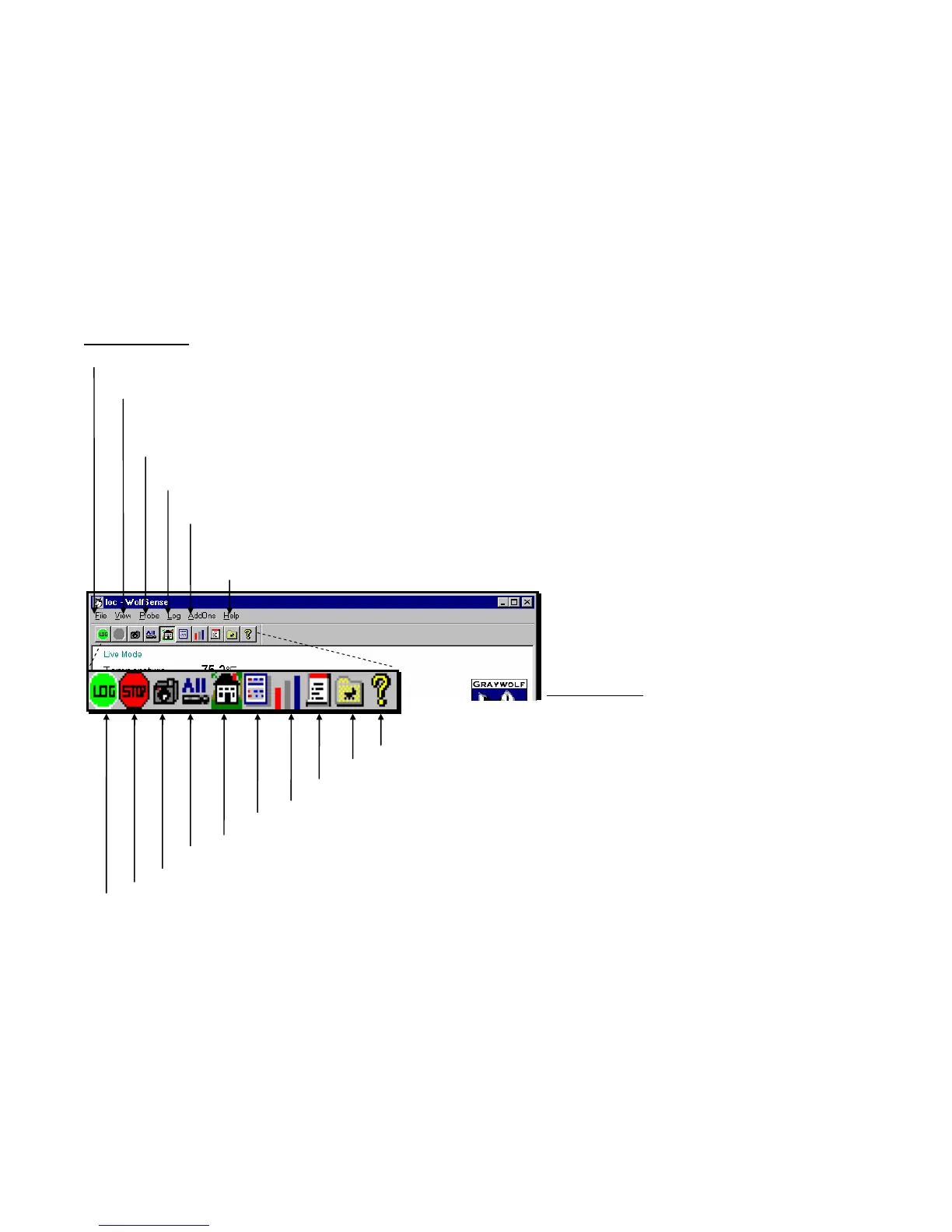
Pull-Down Menus
File - to manage files: OPEN LOCATION in WolfSense PC, NOTEBOOK to access Text Notes, Drawing Notes
and Report Templates, EXIT.
View - to view READINGS, DETAILS or STATISTICS for live readings. GRAPH to plot readings for a
selected measurement parameter in real time. VIEW LOCATION where readings have been or
will be logged. Check individual measurement parameters to include or exclude them. VIEW
ALL to display all measurement parameters. CHANGE UNITS of measure.
Probe - to see INFORMATION about the probe or to CALIBRATE the probe. VIEW ACTIVE CAL for
probe calibration data. SETUP to change serial ports. DETECT PCMIA PORT PROBES.
Log - to set up how the readings will be logged: as SNAPSHOT, STANDARD TIMED or AUTO
START/STOP. To view LOG INFORMATION. To set or create LOCATION files or SITE
folders. To START or STOP a log.
Add-ons - VentCal Ventilation Calculations, Basic Volume Flow, DuctCal Equal Area
Traverse, DuctCal Log-T Traverse, FumeCal Fumehood Face Velocity,
ThermCal Thermal Comfort. Add-ons listed on this menu are documented in
separate manuals.
Help - to see HELP TOPICS on WolfSense IAQ LAP, ABOUT WOLFSENSE.
Figure 4 -
WolfSense IAQ LAP
Pull-down Menus and
Toolbar Buttons
Toolbar Buttons
HELP - ? opens WolfSense IAQ LAP help topics.
LOCATIONS - opens LOCATIONS dialog box.
NOTEBOOK - accesses Text Notes, Drawing Notes and Report
Templates.
STATISTICS - displays statistics about a chosen parameter.
DETAILS - displays multiple readings in columnar format.
HOME - returns to the main WolfSense screen.
ALL - displays all measurement parameters, updating readings continuously.
SNAPSHOT - manually captures live values instantaneously in a location file.
STOP- stops a timed log in progress.
LOG - starts a timed log previously set up.



 To Next Page