10
Snapshot Log
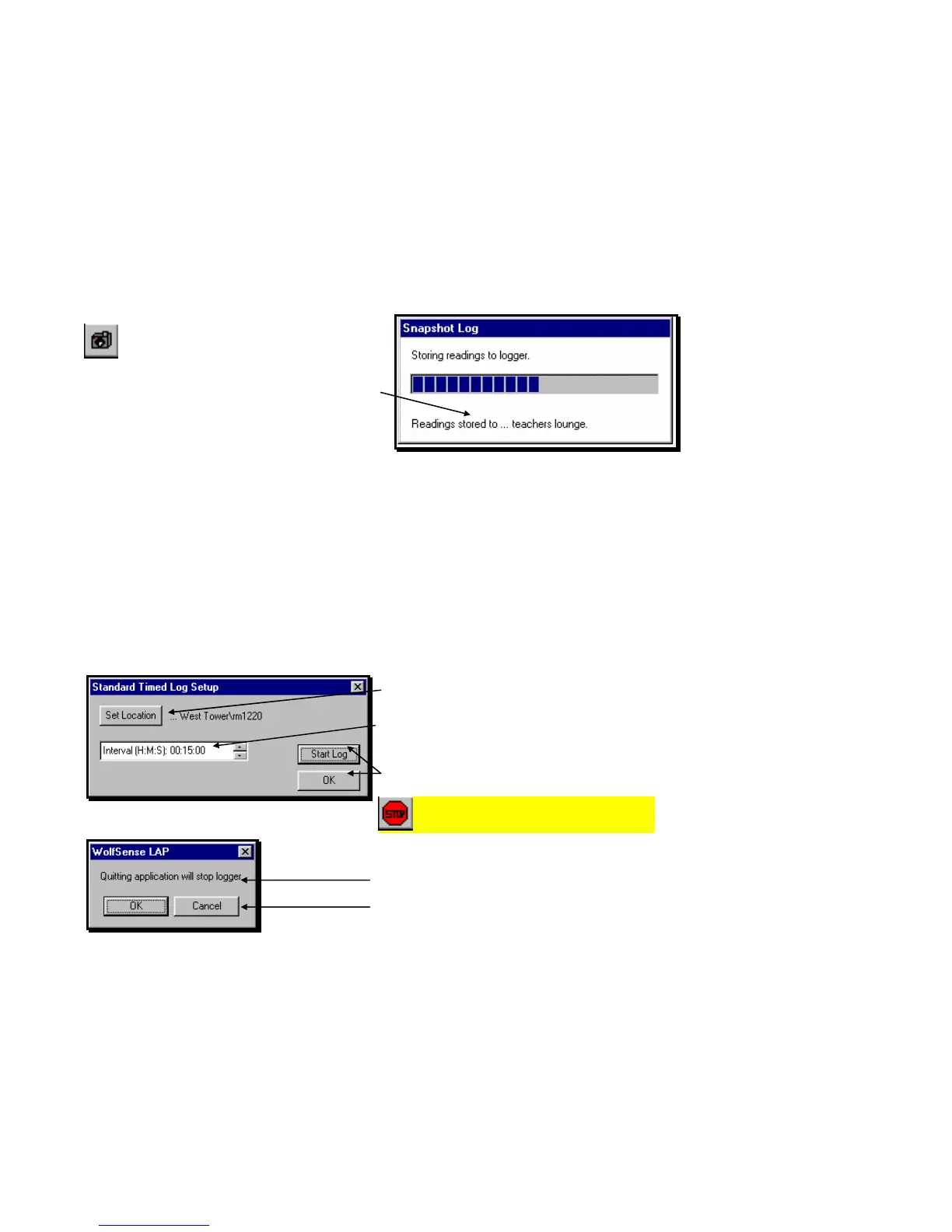
The Snapshot Log lets you log values from the probe manually—even supplemental
values if you are running a Standard Timed or Auto Start/Stop log.
Click on or tap the Snapshot toolbar button
or Log, Snapshot Log.
The dialog box confirms the name of the location file
to which values are being logged.
You will see the LOCATION EXISTS dialog box above if
the location file already has stored readings in it and
you have not checked Don’t give this message
again (Figure 15).
Standard Timed Log
The Standard Timed Log program logs readings in a location file at pre-set
intervals—until you stop the data logging or exit from WolfSense IAQ LAP. From the
STANDARD TIMED LOG SETUP dialog box, set the location file to be used and the
interval between readings.
Click on or tap Log, Standard Timed Log.
Click on or tap Set Location to select or create the
location file for logging. (See page 8 for details.)
To change the interval, click on or tap the hour,
minute or second digits. Then type your choice, or
use the up and down arrows on your keyboard.
Click on or tap Start Log to begin data logging, or
click on or tap OK to save the time interval and exit.
When finished logging data, click on or tap
the Stop toolbar button or Log, Stop Log to end the
logging session.
If you try to exit WolfSense IAQ LAP while a log is
running, you will see a warning.
Click on or tap Cancel to continue logging, or
click on or tap OK to exit.
Figure 16 - Confirmation Message from Snapshot Log
Figure 17- STANDARD TIMED LOG SETUP dialog box
Figure 18 – Warning if you try to exit while a log is running



 To Next Page