14
Text Notes
Once you have selected a file as described in the previous section, you may create a
text note using Windows Notepad or your system’s default text editor.
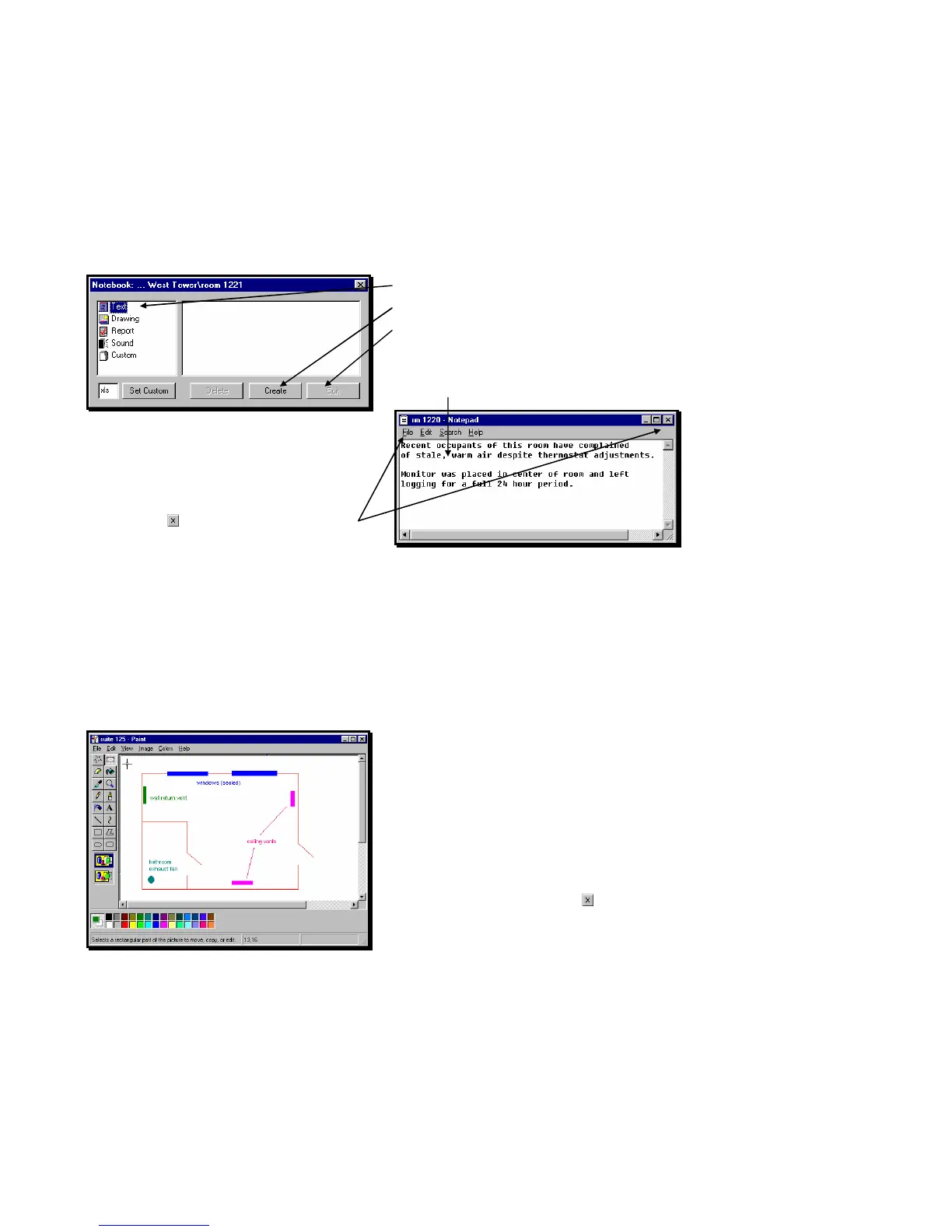
For a text note, click on or tap Text.
Click on or tap Create.
The Edit button will be available only if a note
already exists for the location.
Click on or tap inside the edit window to activate
the cursor.
Type or revise a text note using the text editor
provided. On your keyboard, use the Enter key to
start new lines of text; use the arrow keys to move
the cursor through the text.
To print the text note, click on or tap File, Print.
Click on or tap or File, Exit to exit the editor.
You will be asked if you want to save your changes.
Click on or tap Yes or No.
The text note will close and you will return to
WolfSense IAQ LAP.
Drawing Notes
Once you have selected a file as described on the previous page, you may create a
drawing note in Microsoft Paint or your system’s default Bitmap editor.
Click on or tap Drawing in the NOTEBOOK dialog box (Figure 24). Click on or tap Create.
The Edit button will be available only if a drawing
already exists for the location file selected.
Create a drawing with the editor provided.
To draw points, click on or tap on the screen.
To draw freehand, hold the left mouse button down
while moving it or drag the stylus on the screen.
To remove points or lines just drawn, click on or tap
Edit, Undo.
To remove all points, click on or tap Image, Clear
Image.
To print the drawing, click on or tap File, Print, OK.
To close the drawing, click on or tap or File, Exit.
You will be asked if you want to save the changes.
Click on or tap Yes to save changes, No to save
without changes, or Cancel to continued editing the
drawing.
Figure 24 - NOTEBOOK dialog box
Figure 25 - Text Note window
Figure 26 - Drawing Note window using MS Paint



 To Next Page