8
Creating, Selecting and Deleting Site Folders and Location Files
First, create or select the site folder you need.
Then, create or select a location file in that site folder.
The next time a log begins, readings will collect in the location file you just selected.
This location file collects readings until you select a different
location file for logging.
To create a new site folder from the main WolfSense IAQ LAP screen,
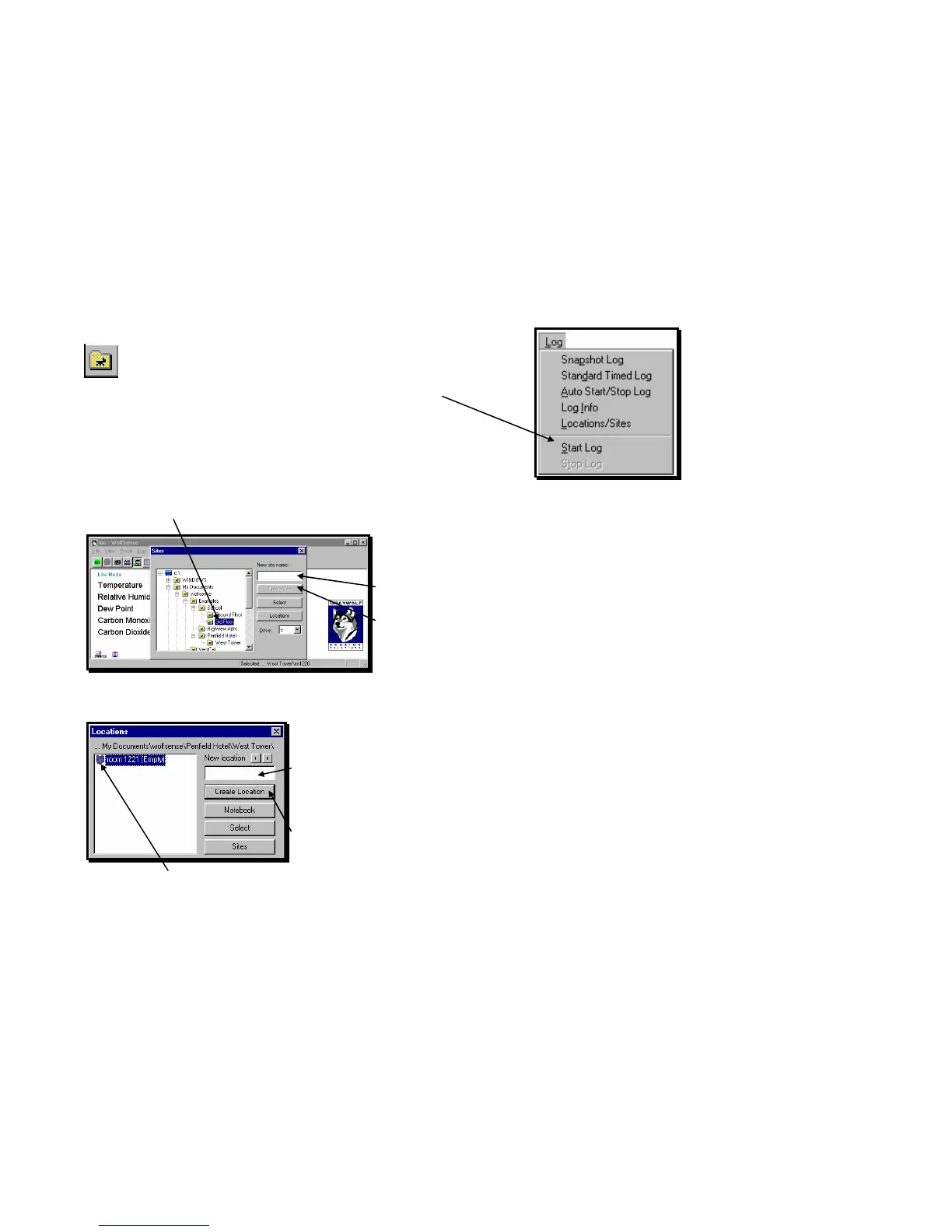
click on or tap the Set Site/Location toolbar button or Log, Locations/Sites.
In the LOCATIONS dialog box (see Figure 13), click on or tap Sites.
In the SITES dialog box, you will see highlighted the name of the last site folder
in which a location file was created or selected.
To choose a different site, scroll, click or tap through
the site folder tree until you see the desired site
folder.
Click on or tap the site folder.
Click on or tap the field under NEW SITE NAME.
Type the name for the new sub-site folder.
Click on or tap Create Site.
Click on or tap Locations. Or, if starting from the main WolfSense
IAQ LAP screen, click on or tap Log, Locations/Sites.
Click on or tap in the field under NEW LOCATION.
Type the name of the new location file. You may also use the right
and left arrows to insert pre-set names such as Location1,
Location2, etc.
Click on or tap Create Location.
The new location file name will appear in the list of locations and is
selected for logging. The wolf’s head indicating a location file will
be light gray. When a file has data in it, the wolf’s head is black and
white.
See “Notebook” on page 13 to create a text note, drawing note or
template report for new or existing location files.
To select an alternate location for logging, click on or tap Sites and scroll, click or tap
through the site folder directory to the desired site. Click on or tap Locations. Click
Figure 11 - Log menu
Figure 12 - SITES dialog box
Figure 13 - LOCATIONS dialog box. The
wolf’s head indicates a location file
where data is or will be stored. Light
gray wolf’s head means empty file; black
and white head means file has data.



 To Next Page