12
The Logging Process
To start any of the three types of data logging, follow these steps:
1. Make sure the probe is securely attached to the serial port.
2. Set the parameters you wish to log. See “Readings” on page 5.
3. Select a location file for storing the readings for these parameters.
See “Data Organization: Sites and Locations” on page 7.
4. Select the log program. See “Types of Logs” on page 9.
5. Initiate timed logging in one of three ways:
Click on or tap the Start Log button in the AUTO START/STOP LOG or
STANDARD TIMED LOG dialog boxes.
Click on or tap Log, Start Log from the main WolfSense IAQ LAP screen.
Click on or tap the LOG toolbar button.
Log Information and Stored Readings
Log Information
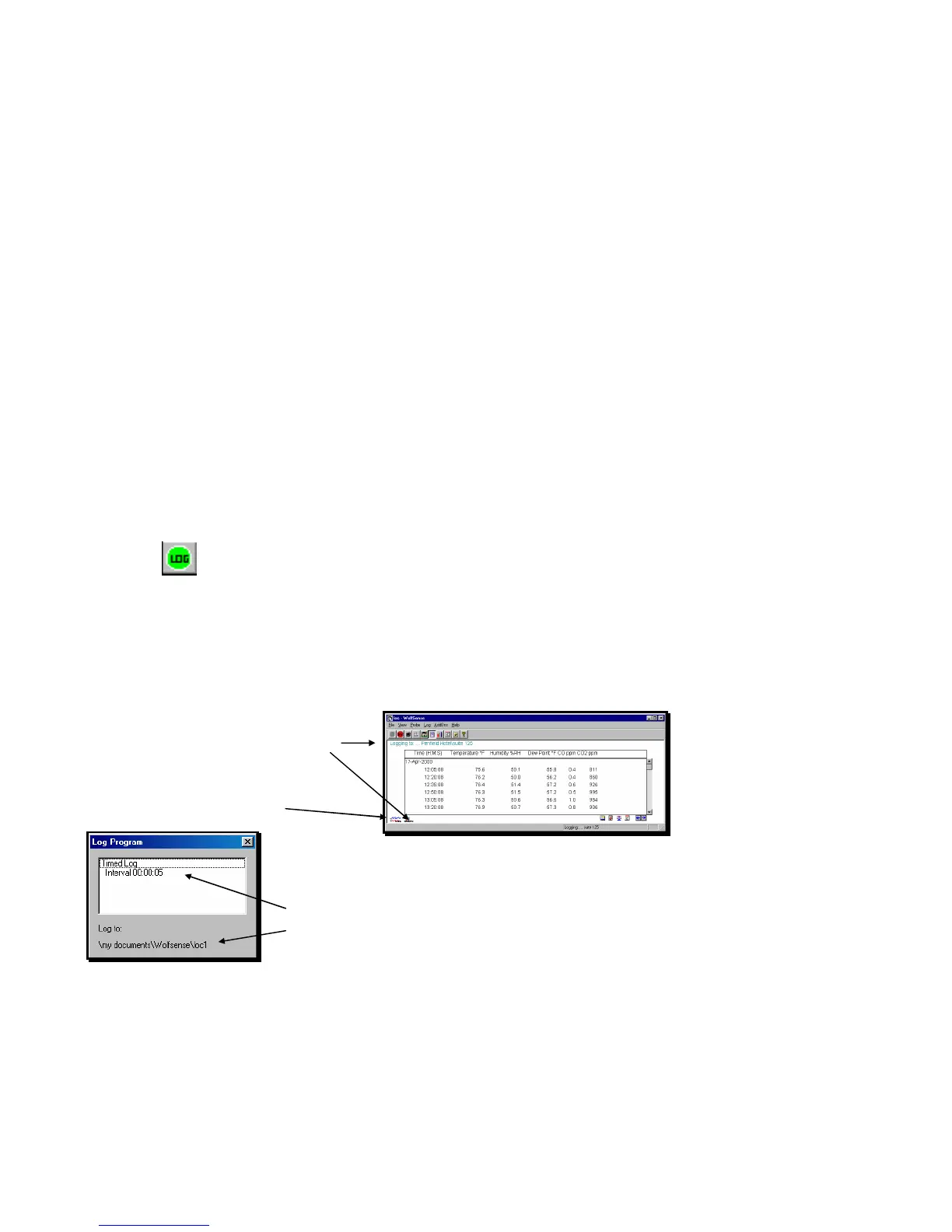
During logging, readings appear on the screen in Detail format by default. You may
also choose to display current live readings in Readings format. (See page 5.)
The location file name will appear at the top of the
screen and the Log icon, at the lower left side.
To find out what log program is active, click on or
tap Log, Log Info or the Log icon.
The LOG PROGRAM dialog box shows the kind of log, the specified
interval, and the location file to which readings are being logged.
Figure 21 - View, Details while Logging (DirectSense 100)
Figure 22 - LOG PROGRAM dialog box



 To Next Page