9
on or tap an existing location to highlight it. Click on or tap Select. The dialog box
will close and the location file will be ready for logging.
To delete a location file or entire site folder, click on or tap File, Open or View, View
Location. Scroll, click or tap through the site folder directory to the desired site or
folder. Press the DEL key. Click on or tap Yes to confirm that you want to send it to
the Recycle Bin.
To print a location file, see “Printing Location Files, Notes, Reports & Calibration Data
from WolfSense PC” on page 26.
Types of Logs
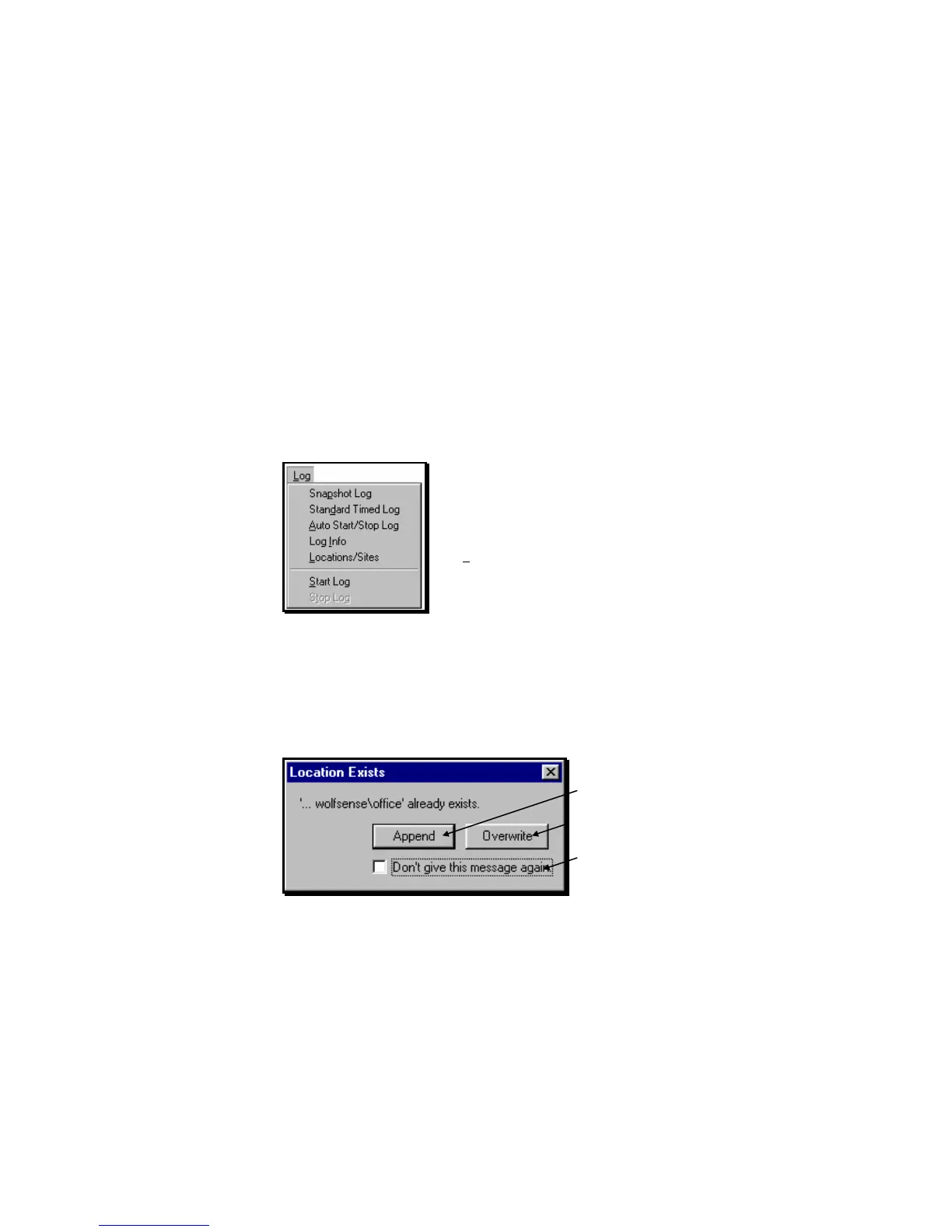
WolfSense IAQ LAP offers three ways to log data into a
location file:
Snapshot Log - manually.
Standard Timed Log - at pre-set intervals initiated at
the measurement site and until stopped by user.
Auto Start/Stop Log - at pre-set intervals between
pre-programmed start and stop times.
Append or Overwrite
The LOCATION EXISTS dialog box appears when you try to add readings to a file that
already exists and contains logged data.
Click on or tap Append to ADD readings to the
existing file; or
Click on or tap Overwrite to DELETE all readings
previously stored in that location file and replace
them with the new set of readings.
Click on or tap Don’t give this message again to
suppress this dialog box until the next time you
change locations or log modes.
Figure 14 - Log menu
Figure 15 – LOCATION EXISTS dialog box



 To Next Page