15
Reports
Use the multiple report templates provided in WolfSense IAQ LAP to create one of
each report for any location file in Microsoft Word or your system’s default RTF editor.
Update each report as often as needed. Reports are stored with their associated
location file in the same site folder: \My Documents\WolfSense. Add your own report
templates to the \Program Files\GrayWolf\WolfSense\Templates directory: create
templates in using a word processor and save them as Rich Text Format (.rtf) files.
To access Reports from the main WolfSense IAQ LAP screen, click on or tap Log,
Locations/Sites, Notebook, or, if you have already selected the location file, click on
or tap File, Notebook or the Notebook toolbar button.
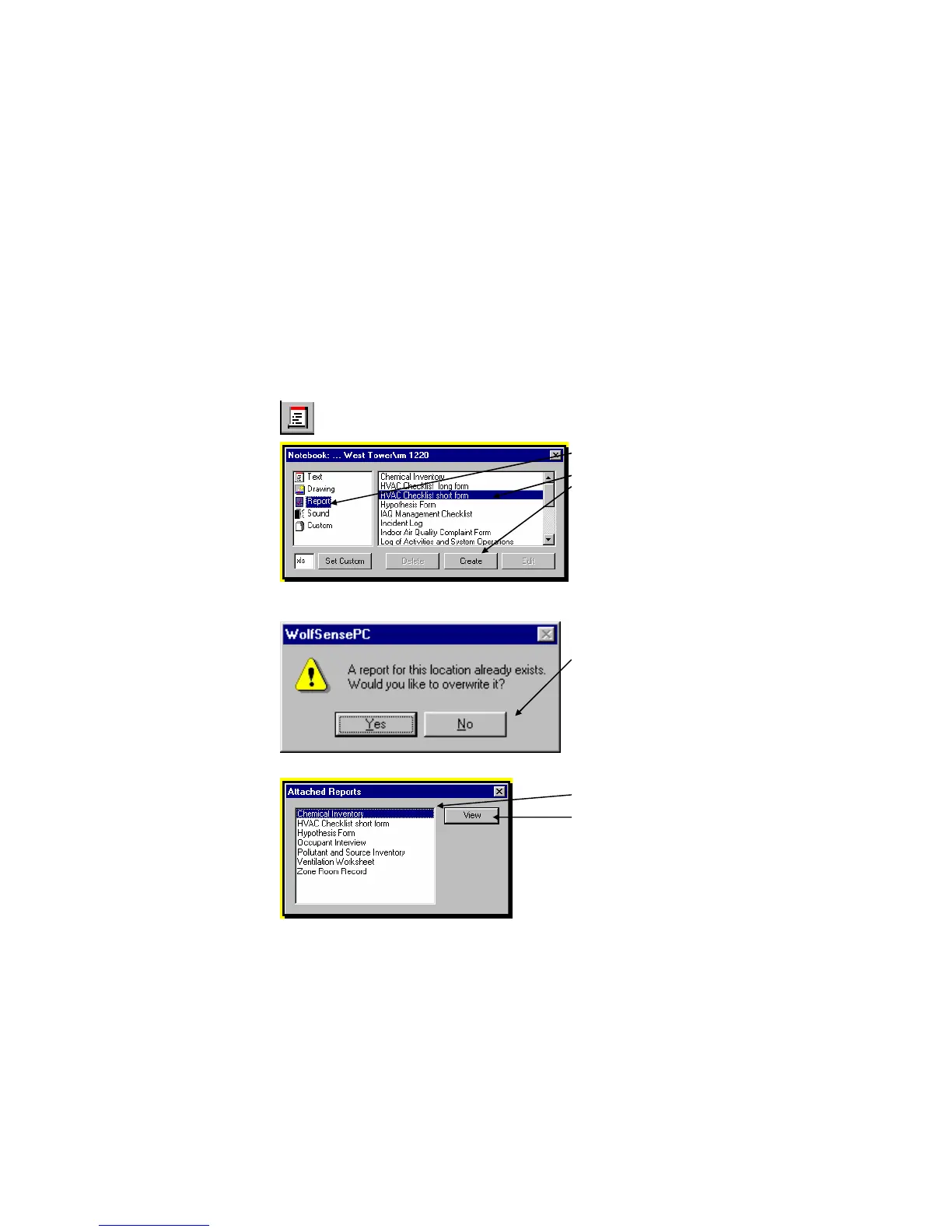
Click on or tap Report.
Click on or tap a report template on the right.
Click on or tap Create. Edit will be available only if a
report already exists for the location
If you click on or tap Create and a report already
exists for this location, you will see this warning.
Click on or tap Yes or No.
The report will open in MS Word. See Help for MS
Word about its editor features.
To print the report, click on or tap File, Print, OK.
To edit an existing report, click on Report.
The ATTACHED REPORTS dialog box shows a list of
existing reports.
Click on or tap the report you want to edit.
Click on or tap View.
Edit in MS Word.
Save before exiting.
Figure 27 - Report Templates in NOTEBOOK dialog box
Figure 28 – Warning that Report Already Exists
Figure 29 – ATTACHED REPORTS dialog box



 To Next Page