25
After logging is complete, open a location file from
WolfSense IAQ LAP, or click on or tap
Start, Programs, GrayWolf, WolfSense PC.
Click on or tap Open to see location files stored on
your Lap PC.
Click, scroll or tap through the directory to find the
location file you want to open.
Click on or tap Open.
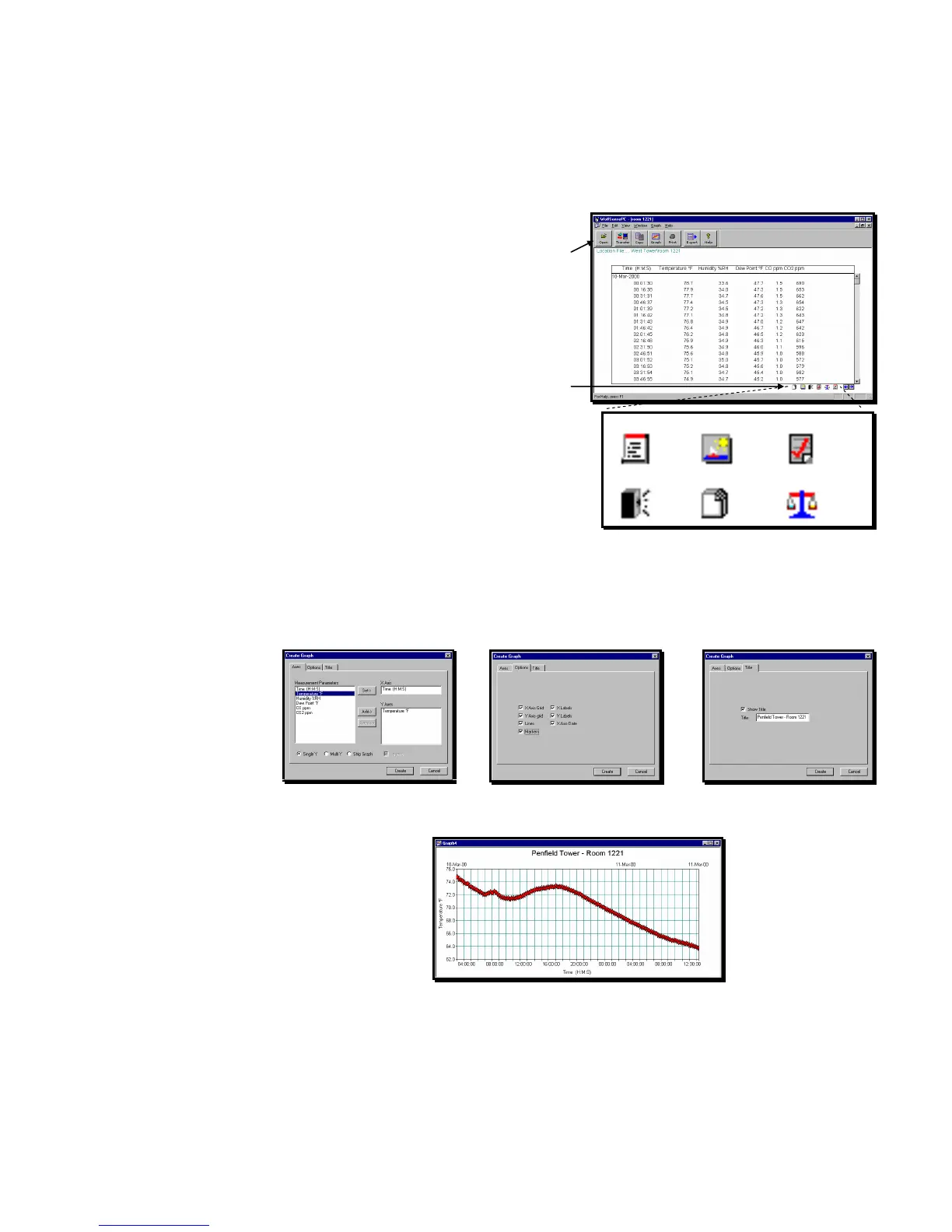
The file will open in a columnar format similar to
View, Details in WolfSense IAQ LAP.
The icons in the lower right-hand corner indicate if a
text note, drawing note, template report, sound note
or custom note exists for this location file.
Click on or tap the associated icon to see a note or
report.
Click on or tap the Calibration Data icon to see
Calibration Data.
Graphing and printing data are shown below. See
“Navigating in WolfSense PC” on page 24 for other
ways to manipulate your data.
Graphing Data Files in WolfSense PC
WolfSense PC offers options for creating graphs: an x-axis and one or multiple y-
axes; grids and labels; and titles that may or may not be displayed.
Figure 47 – Location File Open in WolfSense PC
Figure 48 –Notes and Reports icons
Text Note • Drawing Note • Report Template
Sound Note • Custom Note • Calibration Data
Figure 49 - Graph Axes
Figure 50 - Graph Options Figure 51 - Graph Title
Figure 52 - Graph Generated from WolfSense PC
+ +



 To Next Page