16
Sound
If your Lap PC is equipped with sound recording software and a microphone, you may
record notes as sound.
Click on or tap Sound in the NOTEBOOK dialog box (Figure 27). Click on or tap Create. Speak into the
microphone to record your note. Click on or tap to stop recording and close the sound note.
Custom File Types
You may want to create a custom note using other applications on your Lap PC. Set
Custom lets you set a file extension, so that clicking on Create automatically opens a
new file of that specified file type.
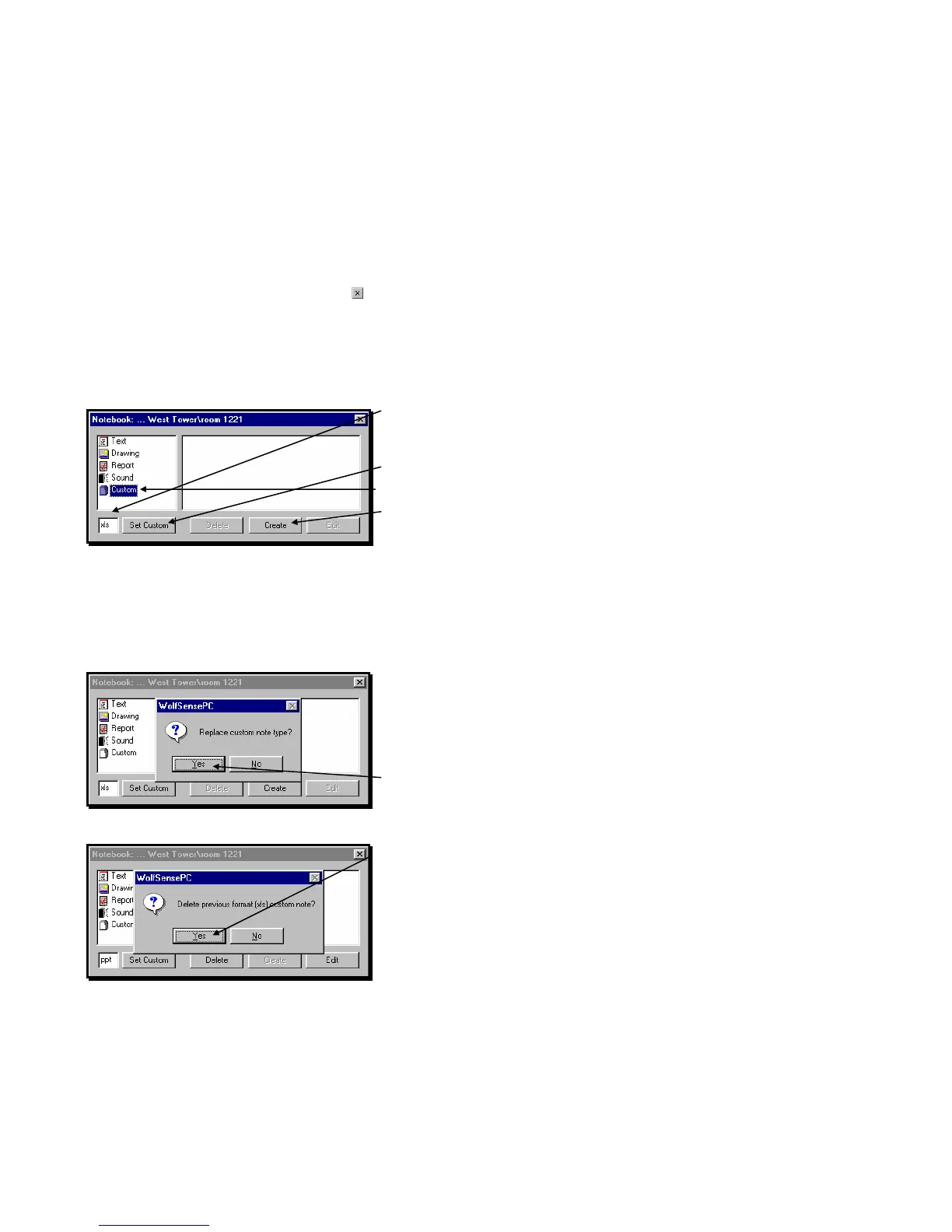
Click on or tap the field next to Set Custom.
Type in the three-character file extension for the type
of custom note you wish to create.
Click on or tap Set Custom.
Click on or tap Custom.
Click on or tap Create.
The editor or software program associated with the
custom file extension will open.
Edit and Print according to the application’s help
instructions. Save before exiting.
To change the custom note to a different file type, you must confirm that you want to
replace the note type and delete the previous custom note.
Click on or tap the field next to Set Custom.
Type in the three-character file extension for the type
of custom note you wish to create.
Click on or tap Set Custom.
Click on or tap Yes to replace the custom note type.
Click on or tap Yes to delete previous format custom
note.
Click on Custom in the NOTEBOOK dialog box.
Click on Create. Create your new custom note and
save before exiting.
If you reset the custom note file type to one you
used before, the old custom note will reappear.
Figure 30 – Custom Note creation
Figure 31 – Change Custom Note Type dialog box
Figure 32 – Delete Custom Note dialog box



 To Next Page