21
Note: If WolfSense detects that a sensor may have drifted out of specification,
the icon will appear, along with a * next to the parameter that may need to
be checked. However, do NOT rely on this indicator to ensure proper
calibration because WolfSense can only detect sensor drift in some instances.
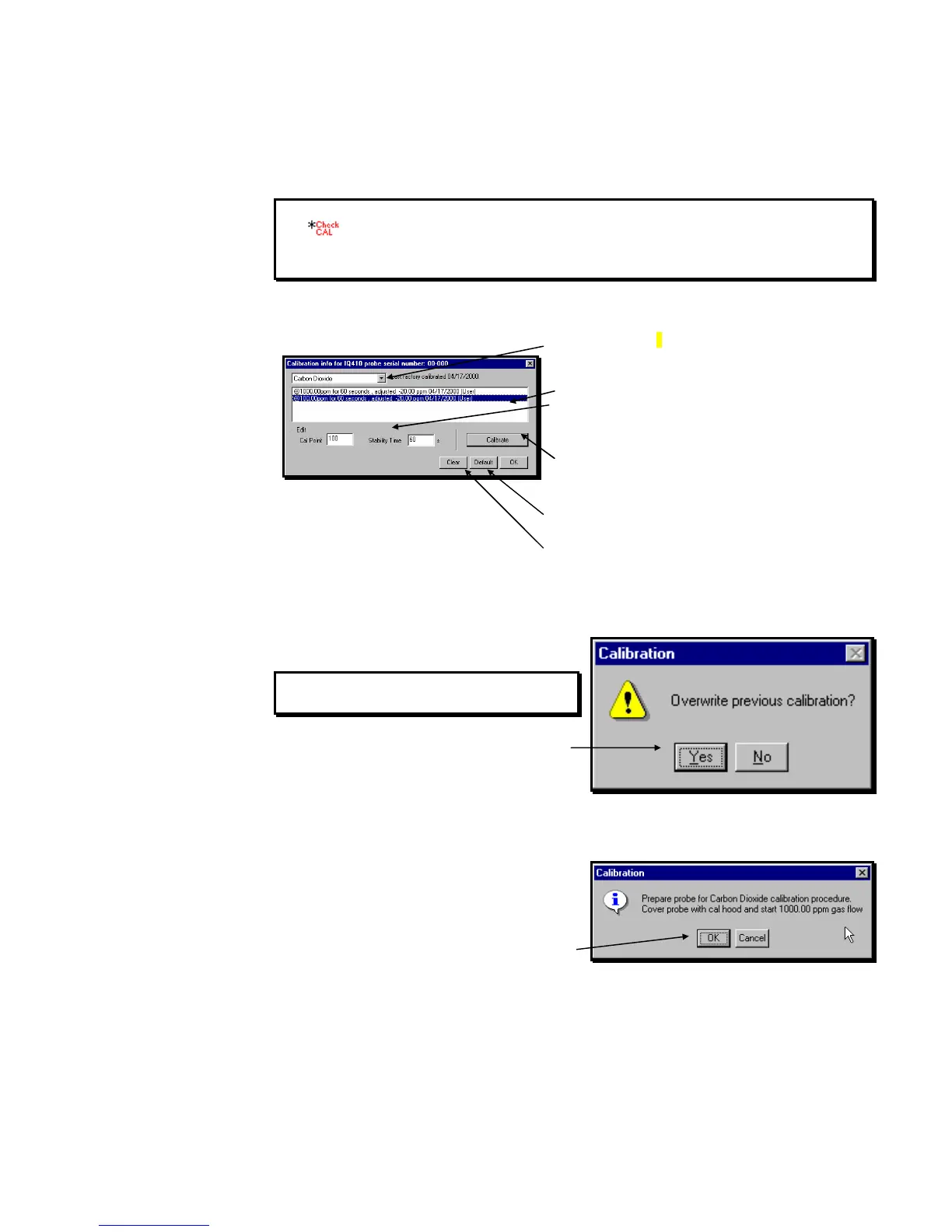
To calibrate the probe, click on or tap Probe,
Calibration.
Click on or tap the arrow to see the drop-down list of
user-calibrated parameters.
Click on or tap the parameter you want to calibrate.
Click on or tap the high or low point value.
Edit the CAL POINT to match your reference value, if
necessary. CAL POINT must match the gas or %RH
reference you use. Recommended STABILITY TIME is 60
seconds, but you may edit it if you wish.
Click on or tap Calibrate to begin the calibration
process.
Optional: Click on or tap Default to force all calibrations
to revert to the factory defaults for calibration points and
stabilization times initially supplied by GrayWolf.
Optional: Click on or tap Clear to remove the current
calibration. If a user calibration is cleared, the probe will
use a NIST calibration (if available) or the factory
calibration.
Clear affects only the selected calibration point.
If you changed the calibration point value, you will be
prompted to confirm this action.
WARNING! Confirming this action will
overwrite the existing calibration settings.
Click on or tap Yes.
Place the probe in the appropriate calibration
environment.
Start the flow of gas for CO or CO
2
, or place the
probe in the %RH jar.
Wait for the readings to settle within a range of
roughly 2-3%. This typically takes under 2 minutes
for CO and CO
2
, but 45-60 minutes for %RH.
Click on or tap OK.
Figure 37 - PROBE CALIBRATION dialog box
Figure 38 - CALIBRATION Warning dialog box
Figure 39 - Set up Calibration Environment for CO
2



 To Next Page