CHAPTER 3
The Menu System
32 Studio Command Series User Manual
Crossloading Fixture Software (XLD)
If you have a Studio Command fixture with a newer software version, you can crossload the
newer software to all other Studio Command fixtures on the link.
Before crossloading, disconnect any consoles, bypass any serial data distributors and/or data
line optoisolators, and bypass or make sure that any fixtures using RS-422 communications
(such as Dataflash
®
AF1000 xenon strobes and Intellabeam
®
fixtures) are located after the
Studio Command fixtures on the link. These devices will block communication with any other
Studio Command fixtures on the link.
To crossload software to all other Studio Command fixtures on the link:
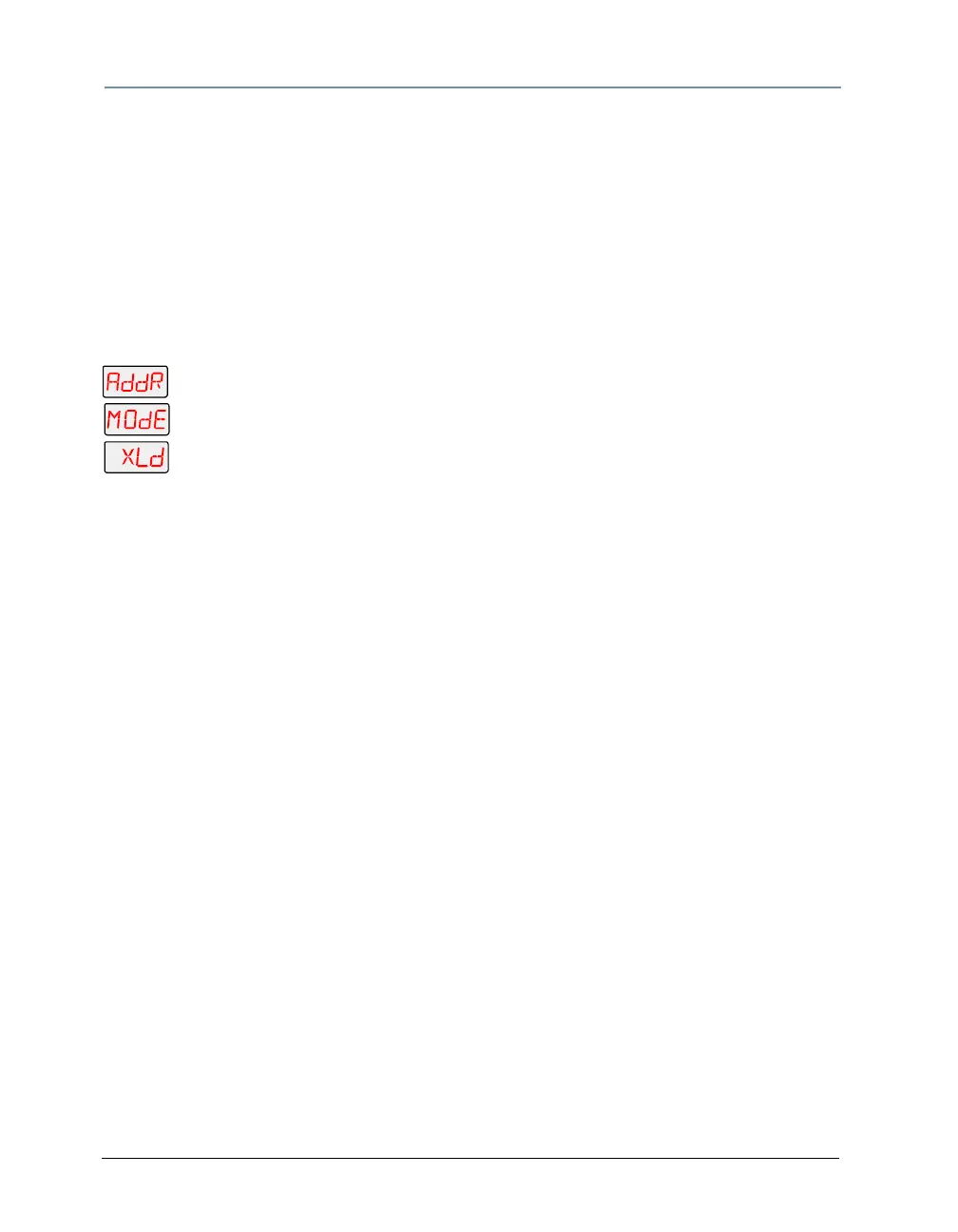
1. Press and hold <Menu> until AddR appears on the LED display.
2. Scroll to the MODE menu. Press <Enter> to select.
3. Scroll to the XLD option.
4. Press <Enter>. The fixture will upload its software to all other Studio Command
fixtures on the link.
The Transmit LED on the crossloading fixture will remain on (or flicker) and the Transmit
and Receive LEDs on receiving fixtures will flicker while the crossload is in progress.
The alphanumeric LED on the Studio Command fixtures will display UPLD as they are
receiving the software upload. When the crossload has finished successfully, DONE will
appear briefly in the LED display of the crossloading fixture, and all other fixtures will home.
Note: If a new boot code was included with the newer software, the
alphanumeric LED will display a BOOT DIFF error. To correct the boot
code, you must copy the new boot code for each fixture (see
Copying
the Boot Code (BOOT) on page 33).



 To Next Page