CHAPTER 3
The Menu System
Studio Command Series User Manual 41
Viewing the Number of Current Lamp Strikes (L/ST)
This option is functional for Studio Command 1200/700 fixtures only. To view the number of
times the fixture has attempted to strike the current lamp:
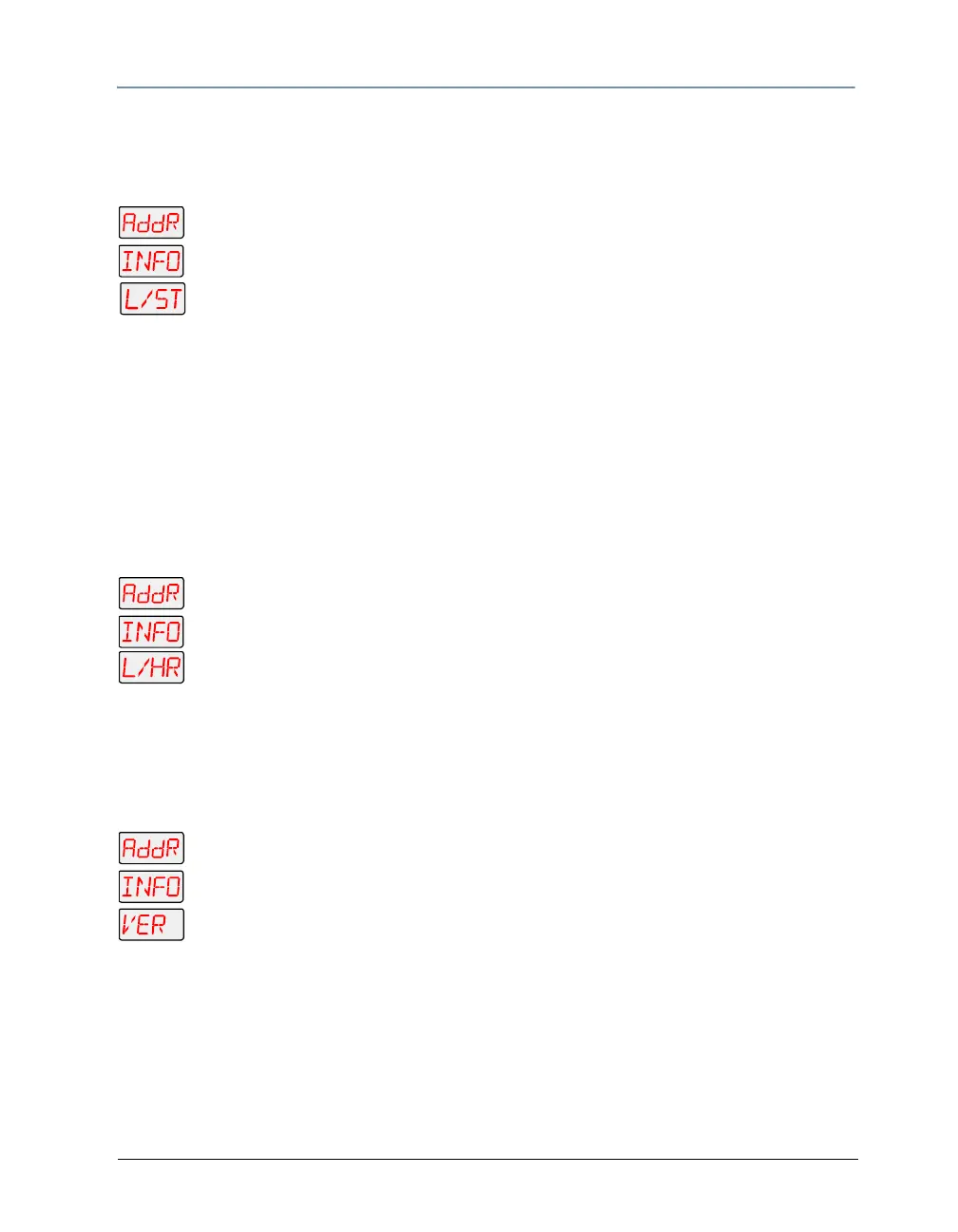
1. Press and hold <Menu> until AddR appears on the LED display.
2. Scroll to the INFO menu. Press <Enter> to select.
3. Scroll to the L/ST option.
4. Press <Enter>. The LED will display the number of times the fixture has struck the
current lamp.
Note: Lamp strikes are automatically reset when the lamp hours are reset
(see
Resetting Lamp Hours (L/RS) (Studio Command 1200/700 models
only) on page 40).
Viewing the Current Lamp Hours (L/HR)
This option is functional for Studio Command 1200/700 fixtures only. To view the number of
hours the current lamp has been on:
1. Press and hold <Menu> until AddR appears on the LED display.
2. Scroll to the INFO menu. Press <Enter> to select.
3. Scroll to the L/HR option.
4. Press <Enter>. The LED will display the number of hours the current lamp has
been on.
Viewing the Current Software Version (VER)
To view the current software version:
1. Press and hold <Menu> until AddR appears on the LED display.
2. Scroll to the INFO menu. Press <Enter> to select.
3. Scroll to the VER option.
4. Press <Enter>. The LED will display the fixture’s current software version.
Note: The software version is also displayed when you exit the menu system
(see
Alphanumeric Display Error Messages on page 63).



 To Next Page