BASE STATION SETTINGS
49
5.6 User Settings
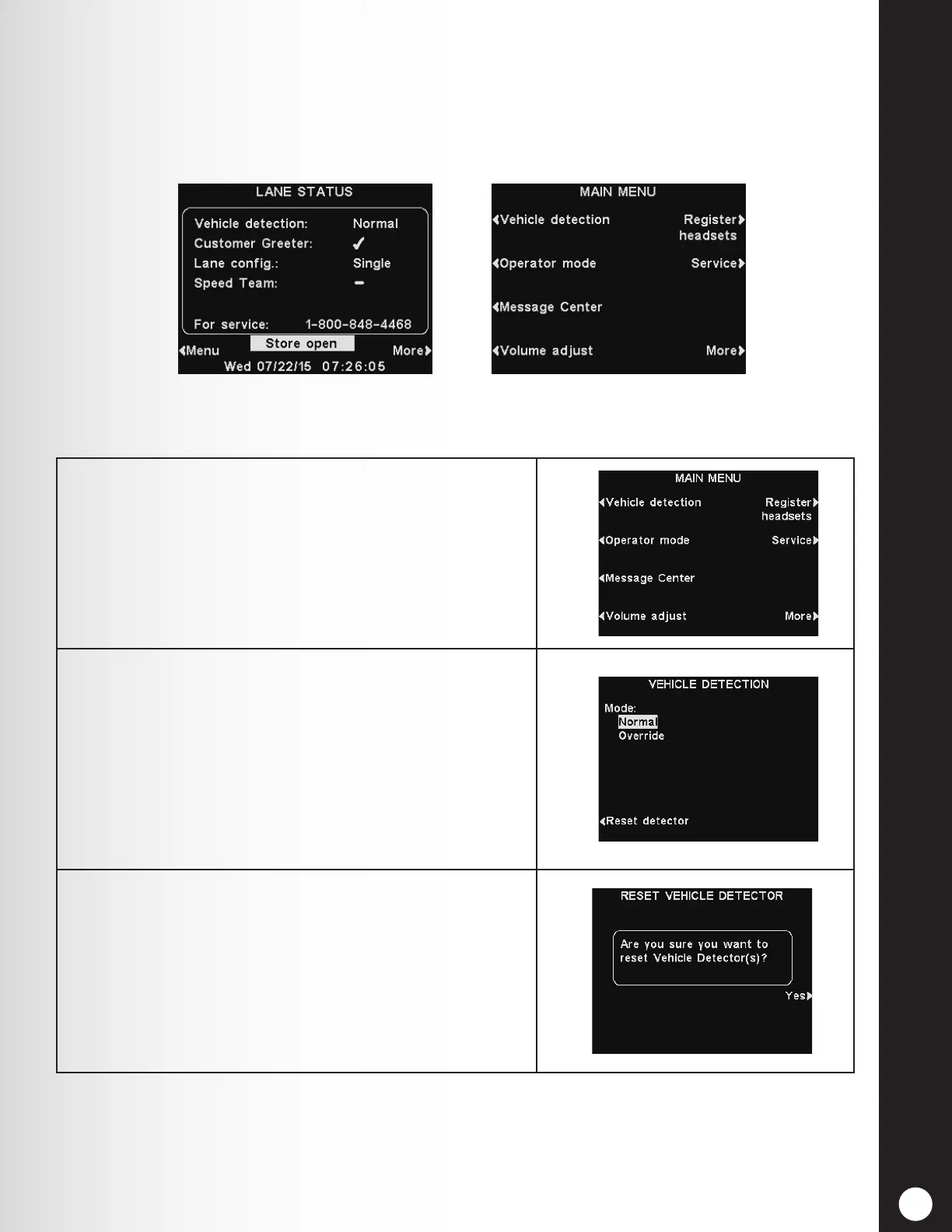
User settings are for routine drive-thru operation. After the initial settings have been entered, store
personnel can adjust the settings as needed. To access the user settings, press the Menu button on the
LANE STATUS display. Routine user settings are accessed from the MAIN MENU.
1. To test the vehicle detector function by simulating
a vehicle arrival at the speaker post or menu board,
select Menu on the LANE STATUS display and then
press the Vehicle detection button on the MAIN
MENU.
Note: Be certain no car (or metal object) is present at
the detection point.
2. Press the Mode button on the VEHICLE DETECTION
display and select Override.
A vehicle alert tone will be heard in headsets, followed
by inbound audio from the outside speaker.
If enabled, a Customer Greeter message will also be
heard. To return to normal operation, press the Mode
button again and select Normal.
3. If you experience a problem with vehicle detection,
such as continuous inbound audio heard from the
outside speaker or no alert tone when a vehicle
arrives, press the Reset detector button on the
VEHICLE DETECTION display. Then, press the Yes
button to reset Vehicle Detector(s).
When “Reset Completed” ashes on the display, press
the Back button to exit.
5.6.1 Vehicle Detection



 To Next Page