BASE STATION SETTINGS
82
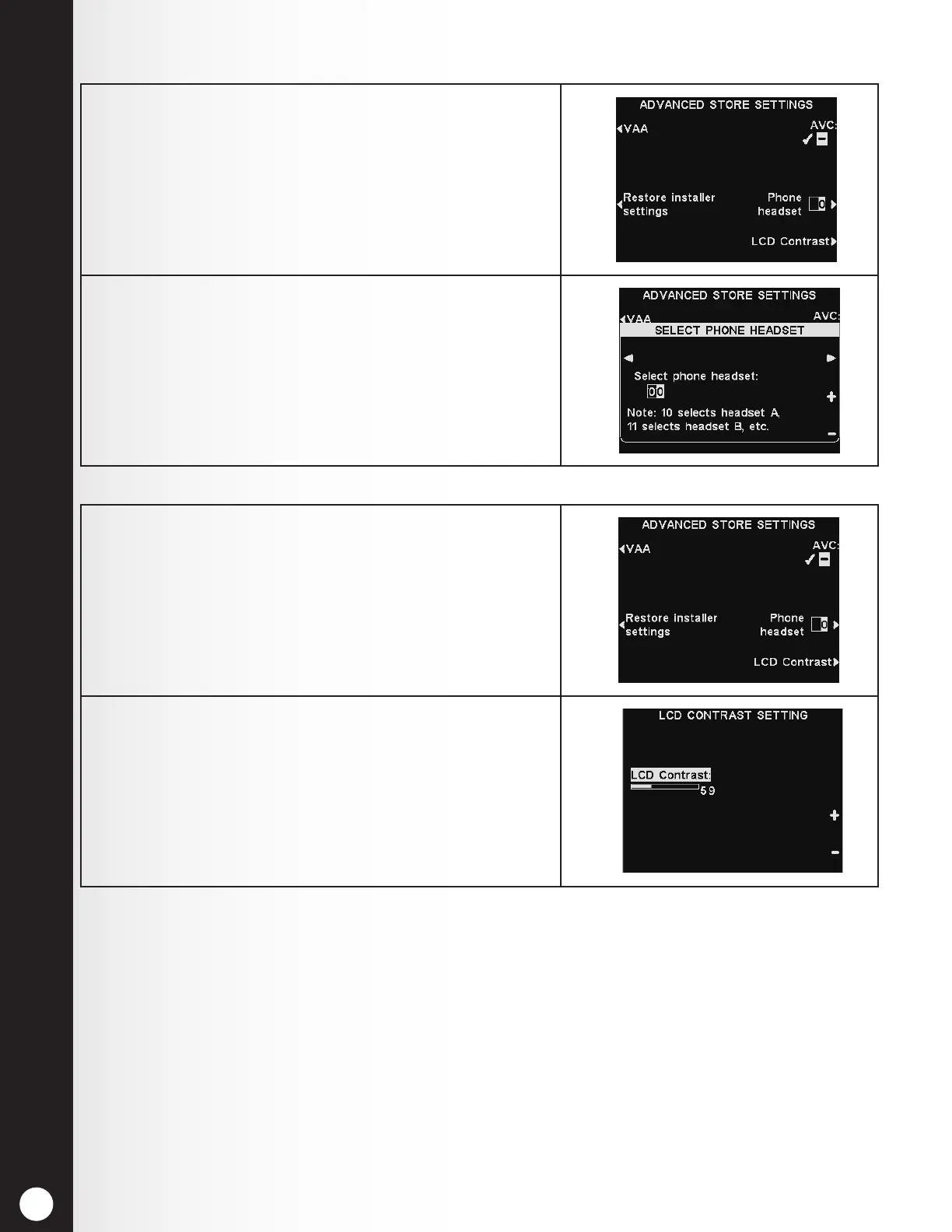
Phone Headset
LCD Contrast
1. Press the Phone headset button on the ADVANCED
STORE SETTINGS display.
2. On the SELECT PHONE HEADSET display, use the
◄ and ► buttons to move the highlight in the Select
phone headset eld, and then use the + and − buttons
to enter number of the headset.
Press the Back button to save the settings.
1. Press the LCD Contrast button on the ADVANCED
STORE SETTINGS display to adjust the light/dark
contrast of the base station display.
2. Press the + (lighter) and − (darker) buttons to adjust
the contrast.
Note: This is a factory setting that does not normally
require adjusting during installation.
Press the Back button to save the settings.



 To Next Page