OPERATION OF THE SOFTWARE MENU
Imager Duo Operator’s Manual
4.1
Chapter Four
Operation of the Software Menu
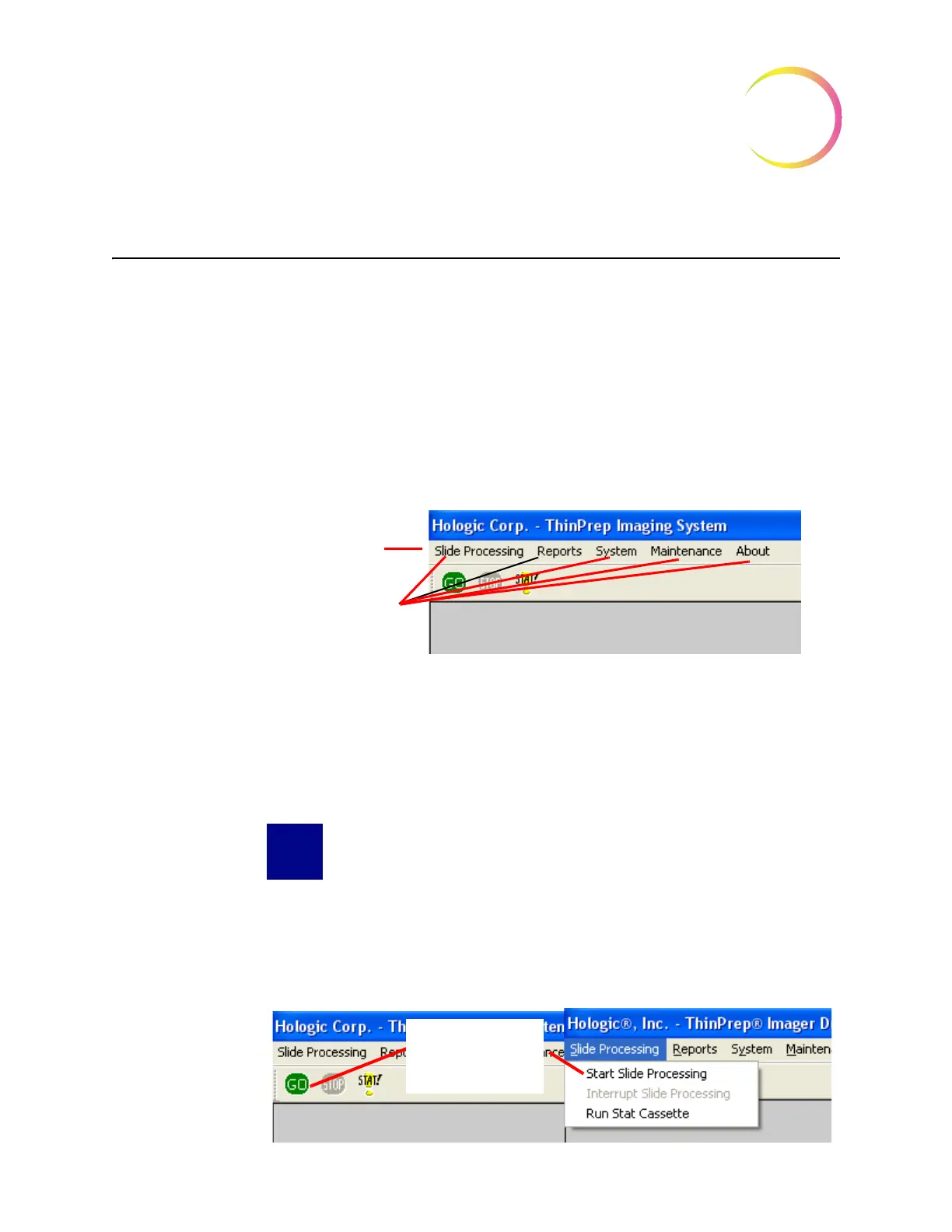
The menu bar is located at the top left of the User Interface, just above the
Go
and
Stop
buttons.
The software has five main menu items: Slide Processing, Reports, System,
Maintenance and About. (Refer to Figure 4-1.)
Figure 4-1 Main Menu
To view the options within a menu, place the cursor over the menu item and
click once. The menu box expands to display the functions.
Note:
If a function is unavailable (some functions cannot be performed during
slide processing, for instance), the function will be visible, but ‘grayed
out’. Clicking on the grayed out item will have no effect.
SLIDE PROCESSING MENU
This menu presents user selectable commands for starting or interrupting slide
processing. Note: The green
Go
button and the red
Stop
button seen directly
below the Slide processing pull down menu box will execute the same func-
tions, respectively. (Refer to Figure 4-2.)
Figure 4-2 Slide Processing Menu
Press the Go Button
or select from the
drop down menu












 To Next Page