Using Z-Wave Devices and Scenes (cont'd)
23
Set Lights (on/off): In the Action box, press Add. Press the LIGHT button and select a Light
Device from the drop-down menu; set the action to ON, OFF; or select ON FOR TIME and press
on the “Hour/Minutes” displayed and enter an amount time.
Note: ON FOR TIME allows you to activate the scene for a specified period of time.
Set the Recording: In the Action box, select Recording and select the camera for
recording. Select Save when done.
Room Setup
A room is a defined collection of different types of Z-Wave devices (such as light modules, door locks,
thermostats, etc.). Up to 50 rooms can be created. Follow the procedure below to create a Room.
Press the Automation , Room Setup
and Add
icons.
Select the “Room Name” field and enter a room name on the “Data Entry” keyboard and press GO.
Check the box next to the device(s) that you want to be controlled in this Room and press Save .
Select the Edit icon to make changes to existing Rooms; use the Delete
icon to delete a Room.
If settings were changed, a pop-up confirmation window displays:
“Settings changed. Do you want to
save?.”
Select
Yes
or
No
.
Group Setup
A group is a defined collection of the same type of Z-Wave devices (such as only light modules, or only
door locks, etc.) that can be used in scenes. When used in a scene and the scene activates, all devices
assigned to that group activate. Up to 20 groups can be created with up to 10 of the same type devices
in each group, such as 10 door locks, etc. Follow the procedure below to create a Group.
Press the Automation , Group Setup
and Add
icons.
Select the “Group Name” field and enter a room name on the “Data Entry” keyboard and press GO.
Select the Group Type (Binary Light, Door Lock, Thermostat, Multilevel Switch, Shades, Other) from
the drop-down list.
Select the device(s) from the drop-down list that you want to add to this “Group” and press Save .
A confirmation message is displayed:
“Z-Wave device group settings saved.”
Select the Edit icon to make changes to existing Groups; use the Delete icon to delete a Group.
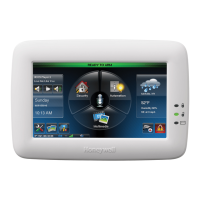
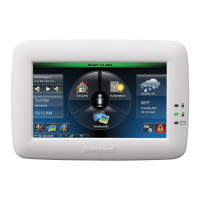
Setting a Secondary Tuxedo Controller
After all Z-Wave devices have been added into the Primary Tuxedo (#1), if desired, the device
information can be downloaded to a Secondary Tuxedo (#2). Keep Tuxedos within 10 feet of each other,
apply power to Tuxedo #2 and do the following:
1. At Tuxedo #1: Press the Automation and Z-Wave Setup
icons; the “Z-Wave Device
Management” screen is displayed.
2. At Tuxedo #2: Remove any Z-Wave devices that have been added. Press the Z-Wave Primary
icon (located in the lower right side of the screen) and select Yes to change this keypad to a
Secondary Tuxedo. The message is displayed: “Scanning for Devices”… “Updating Devices.
Please Wait.”


 To Next Page
 Loading...