6.2 Installing a Card
Context
This section describes how to install a pluggable card in the S3700, S5700, and S6700 series
switches, using a 4-port front card as an example. The installation method is the same for all
switch models that support pluggable cards. For details about which models support what
cards, see "Cards" in the Hardware Description.
NOTICE
l Only switch models S3700-HI, S5700-HI, S5710-EI, S5710-HI, S5720-C-EI, S5720-PC-
EI, S5730-SI, S5730S-EI, S5720-HI, S6720-EI, and S6720-SI support hot swappable
cards. For other switch models, the switch must be powered off before a card can be
installed.
l To use a front 4xGE or 4x10GE optical interface card on the S5700-SI, S5710-LI, and
S5700-EI, you must also install an extended rear card.
l If you feel resistance or find the card inclined during the installation, pull the card out and
push it into the slot again. Do not force the card into the slot as doing this may damage the
connectors on the card and the backplane.
l Install filler panels in vacant slots.
Tools and Accessories
l ESD wrist strap or ESD gloves
l Phillips screwdriver
Procedure
Step 1 Wear an ESD wrist strap or ESD gloves. When wearing an ESD wrist strap, ensure that it is in
close contact with your wrist and grounded properly.
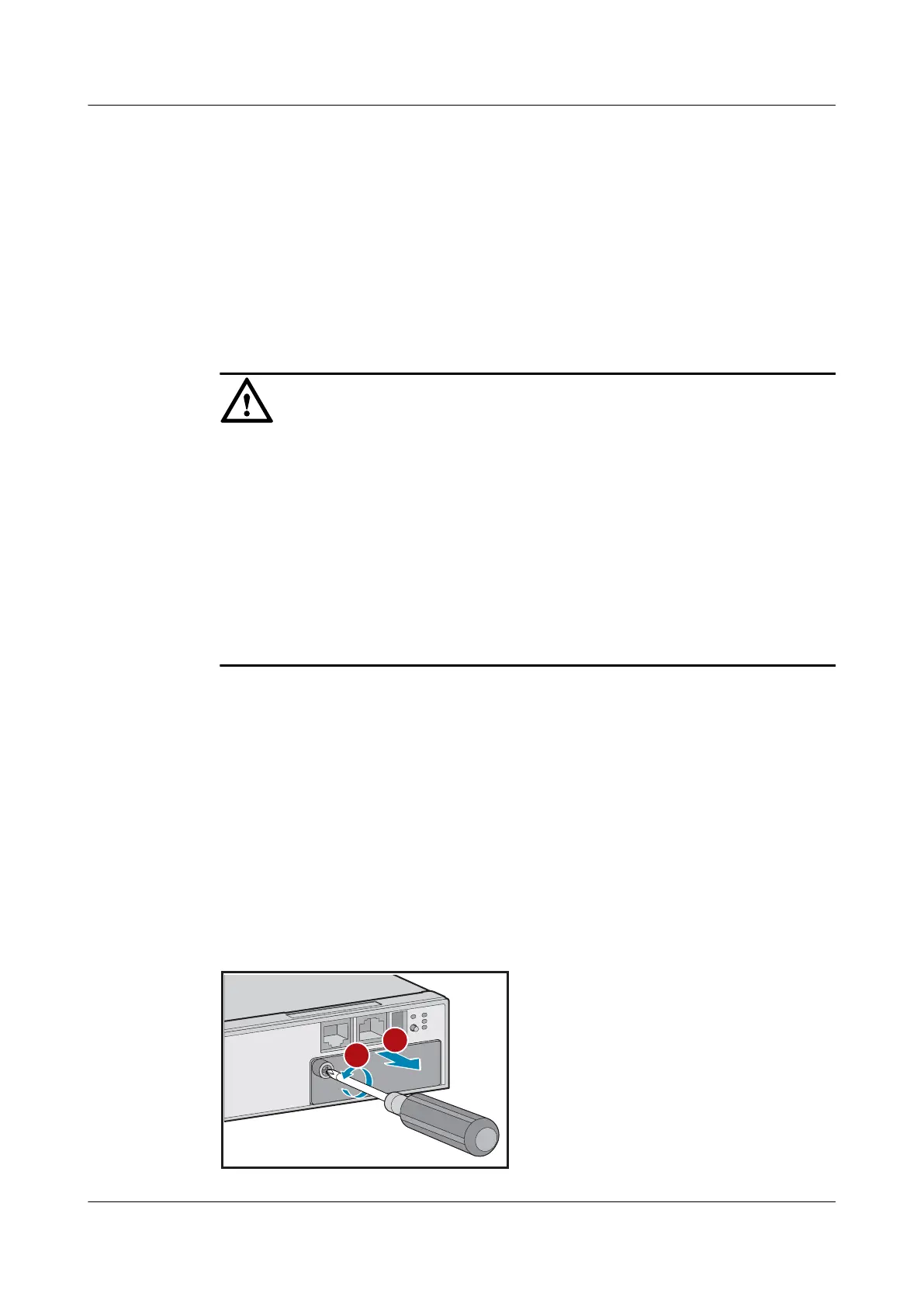
Step 2 Remove the filler panel from the slot into which the card will be installed. Keep the filler
panel for future use.
1. Use a Phillips screwdriver to loosen the captive screw on the filler panel.
2. Holding the captive screw, pull out the filler panel.
S2700&S3700&S5700&S6700 Switch
Hardware Installation and Maintenance Guide
6 Installing Modules
Issue 13 (2017-11-20) Huawei Proprietary and Confidential
Copyright © Huawei Technologies Co., Ltd.
48





 To Next Page