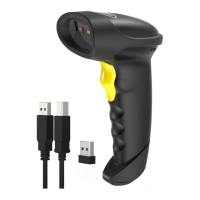
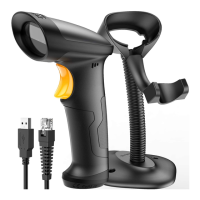
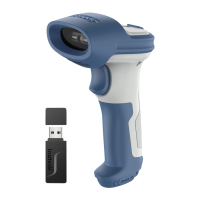
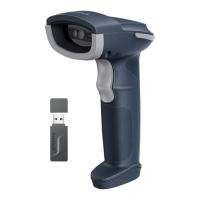
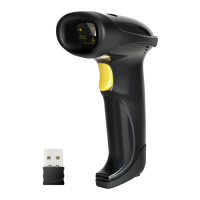
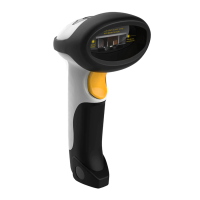
Wireless adapter mode is the default connection mode. To use this mode please
refer to the details below.
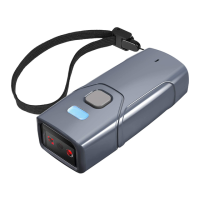
1. Power on Inateck BCST-43 by toggling the switch from OFF to ON
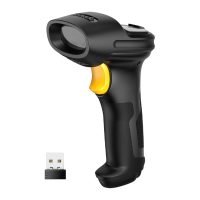
2. Plug the USB adapter into a computer. Short press the trigger on the barcode
scanner and it will emit a red beam, and then the barcode scanner can work in
wireless adapter mode.
3. Open a file on the computer and move the cursor to the place where the
scanning result should be displayed and saved.
Note:
Wireless adapter mode is the default connection mode of BCST-43 barcode
scanner. If you are using wireless Bluetooth mode and want to switch back to
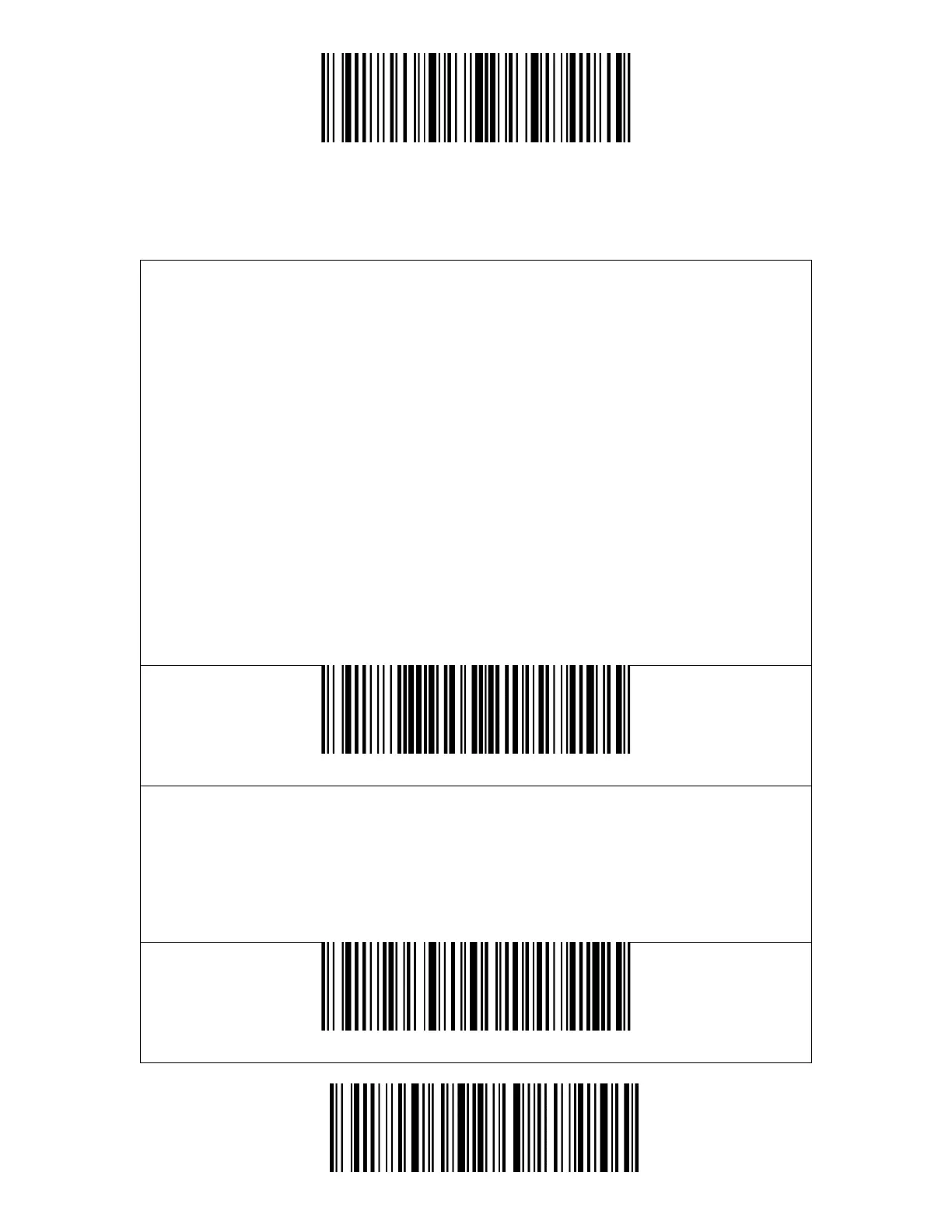
wireless adapter mode, please scan the command barcodes in sequence "Enter
Setup"-"Wireless Adapter Mode"-"Save and Exit ".
Pair one or more scanners with one USB adapter
a) Plug the adapter into your computer.
b) Scan "Enter Setup".
c) Scan " Pair one or more scanners with one USB adapter" and get Inateck BCST-
43 as close as possible to the USB adapter (within 2 meters).


 To Next Page