Terminal User Guide
Page 24
iWL250 User Guide
Copyright© 2019 Ingenico
Loading a Paper Roll
Your terminal is supplied with one paper roll already installed. When the paper roll
is nearing the end a red line will appear on the paper, this indicates that the paper
roll must be replaced.
To replace the paper roll:
1. Hold your terminal securely in one hand, with the other hand, and by
using two fingers; lift the printer cover release as shown. Fully open the
printer cover and remove the old roll of paper.
2. Unstick the end of the new roll, leaving the end free; carefully place the
paper roll into the printer compartment.
3. Holding the free end of the paper and your terminal, close the printer
cover carefully and push firmly until it locks.
4. While your terminal is displaying the idle screen, press and hold the
clear key to ensure that the paper feeds correctly.
You should only use approved paper rolls as supplied by your
terminal supplier. Only thermal paper rolls that are 57mm wide
and 40mm in diameter can be used in your terminal; attempting
to fit rolls of a different size may damage your terminal.
If you see the prompt BAD SWIPE, check the orientation of the card and try again.
If a chip card is swiped, your terminal will request that you insert the same card
into the chip card reader by displaying the prompt USE CHIP READER.
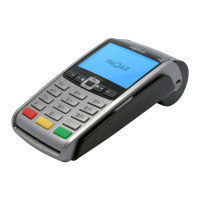
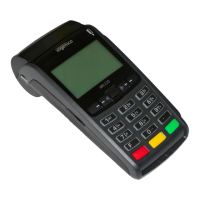
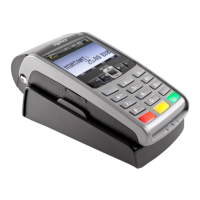
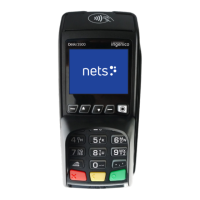
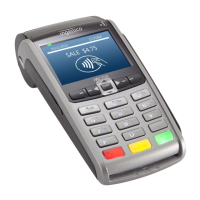
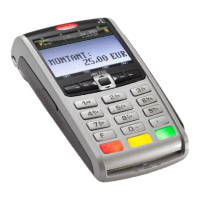
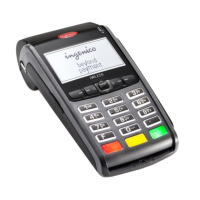
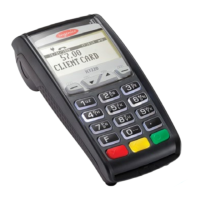
Fig. 1a Fig. 1b Fig. 2 Fig. 3


 To Next Page
 Loading...