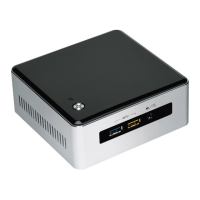
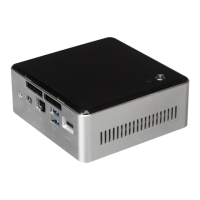
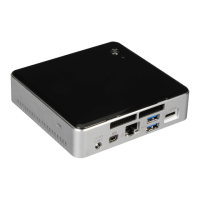
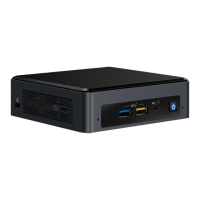
Intel NUC Board NUC5PGYH Technical Product Specification
62
3.7.4 Power Button Menu
The Power Button Menu is accessible via the following sequence:
1. System is in S4/S5 (not G3)
2. User pushes the power button and holds it down
3. The system will emit three short beeps from the PC speaker or headphones, if installed, then
stop to signal the user to release the power button (approximately 3 seconds) or the power
button LED to its alternate color. Release immediately.
4. User releases the power button before the 4-second shutdown override
If this boot path is taken, the BIOS will use default settings, ignoring settings in VPD where
possible.
At the point where Setup Entry/Boot would be in the normal boot path, the BIOS will display the
following prompt and wait for a keystroke:
[ESC] Normal Boot
[F2] Intel Visual BIOS
[F3] Disable Fast Boot
[F4] BIOS Recovery
[F7] Update BIOS
[F10] Enter Boot Menu
[F12] Network Boot
[F3] Disable Fast Boot is only displayed if at least one Fast Boot optimization is enabled.
If an unrecognized key is hit, then the BIOS will beep and wait for another keystroke. If one of the
listed hotkeys is hit, the BIOS will follow the indicated boot path. Password requirements must
still be honored.
If Disable Fast Boot is selected, the BIOS will disable all Fast Boot optimizations and reset the
system.


 To Next Page
 Loading...