iPECS-LIK
Feature Description & Operation Manual Issue 6.0d1
67
2.23 CONFERENCE
2.23.1 Conference Room
Description
In addition to ad-hoc conferencing, users may establish a Conference Room. Other internal
and external parties are invited to the conference and can join the conference without further
action by the user who established the Conference Room. A user can transfer an active call to
a Conference Room. A Conference Room can be password protected so that only parties that
enter the password are allowed to join the Room.
Up to 9 Conference Rooms can be set-up and each can support a maximum of 32 parties with
the g.711 or g.729 codec or 24 parties with the g.723 codec. Conference Rooms employ
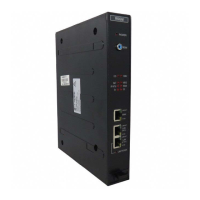
channels from an MCIM (Multi-party Conference Interface Module). Each MCIM supports up to
32 parties and multiple MCIM units may be installed as shown in the chart below.
Operation
Attendant Phone
To view Room participant list
1. Press the [PGM] button.
2. Dial “054”.
3. Dial Room number (1~9).
To delete a Conference Room
1. Press the [PGM] button.
2. Dial “055”.
3. Dial Room number (1~9).
iPECS Phone
To set-up a Conference Room
1. Press the [PGM] button.
2. Dial 53 to create a Conference Room.
3. Dial the desired Conference Room number (1~9).
4. If desired, enter a password for the Conference Room (must be exactly 5 digits).
5. Press [SAVE] button to establish the Room.
To join a Conference Room
1. Dial 59, the Conference Room entry code.
2. Dial the Conference Room Number.
3. Dial the Conference Room password.


 To Next Page