#17
www.istorage-uk.com
iStorage datAshur SD
®
User Manual v1.0.8
Note: When the datAshur SD is in Admin Mode, the BLUE LED will remain on and solid for 30 seconds only,
during which time the drive can accept instructions via the keypad allowing it to be configured with a host of security
features. If no key event happens within 30 seconds, the datAshur SD will exit Admin Mode automatically - the solid
BLUE LED switches to a solid RED LED which then fades out to the Idle State (all LEDs off).
To immediately exit Admin Mode (solid BLUE LED), press and hold down the SHIFT ( ) button for a second - the
solid BLUE LED switches to a solid RED LED which then fades out to the Idle State. To access the drive contents
(data), the datAshur SD must first be in the Idle State (all LEDs off) before an Admin/User PIN can be entered.
Important: The creation of a new User PIN must comply with the ‘User PIN Policy’ if one has been configured
as described in section 8, which imposes a minimum PIN length and whether a special character has been
used. Refer to section 10 to check the user PIN restrictions.
18. Activating Recovery Mode and Creating New User PIN
The User Recovery PIN is extremely useful in situations where a user has forgotten their PIN to unlock the datAshur SD.
To activate the recovery mode, the user must first enter the correct One-Time Recovery PIN, if one has been configured. The
user PIN recovery process does not impact the data, encryption key and Admin PIN, however the user is forced to configure a
new 8-64 digit User PIN.
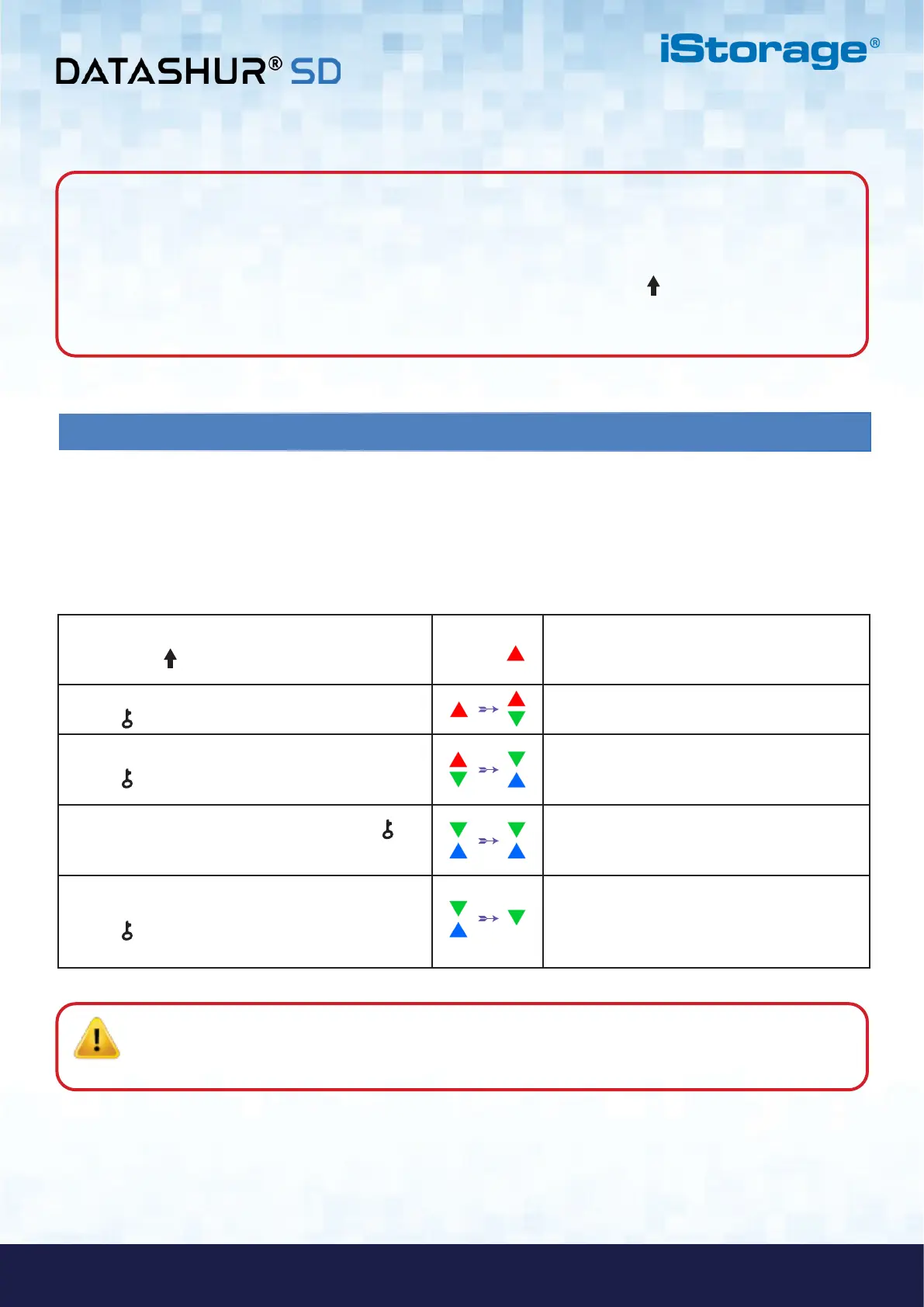
To activate the Recovery process and configure a new User PIN, proceed with the following steps.
1. With the drive in Idle State press and hold down
the SHIFT ( ) button for one second
A solid RED LED switches on indicating the
drive is in Standby State
2. In Standby State press and hold down both
KEY ( ) + 4 buttons
Solid RED LED will change to blinking RED and
GREEN LEDs
3. Enter the One-Time Recovery PIN and press the
KEY ( ) button
GREEN and BLUE LEDs alternate on and off then
to a solid GREEN LED and finally to blinking
GREEN and solid BLUE LEDs
4. Enter the New User PIN and press the KEY ( )
button
Blinking GREEN and solid BLUE LEDs change to
a single GREEN LED blink then back to blinking
GREEN and solid BLUE LEDs
5. Re-enter the New User PIN and press the
KEY ( ) button again
GREEN LED will rapidly blink three times and
will then change to a solid GREEN LED
indicating the recovery process has been
successful and a new User PIN configured













 To Next Page